The Technical Reality of Instagram Carousel Order
Multi-image posts remain one of the most effective organic formats across Meta platforms. They let businesses share educational frameworks, product teardowns, customer testimonials, and visual narratives. However, one of the most common frustrations content creators and social media teams face is discovering an out-of-order slide after tapping publish.
Understanding how to reorder Instagram carousel posts requires distinguishing between pre-publish composition and post-publish modification. During drafting, the Instagram interface allows straightforward numerical selection and drag-and-drop thumbnail sorting. Once published, the platform treats media containers as immutable sequences on its content delivery network, meaning arbitrary slide swapping is natively restricted.
For growing brands, sequence errors can disrupt educational pacing, ruin swipe-through prompts, or misplace pricing slides. Knowing the precise boundaries of Instagram’s native interface—and what can be fixed without losing engagement metrics—saves hours of operational frustration.
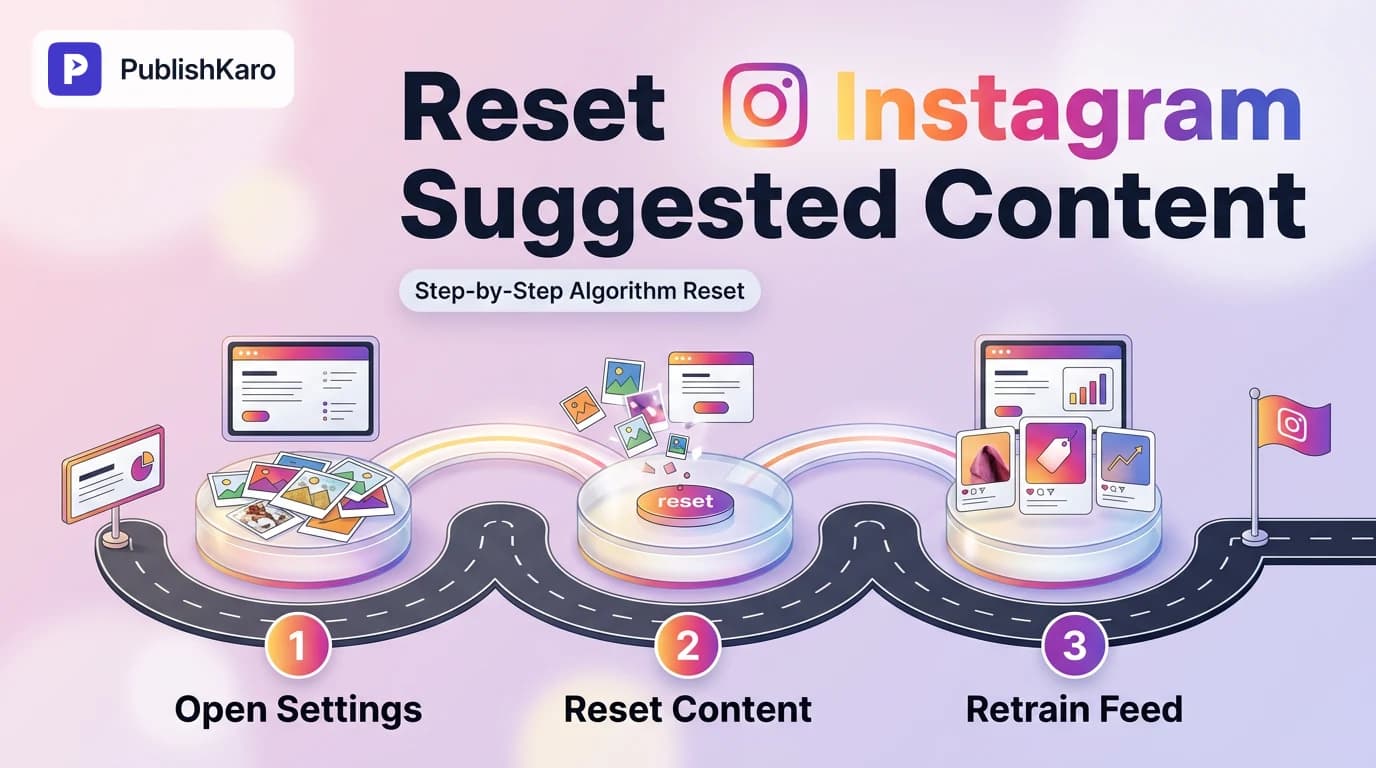
Reordering Instagram Slides Before Posting
Fixing slide order before a post goes live is always the cleanest, safest route. Managing your upload sequence properly within the iOS or Android interface takes only seconds if you follow these sequential steps.
Step 1: Media Selection Sequence
When you open the Instagram creation tray and choose Post, tap the Select Multiple (overlapping squares) icon. The order in which you tap your images or videos assigns a visible number badge (1 through 20) to each asset. This badge dictates the initial slide sequence. If you tap an image by mistake, tap it again to deselect it, which automatically renumbers the remaining items.
Step 2: The Thumbnail Tray Reorder
After selecting your assets, tap Next to enter the filter and edit preview screen. Below the main preview frame, you will see a horizontal strip of your selected thumbnails:
- Long-press any thumbnail until it lifts slightly.
- Drag it horizontally left or right to its new target position.
- Release the thumbnail to lock the new sequence.
- Repeat this step for any misplaced slides before proceeding to caption editing.
Using this native sorting window ensures that visual hooks, body slides, and closing calls-to-action sit in precise alignment before reaching your followers' feeds.
Edit Instagram Carousel Order After Posting: What Is Actually Possible?
Can you edit an Instagram carousel order after posting? The short answer is: not directly through a drag-and-drop editor.
Once an asset container is published via the consumer application or through endpoints defined in the Instagram Platform Documentation, the core array order is established. Meta’s architecture does not provide a public user-interface button to slide position 4 into position 2 on an active post.
However, marketers have two viable paths depending on whether they need to preserve accumulated engagement:
- The Native Slide Deletion Method: If a slide is simply out of place or redundant, you can selectively delete it while leaving the rest of the carousel intact.
- The "Recently Deleted" Restore Workaround: A community-discovered sequencing trick that uses Instagram’s native account restoration behavior to shift slides to the end of a carousel.
- A Clean Repost: Best executed within the first 5 to 15 minutes of publication if the narrative flow is critically damaged.
How to Delete and Rearrange Slides in an Instagram Carousel
If your carousel has three or more slides, Instagram allows you to remove individual slides without deleting the entire update. Here is how to delete and rearrange slides in an Instagram carousel using native controls.
Deleting an Out-of-Order Slide
- Navigate to the published carousel post on your profile.
- Tap the three dots (...) in the upper right corner of the post.
- Tap Edit.
- Swipe through the carousel slides until you reach the specific slide that is out of order or duplicated.
- Tap the small Trash Can icon located in the top-left corner of that slide.
- Select Delete in the confirmation prompt.
- Tap Done (iOS) or the checkmark (Android) to commit the edit.
Note: Instagram requires at least two slides to remain in the carousel. You cannot reduce a carousel down to a single-image post via the delete tool.
The "Recently Deleted" Slide Reorder Workaround
While not an officially documented workflow in Meta Business Help, many social media managers use the platform's media recovery mechanism to re-position intermediate slides to the back of the deck:
- Delete the Slide: Follow the steps above to delete the slide you wish to move.
- Access Account Activity: Navigate to your Instagram profile, tap the hamburger menu (three lines), go to Your Activity, and select Recently Deleted.
- Restore the Media: Locate the deleted slide, tap the three dots, and select Restore.
- Inspect Sequence: In many app versions, restored slides are automatically appended as the final slide of the carousel rather than returning to their original intermediate index.
Because app updates can alter how restored media indices are resolved, always test this technique on a non-critical test post before relying on it for high-value client campaigns.
Carousel Content Planning and Structural Best Practices
Preventing slide order mistakes requires clean asset preparation before files ever touch a mobile device. High-performing business accounts design their carousels around structured narrative templates.
The Anatomy of an High-Retention Carousel
- Slide 1: The Hook: A single visual concept or bold question that encourages the first swipe.
- Slide 2: The Context / Problem: Expanding on why the hook matters to the viewer.
- Slides 3–7: The Core Value: Step-by-step points, comparisons, data, or product features.
- Slide 8–9: The Summary or Proof: Customer result, framework recap, or transformation.
- Final Slide: The Action: Clear next step (save, share, visit link in bio, or leave a specific comment).
If slide 5 accidentally publishes as slide 2, your entire argument collapses. To safeguard your publication process, many teams adopt systematic scheduling workflows. For instance, with the PublishKaro publishing app, marketing teams plan multi-image posts systematically in Google Sheets. From there, automated checks ensure creative assets and captions align before scheduling via official platform APIs, avoiding manual upload errors on mobile screens.
For businesses building broader organic engines across channels, combining strong visual carousels with strategic short-form video creates balanced discovery. You can explore how trial videos work in our guide on how to schedule Instagram trial reels.
Comparison Table
Evaluating the different methods for handling carousel slide order reveals clear trade-offs between speed, post engagement, and sequence control.
| Method | When to Use | Preserves Likes & Comments? | Native Drag & Drop? | Maximum Final Control |
|---|---|---|---|---|
| Pre-Publish Reorder | During post creation before tapping share | N/A (Pre-launch) | Yes | Complete control across all slides |
| Individual Slide Deletion | Misplaced, duplicate, or outdated slide post-launch | Yes | No (Deletion only) | Removes error; cannot insert elsewhere |
| Recently Deleted Workaround | Moving an internal slide to the final position | Yes | No (Indirect sequence) | Limited to moving slide to end |
| Full Delete & Repost | First 10 minutes post-publish with severe errors | No | Yes (On re-upload) | Complete control across all slides |
| Third-Party API Scheduling | Multi-channel brand publishing pipelines | N/A (Pre-launch) | Yes (In dashboard/sheet) | High precision before publishing |
Visual guide
Reordering Carousel Slides Before Publishing
Follow these steps in the Instagram app to arrange your multi-image post in the correct sequence before sharing.
Fixing Carousel Order After Publishing
Choose the best corrective action based on how long the post has been live and where the misplaced slide needs to go.
The Recently Deleted Reorder Workaround
Use Instagram's media recovery feature to reposition an intermediate slide to the end of an active carousel without losing comments.
Practical Examples
To see how these principles apply to day-to-day operations, review these three common brand scenarios.
Scenario 1: The B2B Agency Case Study Slide Error
A digital agency published a 7-slide case study detailing a website redesign. Upon checking the live post, the team realized the "Before Metrics" slide was positioned after the "Final Results" slide.
- Solution Chosen: Because the post had only been live for three minutes and had zero comments, the team chose a Full Delete & Repost.
- Execution: They exported the assets again, renamed the files
01_Hook.jpg,02_Challenge.jpg,03_Solution.jpg, and re-uploaded. The narrative integrity was restored immediately without confusing early viewers.
Scenario 2: The E-Commerce Out-of-Stock Product Slide
An apparel brand ran an 8-slide carousel featuring an autumn collection. By day three, the jacket shown on slide 4 had completely sold out across all sizes. The post had accumulated over 1,200 likes and 80 comments.
- Solution Chosen: Individual Slide Deletion.
- Execution: The social media manager opened the post, tapped Edit, scrolled to slide 4, and clicked the trash can icon. The remaining seven slides closed the gap automatically, preserving all historical likes, comments, and attribution links.
Scenario 3: The Educational Framework Out-of-Order Step
A creator published a 10-slide tutorial on digital optimization. Slide 9, which contained the primary call to action ("Save this post for later"), accidentally uploaded in position 3, breaking the instructional flow.
- Solution Chosen: Recently Deleted Restore Workaround.
- Execution: The creator deleted slide 3 via the post editor, navigated to Settings > Your Activity > Recently Deleted, and restored the slide. The slide reappeared at position 10—right where a call to action belonged—saving the educational narrative without resetting comment discussions.
How File Naming and Digital Asset Management Prevent Errors
Most carousel sequencing mistakes happen long before the Instagram app is opened. They stem from chaotic local file storage, random screenshot uploads, and unclear handoffs between graphic designers and social media coordinators.
Adopt Strict Numerical Prefixes
Ensure creative teams export carousel assets with zero-padded numbers. Mobile operating systems sort alphanumeric strings sequentially:
campaign_intro_v2.png(Unpredictable sort)01_campaign_hook.png(Predictable sort)02_campaign_context.png(Predictable sort)03_campaign_proof.png(Predictable sort)
When a marketing assistant selects media inside Instagram, files named with zero-padded numerical prefixes appear in exact reading order within the device's photo gallery, minimizing manual sorting errors.
Centralize Review Pipelines
If your organization manages multi-platform content across Instagram, Facebook, and LinkedIn, relying on direct phone uploads introduces human error. Reviewing your planned carousel slides inside shared cloud workflows helps spot sequencing gaps before posts go live. Teams seeking hands-on strategic support often work with external specialists; explore our dedicated social media services to see how structured planning improves multi-platform consistency.
Similarly, when managing end-to-end multi-channel marketing, cross-platform technical health matters. If you are also directing Instagram carousel traffic to dedicated landing pages, ensuring your web infrastructure is modern and fast is critical. Learn more about Core Web Vitals optimization in our guides on how to reduce Largest Contentful Paint in WordPress or how to migrate to WooCommerce HPOS.
Technical Limitations of the Instagram Graph API
Many brands use social media management tools to schedule content. It is important to understand what the official Meta Graph API supports regarding carousel containers.
Under official endpoints detailed on the Instagram Platform Developer Documentation, carousels are assembled as CAROUSEL container objects containing up to 20 child items (IMAGE or VIDEO).
- Fixed Array Definition: The order of child container IDs passed during creation defines the sequence permanently on Meta’s servers.
- No Post-Publish Modification Endpoints: The public Graph API does not provide endpoints to reorder or delete individual child items in an active container. Slide deletion remains exclusively available inside the native iOS and Android consumer apps.
- Publish Status Transparency: When publishing via automated workflows, ensuring that each child asset uploads completely before container commitment prevents dropped or reversed slides.
Understanding these technical boundaries helps teams realize why no third-party desktop dashboard can offer a magic "reorder published slides" button. Remediation must always be handled either through the mobile app's native editing tools or via proactive scheduling checks.
Checklist
Use this operational checklist before and immediately after publishing any multi-slide Instagram post.
- Files Named Sequentially: All slide assets exported with zero-padded prefixes (
01_,02_, etc.). - Multi-Select Sequence Verified: Numbers 1 through 10 (or up to 20) tapped in exact narrative order.
- Preview Tray Inspected: Horizontal thumbnail strip reviewed using press-and-hold adjustments for any misaligned visuals.
- First Slide Hook Check: Visual text is legible and clearly positioned to stop feed scrolling.
- Swipe Prompts Aligned: Directional arrows or visual teasers point correctly toward the following slide.
- Final Call to Action Positioned: Closing slide provides next steps (comment, share, link in bio).
- Post-Launch Quality Audit: Carousel reviewed on an active device within 60 seconds of publication.
- Remediation Plan Selected: If an error is spotted, decide immediately: delete and repost (<10 min) or edit/delete individual slide (established engagement).
Connecting Visual Content to Brand Conversion
Carousels excel at moving users from discovery to consideration. But visual engagement on social media is only one part of the modern customer journey. For brands driving traffic from social channels into bespoke digital storefronts, technical consistency across the entire funnel is vital.
If your carousels drive users to customized checkout flows, you may want to review our step-by-step guidance on how to switch to new customer accounts in Shopify. Furthermore, if your organic social audience generates inbound product queries, connecting your social funnels to automated messaging can significantly improve response times. Read our walkthrough on how to qualify Click to WhatsApp leads automatically to streamline lead capture.
For enterprise teams managing paid retargeting alongside organic content, maintaining audience exclusions is equally essential. Our guide on how to set up brand exclusions in Performance Max details how to prevent wasted ad spend across Google channels, while our tutorial on how to set up browse abandonment in Klaviyo helps recover interested shoppers after they click through from your social posts.
Every marketing touchpoint—from the order of slides in an Instagram carousel to the speed of your web pages—influences how customers perceive brand authority. At PublishKaro, we support growing businesses with end-to-end digital services, including custom websites, high-performing Shopify stores, structured WordPress sites, targeted ads management, and long-term SEO and Google Business optimization. Every project is quoted after a free discovery call, at a transparent fixed price agreed in writing, ensuring you own every creative asset and platform account.
To browse our full library of technical guides, campaign teardowns, and digital playbooks, explore all PublishKaro articles or dive into our dedicated social media archive.
Key Takeaways
- Pre-publish control is absolute: You can freely arrange slide order by tapping assets in sequence or by using the press-and-drag thumbnail strip on the preview screen.
- Direct post-publish reordering is unavailable: Neither the Instagram app nor official APIs support dragging published slides into new positions.
- Individual slides can be deleted: If a carousel contains at least three slides, tap Edit, navigate to the unwanted slide, and tap the trash icon to remove it without losing post likes or comments.
- The restore workaround offers back-end repositioning: Restoring a deleted slide from Recently Deleted often appends it to the very end of your active carousel.
- File preparation prevents sequencing errors: Zero-padded filenames (
01_,02_) ensure assets load in strict visual order across mobile and desktop environments.
Frequently asked questions
Can you directly drag and drop to reorder an Instagram carousel after posting?
No, Instagram does not currently support dragging and dropping slides to rearrange their order once a carousel is published. You can only alter the display sequence after publishing by strategically deleting individual slides or by deleting the entire post and re-uploading your assets in the intended sequence.
How does the delete-and-restore workaround work for rearranging carousel slides?
If your carousel has at least three slides, you can edit the post, tap the trash icon on a slide you want to move to the back, and save. When you later navigate to your account activity to restore that slide within 30 days, Instagram frequently places restored media at the very end of the existing carousel.
How do you reorder slides in the Instagram app before publishing?
When creating a new carousel, tap the multi-select icon in your media picker. The order in which you tap your images and videos determines their numerical slide order. On the subsequent preview screen, you can also press and hold any thumbnail to drag and drop it into your preferred layout before sharing.
What is the maximum number of slides allowed in an Instagram carousel?
Instagram allows accounts to include up to 20 images and videos in a single carousel post. However, once published, official API and app constraints prevent adding new images into existing published slots.
Will deleting a slide from a published carousel affect post engagement or metrics?
Deleting an unwanted slide from an active carousel preserves your existing likes, comments, and post URL. However, if that specific slide contained comments or tags, those slide-level interactions may disappear, and your overall visual continuity will adjust instantly for new viewers.
Can desktop scheduling tools reorder carousel slides after they go live?
No external tool or official API integration can reorder slides once they are published on Instagram's servers. Third-party platforms can only control slide ordering during the draft, scheduling, and pre-publish stages.