Understanding Shopify Customer Account Architecture
Customer accounts are vital for merchant retention, customer lifetime value, and order support workflows. For over a decade, the platform ran exclusively on what is now classified as classic customer accounts. In that legacy architecture, buyers register by setting a manual password and an email address. Their profile pages, past receipts, saved shipping addresses, and support histories are generated through Liquid template files residing directly within your active storefront theme directory (such as customers/account.liquid, customers/order.liquid, and customers/login.liquid).
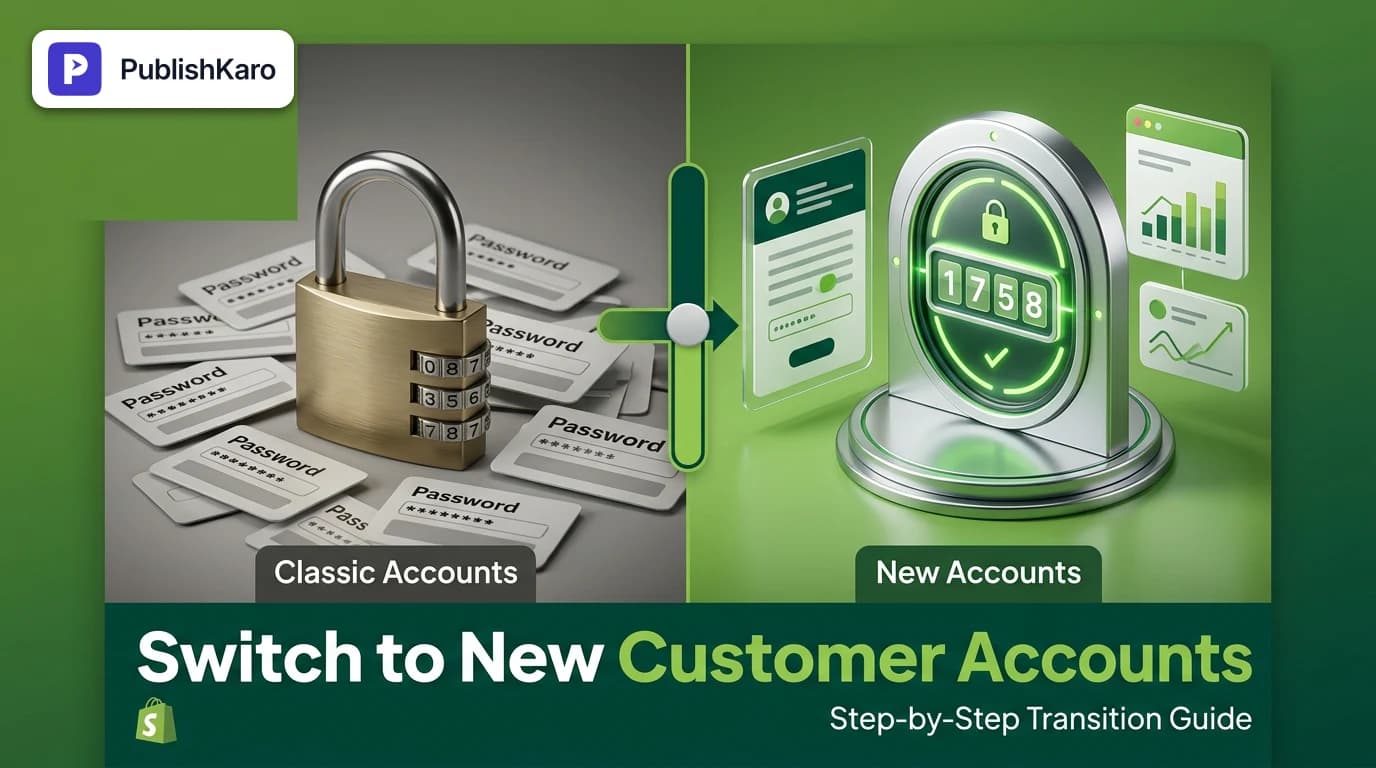
Shopify engineered new customer accounts to modernize this user experience and bring customer identity into the modern checkout ecosystem. Rather than forcing buyers to create, remember, or reset complex passwords, the new framework provides passwordless authentication. A shopper types their email address, receives a time-sensitive, six-digit numeric security code via email, and enters it to authenticate instantly. Once logged in, the customer enters an account portal that runs on the secure checkout domain alongside Checkout Extensibility.
When evaluating shopify classic vs new customer accounts, merchants must weigh user experience against technical customization. While classic accounts let developers edit raw Liquid and inject arbitrary JavaScript snippets directly into theme files, they also create code bloat and security vulnerabilities. New customer accounts run inside a sandboxed environment where visual styling inherits your global checkout branding settings, and advanced functional blocks are powered by standardized UI Extensions.
Migrating between these account types is not just a visual toggle; it affects your storefront navigation, sign-in URLs, order tracking, returns processing, B2B wholesale portals, and integrations with third-party apps like subscription portals and loyalty engines.
Comparison Table
Before initiating the switch, review this side-by-side comparison of the core technical and operational differences between both account frameworks:
| Feature / Capability | Classic Customer Accounts | New Customer Accounts |
|---|---|---|
| Primary Authentication | Manual password paired with registered email | Passwordless 6-digit one-time code sent via email |
| Underlying Code Architecture | Theme-based Liquid templates (customers/*.liquid) | Sandboxed UI built into Checkout Extensibility |
| Sign-In URL Path | Store domain path: /account/login | Default hosted URL or custom subdomain path |
| B2B Wholesale Ordering | Requires complex custom code or third-party apps | Native support for Company profiles, catalogs, and payment terms |
| Self-Service Returns | Requires third-party return management apps | Built-in self-service return requests directly in order history |
| Visual Customization | Direct HTML, Liquid, and CSS edits in theme files | Checkout branding settings (colors, typography, logos) |
| App Integration Method | Injected JavaScript scripts and theme app embeds | Sandboxed Customer Account UI Extensions via Shopify CLI |
| Checkout Integration | Disconnected from checkout authentication steps | Unified customer identity shared across account and checkout |
| Multipass Support | Supported on Shopify Plus stores | Supported on Shopify Plus stores |
Step-by-Step: How to Switch to New Customer Accounts Shopify
Transitioning your store to new customer accounts does not cause site downtime, but it requires systematic execution to prevent broken navigation links or disrupted app workflows. Follow this verified implementation sequence.
Step 1: Audit Your Current Portal and App Integrations
Begin by inventorying every third-party script and app currently operating inside your classic account pages. Check the following areas:
- Loyalty and Rewards: Does your loyalty provider display a point redemption widget or referral dashboard inside
customers/account.liquid? - Subscriptions: Can subscribers modify delivery cadences, pause items, or swap products directly inside their account portal?
- Wishlists and Custom Forms: Do you have custom Liquid snippets rendering saved items or account profile fields?
Review the Shopify Manual to determine whether your current app versions support Customer Account UI Extensions. If a business-critical application only supports classic theme templates, contact the app developer to verify their roadmap before switching.
Step 2: Configure Account Settings in the Shopify Admin
Once your audit is complete, enable the new framework:
- Log in to your Shopify administrative dashboard.
- In the bottom-left navigation bar, click Settings.
- In the settings menu, select Customer accounts.
- Locate the section titled Accounts in online store and checkout and click Edit.
- Select the radio button for New customer accounts.
- Click Save in the top-right corner.
Once saved, your storefront's default customer account routes will automatically redirect shoppers to the passwordless login experience.
Step 3: Configure a Branded Customer Account Domain
By default, new customer accounts route users through a standardized hosted URL structure (shopify.com/<shop-id>/account). To maintain customer trust and preserve strong brand cohesion, configure your custom domain:
- In Settings > Customer accounts, navigate to the Customer account domain card.
- Click Manage or Connect existing domain.
- Choose whether to use your primary domain or assign a dedicated subdomain such as
account.yourstore.com. - Save your configuration. Shopify will automatically provision and issue the appropriate SSL certificate for the authentication path.
Using a custom branded domain ensures buyers stay within your familiar brand ecosystem throughout login, account review, and reordering.
Step 4: Set Up Self-Service Returns
One of the most valuable operational features unlocked by new customer accounts is native self-service returns. Customers can request returns without waiting for manual email responses:
- In your Shopify admin, open Settings > Customer accounts.
- Scroll down to the Self-serve returns section.
- Click Turn on.
- Set your return window (for example, 14, 30, or 60 days after order delivery).
- Define return rules, such as final-sale exclusions or restocking fees if applicable.
When a shopper views an eligible past order, a "Request Return" button appears. When they submit a return request, your administrative team receives an order alert to review, approve, or reject the submission.
Step 5: Update Storefront Navigation and Header Links
In modern Online Store 2.0 themes, header account icons adapt automatically to the account settings defined in your admin. However, older themes or custom-coded headers may contain hardcoded links pointing directly to /account/login.
- Go to Online Store > Themes and click Customize.
- Inspect the Header section settings and verify that the account icon is toggled on.
- Navigate to Online Store > Navigation.
- Review your Main Menu and Footer Menu. If you have custom links named "Sign In" or "My Account," ensure they point to the default system account route (
/account) rather than a hardcoded static URL.
Managing App Compatibility and UI Extensions
Under classic accounts, third-party apps frequently loaded heavy, unoptimized JavaScript bundles directly into the storefront header. This practice degraded frontend page performance, creating erratic layout shifts and poor responsiveness. Monitoring these frontend performance metrics on your site is essential, and you can review detailed technical criteria via web.dev Core Web Vitals.
New customer accounts resolve this issue by executing inside a secure, isolated container. Apps cannot inject arbitrary code. Instead, developers build UI extensions that mount into predefined targets across the account portal:
- Customer Account::OrderIndex::RenderAfter: Displays order tracking buttons or active subscription banners directly above order history.
- Customer Account::OrderDetail::RenderAfter: Renders digital download keys, warranty registration links, or one-click reorder buttons.
- Customer Account::Profile::RenderAfter: Displays loyalty tier progress, referral links, or custom user preferences.
If your brand requires custom extensions or complex data integrations, our team at PublishKaro can assist. We build high-converting Shopify stores, and we also craft bespoke custom websites and high-performance WordPress sites. Every development project is quoted after a free discovery call, at a fixed price agreed upon in writing, and clients retain full ownership of every asset, repository, and account.
Practical Examples
Example 1: Direct-to-Consumer Apparel Retailer Automating Exchanges
A mid-sized apparel retailer handling roughly 3,500 orders monthly was overwhelmed with manual exchange and return requests. Under classic accounts, shoppers had to email support with their order numbers, and support reps manually verified order dates and restocked inventory.
The merchant switched to new customer accounts and enabled native self-serve returns with a 30-day window. Customers simply enter their email, receive a verification code, pick the items they wish to send back, and select a reason from a dropdown. This workflow eliminated routine support tickets, reduced customer wait times, and prevented friction caused by forgotten account passwords.
Example 2: B2B Industrial Supplier Unifying Retail and Wholesale
An industrial parts manufacturer running on Shopify Plus maintained separate sign-in portals for retail consumers and B2B wholesale buyers. B2B buyers frequently complained about confusing sign-in pages and broken form submissions.
By implementing new customer accounts, the brand unified wholesale and direct-to-consumer logins under one branded domain. When a commercial buyer logs in with their verified business email, Shopify matches the user to their Company record. The user immediately sees their contracted tiered pricing, custom net payment terms, and assigned warehouse shipping addresses without visiting an external portal.
Example 3: Multi-Channel Retail Brand Synchronizing Marketing Campaigns
A lifestyle accessories brand introduced new customer accounts during a major seasonal product launch. To educate existing customers about passwordless logins and self-service returns, the marketing team scheduled promotional reels and informative carousels across social platforms.
To coordinate these promotional assets across channels, the team utilized the PublishKaro publishing app. The marketing team drafted video schedules in Google Sheets, wrote platform-optimized captions, verified formatting, and scheduled publication across Instagram, Facebook, and LinkedIn via verified APIs. Coordinating store technical updates with clear customer education minimized support queries and drove smooth user adoption.
Visual guide
Steps to Switch Customer Accounts
Follow this transition sequence to activate passwordless customer accounts without disrupting live store navigation.
App Compatibility Pre-Migration Decision
Evaluate third-party apps before switching to avoid broken customer portal workflows.
Passwordless Customer Login Flow
How buyers authenticate using single-use verification codes instead of traditional passwords.
Impact on SEO, Tracking, and Technical Performance
Updating your customer portal architecture has specific implications for technical SEO, digital analytics, and campaign tracking.
Indexation and Search Visibility
Customer account pages are typically disallowed in your store's robots.txt file to prevent search engines from crawling private user information, order histories, and shopping carts. Migrating to new customer accounts will not harm organic search rankings, provided your standard product, collection, and editorial URLs remain untouched.
Ensure your core storefront content continues to follow search engine best practices detailed in the Google SEO Starter Guide. Keep your main navigation clean, ensure all public landing pages load quickly, and prevent private account redirect loops from cluttering internal search crawler paths.
Structured Data and Navigation Integrity
While personal account dashboards should never contain public structured data markup, making modifications to theme headers and menus can inadvertently impact site-wide schema. Refer to the Google Structured Data Guide to confirm that your primary organization, breadcrumb, and sitelink search box markup remain intact after altering navigation links.
Web Pixels and Digital Advertising Attribution
Because new customer accounts are hosted within Shopify's Checkout Extensibility environment rather than your storefront's theme.liquid layout, classic tracking tags placed in theme headers will not execute on account pages. To track customer interactions accurately:
- Deploy conversion tracking tags and analytics events using Shopify Customer Events (Web Pixels).
- For end-to-end paid campaign tracking across Meta and Google, review our dedicated ads management capabilities.
- To strengthen organic search performance across your entire catalog, explore our SEO & Google Business solutions.
- If you are optimizing related marketing channels, read our guides on how to set up brand exclusions in Performance Max and how to set up browse abandonment in Klaviyo.
- Discover more ecommerce strategies across all PublishKaro articles and explore our dedicated Shopify blog category.
Checklist
Use this operational checklist to plan and execute your transition smoothly:
- Audit third-party apps: Check with loyalty, subscription, and return app providers to ensure compatibility with Customer Account UI Extensions.
- Catalog custom code: Review
customers/account.liquidandcustomers/order.liquidfor custom HTML, Liquid, or JavaScript snippets that require migration. - Update Shopify admin setting: Open Settings > Customer accounts, click Edit, choose New customer accounts, and save.
- Connect branded custom domain: Configure your primary domain or assign a dedicated subdomain (
account.yourstore.com) to maintain consistent branding. - Enable self-serve returns: Configure return windows, exchange rules, and non-returnable product exclusions under customer account settings.
- Verify theme navigation links: Test desktop and mobile headers to confirm that account buttons route to the dynamic
/accountendpoint. - Validate Web Pixels: Ensure Google Analytics, Meta Pixel, and attribution scripts run via Shopify Customer Events rather than legacy theme scripts.
- Conduct end-to-end test logins: Log in using a test customer email to confirm prompt verification code delivery and accurate order history display.
- Prepare customer service team: Provide your support staff with documentation on passwordless logins so they can assist buyers who ask for password reset links.
Key Takeaways
- Passwordless authentication cuts login friction: Customers access their accounts using secure, single-use email verification codes, eliminating forgotten passwords and reset requests.
- Built on checkout extensibility: New customer accounts share the secure foundation of Shopify's modern checkout, offering faster performance and sandboxed app stability.
- Native return management: Enabling self-service returns gives shoppers the ability to submit return requests directly from their past orders, saving support hours.
- App compatibility requires verification: Third-party tools like subscriptions and rewards programs must support Customer Account UI Extensions rather than legacy theme script injections.
- Branded domains preserve trust: Connecting your primary domain or a custom subdomain keeps authentication completely aligned with your store identity.
- Zero database disruption: Existing customer order histories, addresses, and profiles remain intact in your Shopify database throughout the transition.
Frequently asked questions
What happens to existing customer passwords when I switch to new customer accounts?
Existing passwords remain safely stored in your Shopify database, but they are no longer used for authentication. When shoppers access your store, they enter their email address and receive a one-time six-digit verification code. Their full order history, saved addresses, and profile details remain fully accessible immediately upon code verification.
Can I switch back to classic customer accounts if an essential app is incompatible?
Yes. You can revert to classic customer accounts at any time. Go to Settings > Customer accounts, click Edit under Accounts in online store and checkout, choose Classic customer accounts, and click Save. Your theme's original Liquid account templates and traditional password sign-in forms will reactivate immediately.
How do new customer accounts handle B2B wholesale orders?
New customer accounts natively integrate with Shopify Plus B2B capabilities. When an authorized B2B contact logs in using their verified email address, Shopify detects their associated Company profile. The account portal automatically displays company-specific catalogs, negotiated wholesale pricing, payment terms, and multiple pre-approved delivery locations without requiring separate portal apps.
Do customers need to create a new profile when the store switches account versions?
No. Customers do not need to register again or configure new credentials. Customer profiles, historical order records, tracking numbers, and saved addresses are stored centrally in Shopify's core database independently of the frontend login interface. Customers simply enter their existing email address to view their records.
How do I customize the visual appearance of new customer accounts?
New customer accounts inherit visual styles from your checkout branding settings rather than theme Liquid templates. In your Shopify admin, navigate to your checkout settings to specify brand colors, typography, button styles, and logos. Modular functional additions like loyalty points or order tracking widgets are inserted via compatible Customer Account UI Extensions.
Does switching to new customer accounts affect email marketing attribution?
Switching account versions does not affect tracking or user profiles in platforms like Klaviyo, Omnisend, or Brevo, provided customer email identities remain unchanged. However, you should inspect your automated email templates (such as order confirmations and welcome flows) to ensure any account links point to your updated customer account domain rather than hardcoded legacy login paths.