Understanding Browse Abandonment and Why It Matters
Browse abandonment happens when an identified shopper visits an item page on your ecommerce store but leaves without adding that product to their cart or beginning checkout. In the classic customer journey, these shoppers demonstrate concrete interest. They are past general category browsing, yet they have not advanced to high-intent actions like clicking an "Add to Cart" button.
Capturing this consideration phase requires automated, relevant messaging. While abandoned checkout flows capture prospects right before payment, browse abandonment addresses an earlier opportunity. Shoppers routinely inspect several items, compare alternatives across browser tabs, or simply get distracted by mobile notifications. A timely, well-designed email brings them back to the exact product they considered before they forget about it or turn to an alternative seller.
Setting up this automation requires accurate tracking scripts, dependable filtering logic, and thoughtful design. When configured correctly, a browse abandonment sequence acts as an automated product specialist that supports shoppers without overwhelming their inboxes. Whether you manage direct-to-consumer storefronts or manage multi-channel brands, understanding how to configure this flow ensures your retention marketing operates consistently.
For businesses planning their broader retention systems, browsing automations are part of a complete lifecycle structure. You can read more about how lifecycle automations fit together in our overview of Email marketing and discover how structured retention programs drive sustainable growth.
Technical Prerequisites: Tracking Code and Identification
Before you build the flow logic, Klaviyo must be able to track individual user actions and associate those page interactions with an existing email profile. A browse abandonment sequence cannot send messages to anonymous visitors; it requires an identified profile.
1. Active on Site vs. Viewed Product Tracking
Klaviyo relies on two primary client-side web tracking snippets to observe store interactions:
- Active on Site: Tracks general visits to your store whenever an identified user lands on any page of your domain.
- Viewed Product: Fires specifically on individual product detail pages and passes crucial metadata, such as product title, price, image URL, handle, and product categories.
For standard Shopify themes, enabling Klaviyo's app embed or activating the integration settings injects both scripts automatically into your theme files. However, custom headless setups, bespoke headless builds, or specialized custom websites built in modern frameworks like Next.js require manually embedding the Viewed Product JavaScript snippet into your product detail templates.
If your store runs on a dedicated ecommerce platform, reviewing your Shopify stores configuration or your WordPress sites with WooCommerce ensures scripts fire without script conflicts or blocking frontend rendering performance. Detailed code snippets, event syntax, and API parameters are documented in official resources such as the Klaviyo Help Center.
2. How Shoppers Become Identified
Klaviyo tracks a browser session only after a profile is cookied on that specific browser. A shopper becomes identified when they:
- Click a link in an email or SMS campaign sent through Klaviyo.
- Submit a Klaviyo sign-up form, flyout, or newsletter pop-up on your storefront.
- Log into an existing customer account on your store.
- Complete a transaction or start a checkout session where their email address was entered.
Once cookied, Klaviyo tracks subsequent page views and product visits across their visits. If a user visits your store in an incognito window or has never provided their contact details, the Viewed Product metric will fire anonymously and cannot enter a browse abandonment flow.
3. Understanding the Browse Abandonment vs Abandoned Cart Difference
Marketers often confuse browse abandonment with cart recovery. When examining browse abandonment vs abandoned cart, the primary difference lies in the commitment level of the user:
- Browse abandonment: Triggered by viewing a single product page (
Viewed Product). The shopper has not committed an item to their cart. - Added to cart flow: Triggered when a shopper clicks "Add to Cart" (
Added to Cart), expressing explicit purchasing intent. - Abandoned checkout flow: Triggered when a shopper proceeds to the checkout step (
Started Checkout), entering shipping details before dropping off.
Because browse abandonment captures lower intent, your messaging must remain consultative and non-intrusive. High-pressure sales copy at this stage can push away shoppers who were simply conducting preliminary research.
Step-by-Step Guide: How to Set Up Browse Abandonment in Klaviyo
Building this automation takes only a few minutes inside your Klaviyo workspace once tracking is verified. Follow these steps to build, configure, and launch your browse abandonment workflow.
Step 1: Verify Klaviyo Viewed Product Tracking
Before configuring the flow, confirm that your storefront is actively transmitting klaviyo viewed product tracking events to your account:
- In your Klaviyo dashboard, navigate to Analytics > Metrics.
- Locate the metric titled Viewed Product.
- Click Activity Feed to view recent events.
- If you see recent shopper profiles along with product names, SKU values, and images, tracking is working properly.
If the feed is empty, visit your own website while logged into an account or after clicking an email preview link, view several product pages, and refresh the feed. If events still fail to appear, check your theme assets or refer to platform setup documentation in the Klaviyo Help Center or compare API implementations against platforms documented in the Brevo Help Center.
Step 2: Create the Flow from Scratch or Template
You can start with Klaviyo's pre-built template or build a custom automation:
- Navigate to Flows in the left-hand navigation menu.
- Click Create Flow in the top right corner.
- In the search bar, type
Browse Abandonmentto inspect the standard pre-configured templates, or select Create from Scratch to maintain total control over your logic. - Name your flow clearly (for example: Browse Abandonment - High Consideration Visitors).
Step 3: Configure the Trigger Metric
Every flow requires a single trigger event that starts the user journey:
- Select Metric as your trigger type.
- Choose Viewed Product from the dropdown menu.
- Do not add trigger restrictions here unless you want to limit the sequence to a specific collection, brand, or minimum price threshold.
Step 4: Apply Critical Browse Abandonment Flow Filters
Flow filters are safety boundaries that re-evaluate the profile at every single step of the sequence. If a recipient takes an action that makes the message irrelevant, flow filters immediately remove them from the queue before an email is sent.
Add the following browse abandonment flow filters:
- Checkout Started zero times since starting this flow AND
- Placed Order zero times since starting this flow AND
- Added to Cart zero times since starting this flow AND
- Has not been in this flow in the last 7 to 14 days AND
- Placed Order zero times in the last 7 days.
This filter configuration prevents embarrassing situations where a customer buys an item or moves into your abandoned checkout sequence, yet still receives an email asking if they are still considering the viewed product. Limiting the flow frequency to once every 7 to 14 days also protects your deliverability by preventing message fatigue for active store browsers.
Step 5: Configure the Strategic Time Delay
Do not send browse abandonment emails immediately. Instant messages feel intrusive and interrupt shoppers who may still be actively comparing products or reading customer reviews in another browser tab.
- Drag a Time Delay block directly beneath the trigger block.
- Set the duration to between 2 hours and 4 hours.
- For higher-consideration luxury items, complex equipment, or custom furniture, a 6-to-24-hour delay is often more effective, giving shoppers ample time to complete their evaluation naturally.
Step 6: Design the Email Template with Dynamic Content
Your message needs to automatically showcase the exact product the customer viewed:
- Drag an Email action into the flow canvas beneath the time delay.
- Select your brand template or build a clean, minimalist layout.
- Add a dynamic product block. When triggered by
Viewed Product, Klaviyo provides dynamic event variables (such asevent.Name,event.Price, andevent.ImageURL) that populate the email with the specific item viewed. - Include a clear, low-friction call-to-action (CTA) button, such as "Take Another Look" or "Return to Product", linking directly back to the item URL (
event.URL). - Complement the dynamic block with secondary elements, such as top customer reviews, brand guarantees, customer support links, or helpful FAQs.
If you want to maintain consistency across all marketing touchpoints, consider aligning your retention campaigns with your social scheduling and ad creatives. Teams managing organic social alongside email often streamline updates using the PublishKaro publishing app, which automates scheduled multi-channel content while Klaviyo handles direct retention.
Step 7: Review Smart Sending and Activate
Before publishing your flow:
- Verify the Smart Sending toggle on your email block. Keep Smart Sending enabled (typically set to 16 hours) to prevent customers from receiving back-to-back automated emails if they trigger multiple marketing flows in a single day.
- Switch the message status from Draft to Live.
- Monitor your analytics over the next 48 to 72 hours to verify that profiles are entering the flow and receiving emails as expected.
Comparison Table
Understanding how browse abandonment compares to other automated ecommerce retention flows helps marketing teams allocate resources and configure messaging effectively.
| Retention Flow | Trigger Metric | Intent Level | Recommended Delay | Primary Message Angle |
|---|---|---|---|---|
| Browse Abandonment | Viewed Product | Medium | 2 to 4 Hours | Helpful reminder, product highlights, customer reviews, social proof |
| Added to Cart Abandonment | Added to Cart | Medium-High | 2 to 3 Hours | Cart reminder, sizing/fit guidance, inventory alerts |
| Abandoned Checkout | Started Checkout | High | 1 to 2 Hours | Friction reduction, payment security, shipping reassurance, direct link to checkout |
| Post-Purchase Welcome | Placed Order | Conversion Complete | Immediate | Order confirmation, shipping expectations, brand introduction |
| Winback / Re-engagement | Placed Order (Historical) | Dormant / Low | 45 to 90 Days | Category updates, new collection highlights, brand updates |
Visual guide
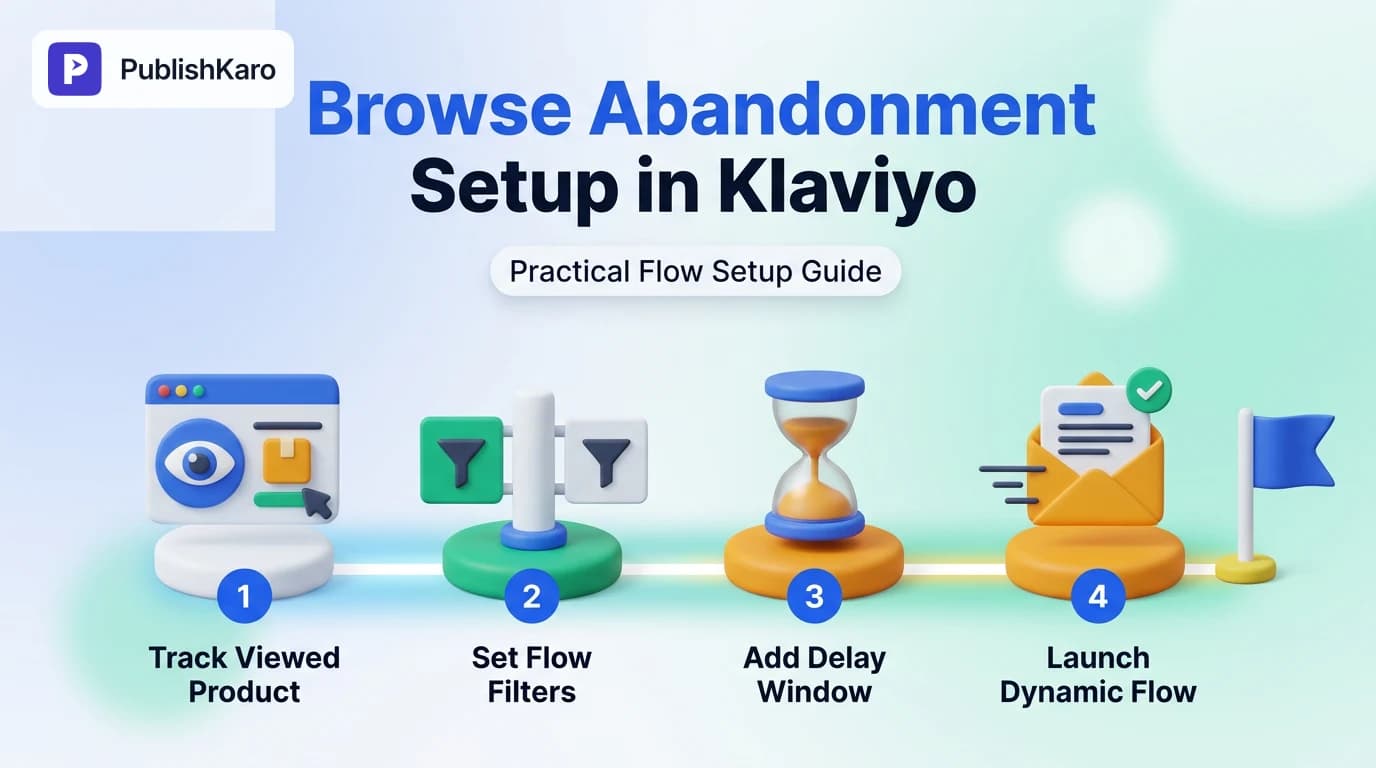
Browse Abandonment Setup Workflow
Follow these practical steps in Klaviyo to build, filter, and launch your automated browse abandonment sequence.
Klaviyo Profile Identification Check
Browse abandonment requires cookied profiles. This decision path shows when Klaviyo can trigger an email versus when tracking remains anonymous.
Routing Shoppers Across Retention Flows
Different customer actions trigger different automations so shoppers always receive the right message for their intent level.
Practical Examples
Here are three practical configurations showing how different store types set up and customize their browse abandonment flows.
Example 1: Minimalist Apparel Brand (Soft Touch Approach)
An apparel store selling premium linen basics wants to avoid aggressive sales tactics. They set their browse abandonment trigger to Viewed Product with a 3-hour time delay.
- Subject Line: Still thinking about the Linen Oxford?
- Preview Text: Take another look at sizing, fabric care, and styling ideas.
- Body Content: The email features the dynamic product image, highlights natural linen breathability, includes a link to their interactive sizing guide, and features an unedited 5-star customer review.
- Call-to-Action: "View Linen Oxford"
- Outcome: The message feels like helpful assistance rather than an aggressive sales pitch, reducing support questions and helping customers choose the correct size.
Example 2: High-AOV Home Goods Store (Category-Specific Splitting)
A boutique furniture retailer experiences longer buying cycles because average order values exceed $600. Instead of sending a single generic email after 2 hours, they split the flow based on product price:
- Conditional Split: Trigger property
Priceis greater than $400. - Path A (Over $400): 8-hour time delay. The email highlights white-glove delivery, financing options via split-pay providers, warranty details, and an invitation to speak with an interior specialist via chat.
- Path B (Under $400): 3-hour time delay. The email highlights dynamic product images, styling pairings, and standard delivery timelines.
- Outcome: High-ticket shoppers receive reassurance tailored to complex buying decisions without feeling rushed.
Example 3: Multi-Category Beauty Brand (Two-Touch Sequence)
A clean skincare brand builds a two-step browse abandonment flow to address common skincare concerns:
- Email 1 (Sent after 2 hours): Dynamic viewed product block, full ingredient breakdown, and dermatologist certification badges.
- Time Delay 2: 24 hours.
- Email 2 (Sent after 26 hours total): Triggered only if the shopper has still not added to cart or purchased. Features complementary items from the same routine (cleanser paired with moisturizer) and answers top customer questions regarding skin sensitivity.
- Outcome: Educates the customer on product usage and benefits without offering margin-eroding discounts.
Advanced Optimization Strategies
Once your primary browse abandonment flow is running smoothly, consider implementing these advanced optimizations to maximize performance.
1. Conditional Splits Based on Past Purchase Behavior
First-time store visitors behave differently than repeat customers. You can use conditional splits to tailor messaging based on customer history:
- If
Has Placed Order at least once over all time: Welcome them back as a returning customer. Acknowledge their loyalty, skip basic brand introductions, and showcase how the viewed item pairs with items commonly purchased together. - If
Has Placed Order zero times over all time: Focus on trust-building, brand story, return policies, and general customer satisfaction guarantees.
2. Category-Specific Design and Content
If your catalog spans multiple distinct categories (for instance, footwear, outerwear, and accessories), a single generic template can feel disconnected. Use conditional branches based on Categories or Product Collections to tailor supporting copy:
- For footwear: include size guides, break-in advice, and free exchange policies.
- For skincare: highlight ingredient purity, patch-test guidance, and routine compatibility.
- For electronics: emphasize warranty coverage, technical specifications, and setup support.
3. Integrating Multi-Channel Follow-Ups
Email is only one retention touchpoint. For omnichannel brands, combining browse abandonment with targeted social remarketing and automated messaging can amplify reach. Integrating automated messaging through services like WhatsApp flows for lead generation or aligning paid campaigns via professional ads management ensures that high-intent prospects encounter cohesive messaging across channels.
When planning campaign creative, keeping visuals cohesive across digital channels protects brand perception. You can explore our practical framework on how to improve video ad hook rate or review our design principles in how to design responsive logos for brands to build memorable, consistent visual assets across all customer touchpoints.
Brands looking for holistic marketing support often work with digital agencies like PublishKaro to integrate their tech stack. When optimizing retention, our team frequently helps brands connect custom web designs, clean up email deliverability, and build seamless tracking infrastructures across Klaviyo and Brevo. Like all agency engagements at PublishKaro, custom marketing projects are quoted after a free discovery call, at a transparent fixed price agreed upon in writing, ensuring clients maintain full ownership of all platforms, code, and design assets.
4. Technical Performance and Core Web Vitals
Adding tracking scripts to ecommerce storefronts can sometimes affect frontend load performance if implemented incorrectly. Ensure tracking snippets load asynchronously to prevent blocking the main thread or causing layout shifts. Monitoring your site's Core Web Vitals using tools like Google's web.dev vitals documentation ensures that scripts do not degrade the shopping experience.
For WordPress stores, reducing server response times ensures tracking code loads without causing delays, as detailed in our guide on how to fix high TTFB in WordPress. For stores modernizing their checkout or migrating platforms, review how scripts interact with newer architecture standards, such as migrating to Shopify Checkout Extensibility, to avoid losing critical event triggers.
Ensure your store aligns with broader web standards and organic discovery by reviewing search guidelines in the Google SEO Starter Guide and maintaining compliance with upcoming regulations outlined in our guide on how to prepare your website for the European Accessibility Act.
Checklist
Use this quick checklist to confirm your browse abandonment configuration is correct before going live:
- Web Tracking Verified: Confirmed
Active on SiteandViewed Productevents are recording in the Klaviyo activity feed. - Correct Flow Trigger: Flow is triggered specifically by the
Viewed Productmetric. - Exclusion Filters Added: Filtered for
Checkout Started zero times,Placed Order zero times, andAdded to Cart zero timessince starting this flow. - Frequency Caps Set: Added a rule stating recipient has not been in this flow in the last 7 to 14 days.
- Appropriate Time Delay: Delay set between 2 and 4 hours (or longer for high-ticket items).
- Dynamic Product Block Active: Confirmed dynamic tags (
event.Name,event.Price,event.ImageURL) render product details properly in preview mode. - Working Call-to-Action: Tested that the CTA button links directly back to the viewed product URL.
- Smart Sending Enabled: Turned on Smart Sending to prevent message fatigue.
- Mobile Responsive Layout: Verified email formatting across both desktop and mobile viewports.
Key Takeaways
- Target Earlier Intent: Browse abandonment targets shoppers who look at specific products but leave before adding them to their cart, capturing high-intent traffic earlier than checkout recovery flows.
- Identification Is Required: Klaviyo can only trigger flows for identified shoppers who have clicked an email, submitted a form, or created an account.
- Flow Filters Are Essential: Always filter out users who subsequently add items to their cart, initiate checkout, or place an order to avoid irrelevant emails.
- Avoid Instant Sending: Use a reasonable delay of 2 to 4 hours. Rushing the email can frustrate shoppers who are still actively browsing.
- Focus on Assistance, Not Just Discounts: Lead with product benefits, sizing advice, customer reviews, and guarantees rather than immediately slashing margins with discount codes.
- Coordinate Channels: Keep retention efforts aligned with broader marketing initiatives, including organic social, paid acquisition, and custom web optimizations.
Frequently asked questions
Why is my browse abandonment flow not sending to everyone who views a product?
Browse abandonment flows only send to identified visitors who already have an active profile and tracking cookie in Klaviyo. Anonymous first-time visitors who have never submitted a form, clicked an email link, or logged into an account cannot be identified and will not trigger the flow.
What is the ideal time delay for a browse abandonment flow?
For most ecommerce stores, a time delay between 2 and 4 hours works best. This gives visitors enough time to complete their browsing session without letting their purchase intent cool down. High-consideration or luxury products often benefit from longer delays between 6 and 24 hours.
What is the difference between browse abandonment and abandoned cart flows?
Browse abandonment triggers when a shopper views a specific product page but exits without clicking "Add to Cart." Abandoned cart (or abandoned checkout) triggers when a shopper adds an item to their cart or enters checkout details but fails to complete the final transaction.
Should I include a discount code in my first browse abandonment email?
It is generally best not to offer an immediate discount in your first browse abandonment email. Shoppers at this stage often just need a reminder, social proof, or answers to sizing and shipping questions. Offering instant discounts can erode profit margins and condition customers to abandon pages deliberately.
How do I prevent customers from receiving too many browse abandonment emails?
Add a flow filter that excludes anyone who has been in the browse abandonment flow within the past 7 to 14 days. In addition, keep Klaviyo's Smart Sending feature turned on to ensure recipients do not receive multiple automated campaign messages within a 16-to-24-hour window.
What should I do if the Viewed Product metric is not showing up in Klaviyo?
If the Viewed Product metric is missing, confirm that your ecommerce platform integration is active and that your tracking scripts are correctly installed. For Shopify, ensure Klaviyo app embeds are enabled; for custom websites, verify that the manual Viewed Product JavaScript snippet is placed on your product detail page templates.
For additional insights on ecommerce retention and conversion optimization, explore our guides on Email marketing and discover how our dedicated Email marketing and SEO & Google Business solutions help brands build predictable, long-term revenue.