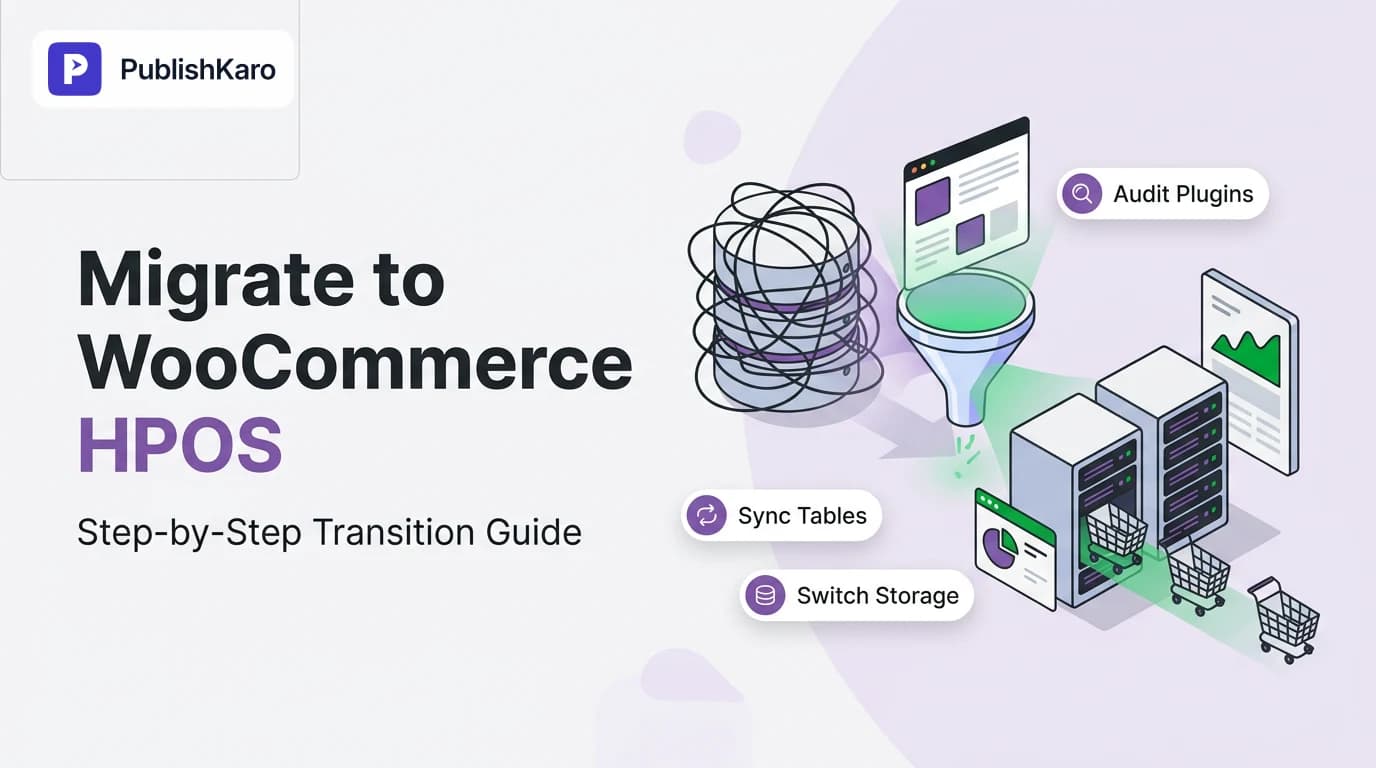
What Is WooCommerce HPOS and Why Does It Matter?
High-Performance Order Storage (HPOS), historically referenced as custom order tables, represents a major structural shift in the WooCommerce database engine. Historically, WooCommerce treated customer orders as standard WordPress posts. Each sale created an entry in wp_posts with a post type of shop_order, while related attributes—such as shipping destinations, customer taxes, discounts, and payment IDs—were written across dozens of individual rows in wp_postmeta.
This classic Entity-Attribute-Value (EAV) design allowed WooCommerce to operate on any standard WordPress setup without requiring custom table setups during early releases. However, storing hundreds of thousands of order transactions alongside standard blog entries, landing pages, and media files creates severe database bloat. Retrieving a single order often requires heavy SQL JOIN operations across an unindexed wp_postmeta table containing millions of rows.
HPOS resolves this architectural challenge by introducing dedicated relational tables:
wp_wc_orders: Core order identifiers, payment status, customer IDs, and financial summaries.wp_wc_order_addresses: Structured billing and delivery addresses.wp_wc_order_operational_data: Shipping selections, processing timestamps, and fulfillment flags.wp_wc_orders_meta: Extension-specific metadata isolated from WordPress CMS tables.
Segregating order data from core content tables accelerates back-office operations, simplifies query indexing, and relieves server pressure during traffic surges. For growing businesses optimizing site infrastructure—much like the optimization steps outlined in our guide on how to reduce Largest Contentful Paint in WordPress—adopting woocommerce high performance order storage forms a solid baseline for scalable checkout processing.
Prerequisites: Preparing for an HPOS Migration
Altering your database structure on a live production site without adequate preparation can cause operational downtime. Before enabling custom order tables, verify that your server environment and software stack meet essential technical requirements:
1. Environment & Software Baselines
Confirm that your hosting environment meets the standards outlined in the official WordPress documentation:
- WordPress 6.2 or higher
- WooCommerce 8.2 or higher (HPOS is enabled automatically for new stores starting with 8.2)
- PHP 7.4 or higher (PHP 8.1 or 8.2 is recommended for modern execution engines)
- MySQL 5.7+ or MariaDB 10.3+
- Sufficient database disk space to store duplicate order records temporarily during the synchronization window
2. Standalone Database and File Backups
Ensure that you have an isolated snapshot of your database and site files before running synchronization scripts. You can generate a full database export via WP-CLI:
wp db export pre_hpos_migration_backup.sqlStore this backup off-server so that you can restore normal operations should you encounter corrupted data or hosting hardware limits.
3. Deploying to an Isolated Staging Environment
Never initiate structural table migrations directly on an active storefront without prior testing. Replicate your site to a dedicated staging environment that matches your production server's PHP memory limits, MySQL versions, and active integrations. If your internal team needs technical assistance with infrastructure reviews, our specialists at PublishKaro help teams audit database architectures, plan staged rollouts, and handle custom maintenance roadmaps through structured quotes provided after an initial review.
Auditing Plugins for HPOS Compatibility
Before you switch your database storage mode, every plugin interacting with order data must explicitly declare compatibility with HPOS. If an extension bypasses WooCommerce data APIs and runs direct queries against wp_postmeta, orders may fail to display correctly or trigger fatal PHP exceptions.
Step 1: Check Incompatibility Warnings in WooCommerce Admin
- Log in to your WordPress dashboard.
- Navigate to WooCommerce > Settings > Advanced > Features.
- Scroll to the Order data storage configuration box.
- If active plugins have not declared compatibility, WooCommerce prevents you from enabling HPOS without compatibility mode and displays an alert listing those plugins.
Incompatible extensions detected:
- Custom Shipping Manifest Exporter (by Example Vendor)
- Third-Party PDF Receipt Generator (by Independent Dev)
Step 2: Audit Custom Code and Snippets
Many stores use bespoke functions inside child theme functions.php files or custom site-specific plugins. Search your codebase for legacy WordPress functions that query order records directly, such as:
get_post_meta( $order_id, ... )update_post_meta( $order_id, ... )- Direct SQL calls using
$wpdb->get_results( "SELECT * FROM {$wpdb->postmeta} ..." )
Replace these calls with native WooCommerce CRUD methods. For example, use $order->get_meta( '_custom_field_key' ) and $order->update_meta_data( '_custom_field_key', $value ) followed by $order->save().
Step 3: Declaring Compatibility in Custom Extensions
If you have reviewed an internal plugin and verified that it relies strictly on WooCommerce CRUD methods, declare compatibility inside your main plugin loader file:
add_action( 'before_woocommerce_init', function() {
    if ( class_exists( \Automattic\WooCommerce\Utilities\FeaturesUtil::class ) ) {
        \Automattic\WooCommerce\Utilities\FeaturesUtil::declare_compatibility(
            'custom_order_tables',
            __FILE__,
            true
        );
    }
} );
Step-by-Step Guide: How to Migrate to WooCommerce HPOS
Follow these sequential stages to migrate your order data safely without downtime.
Step 1: Enable Background Synchronization
Do not immediately switch primary storage to HPOS while your historical orders remain exclusively in wp_posts. First, turn on dual-table synchronization:
- Go to WooCommerce > Settings > Advanced > Features.
- Keep WordPress posts storage (legacy) selected as your primary storage engine.
- Check the box labeled Enable compatibility mode (synchronizes orders to the posts/postmeta tables).
- Click Save changes.
WooCommerce will initiate background jobs via Action Scheduler to backfill orders from wp_posts and wp_postmeta into wp_wc_orders, wp_wc_order_addresses, and wp_wc_order_operational_data.
Step 2: Track Data Backfill Progress
Depending on the total number of orders in your database, backfilling records can take anywhere from a few minutes to several hours. You can track progress directly in your dashboard:
- Navigate to WooCommerce > Status > Scheduled Actions.
- Check pending actions hooked to
woocommerce_run_batch_process. - Alternatively, trigger and monitor the migration via terminal access using WP-CLI:
# Check the remaining unsynced orders
wp wc hpos status

# Run the synchronization queue in controlled batches
wp wc hpos sync --batch-size=1000
Wait until the unsynchronized order count reaches zero before proceeding to the next step.
Step 3: Switch Primary Storage to High-Performance Order Storage
With order data mirrored across both legacy and custom tables, you can safely switch storage engines:
- Return to WooCommerce > Settings > Advanced > Features.
- Under Order data storage, select High-performance order storage (recommended).
- Keep Enable compatibility mode checked.
- Click Save changes.
At this stage, HPOS becomes the authoritative primary data store for all new purchases, status adjustments, and customer records. Because compatibility mode remains active, WooCommerce automatically mirrors changes back into wp_posts and wp_postmeta, providing a safe fallback if issues arise.
Step 4: Perform Complete Checkout and Admin Testing
With HPOS active, execute real-world transaction testing:
- Place front-end orders using every active payment gateway (Stripe, PayPal, Cash on Delivery, etc.).
- Edit existing orders inside WooCommerce > Orders (update addresses, line items, and custom order notes).
- Process a test refund and verify that the payment gateway webhook records the status change.
- Confirm that automated transactional emails and PDF invoices generate the correct details.
Step 5: Disable Compatibility Mode
After running your storefront for 3 to 7 days with zero database errors, eliminate redundant table writes:
- Navigate to WooCommerce > Settings > Advanced > Features.
- Uncheck Enable compatibility mode.
- Click Save changes.
Once disabled, WooCommerce writes exclusively to the dedicated HPOS tables, delivering the full database efficiency benefits of the new architecture.
Comparison Table
| Attribute | Legacy Storage (wp_posts & wp_postmeta) | High-Performance Order Storage (HPOS) |
|---|---|---|
| Data Pattern | Entity-Attribute-Value (EAV) across core CMS tables | Normalized relational tables (wp_wc_orders) |
| Storage Separation | Shared with pages, blog posts, revisions, and media | Dedicated tables strictly for commerce transactions |
| Search and Filtering | Heavy queries scanning string columns in unindexed tables | Rapid queries using indexed columns and native keys |
| Write Concurrency | Prone to metadata row contention during flash sales | Normalized rows reduce database locking risks |
| Table Growth | Rapidly bloats wp_postmeta with millions of rows | Clean schema isolating order overhead from CMS tables |
| API Standard | Permitted legacy direct database calls (get_post_meta) | Requires standardized WooCommerce CRUD methods |
| Sync Safety | Operates as legacy default fallback | Supports dual-table compatibility mode during migration |
Visual guide
Step-by-Step HPOS Safe Migration Process
Follow these progressive stages to migrate your order data without creating storefront downtime or losing sales records.
Auditing Plugins for HPOS Compatibility
Check active extensions and custom snippets to ensure your store handles orders smoothly without breaking data storage.
How HPOS Reorganizes Order Data
Transitioning away from generic WordPress post tables routes checkout records into dedicated relational tables for faster performance.
Practical Examples
Example 1: Refactoring a Custom Delivery Notes Snippet
A store owner previously used a custom snippet in their child theme to display delivery instructions on order receipts. The legacy implementation relied directly on standard post meta retrieval:
// INCOMPATIBLE LEGACY IMPLEMENTATION
add_action( 'woocommerce_admin_order_data_after_billing_address', 'display_custom_delivery_instructions' );
function display_custom_delivery_instructions( $order ) {
    $order_id = $order->get_id();
    $instructions = get_post_meta( $order_id, '_customer_delivery_note', true );
    if ( ! empty( $instructions ) ) {
        echo '<p><strong>Delivery Instructions:</strong> ' . esc_html( $instructions ) . '</p>';
    }
}
When compatibility mode was disabled during testing, the delivery instructions disappeared from the dashboard because get_post_meta() looks inside wp_postmeta, which no longer receives order updates. The snippet was refactored to use native WooCommerce methods:
// HPOS-COMPATIBLE MODERN IMPLEMENTATION
add_action( 'woocommerce_admin_order_data_after_billing_address', 'display_custom_delivery_instructions' );
function display_custom_delivery_instructions( $order ) {
    // Retrieve meta directly from the WC_Order object
    $instructions = $order->get_meta( '_customer_delivery_note' );
    if ( ! empty( $instructions ) ) {
        echo '<p><strong>Delivery Instructions:</strong> ' . esc_html( $instructions ) . '</p>';
    }
}
By retrieving data directly from the $order object, the function works regardless of whether the store uses legacy storage or HPOS.
Example 2: Resolving CLI Timeout on Enterprise Backfills
A high-volume retailer attempted to synchronize 250,000 legacy orders via the WordPress dashboard, but the process repeatedly stopped due to web server request timeouts. The technical team resolved the issue by executing the migration via WP-CLI on the server terminal, using controlled batches to avoid memory bottlenecks:
# Check current sync progress
wp wc hpos status

# Execute sync in chunks of 500 records with a delay to manage server load
wp wc hpos sync --batch-size=500
This approach completed the backfill across all 250,000 records without hitting PHP execution limits or affecting customer checkout speeds on the live site.
Post-Migration Verification and Monitoring
After setting HPOS as your primary data engine, monitor these technical areas to confirm system stability:
- Review WooCommerce Error Logs: Check WooCommerce > Status > Logs for error logs referencing
wc-order-storageor database errors. Look for third-party extensions throwing notices regarding direct SQL queries. - Check API and Webhook Deliverability: Ensure webhooks connected to third-party shipping platforms, warehouse management software, and email platforms like Klaviyo continue to trigger correctly. When integrating multi-channel campaigns with automated marketing workflows, using tools like the PublishKaro publishing app helps keep campaigns synchronized with site updates.
- Assess Server Response Metrics: Eliminating unindexed metadata queries lowers database workload, which supports better server response times. You can evaluate real-world browser performance against the benchmarks published on web.dev Core Web Vitals.
- Audit Organic Visibility: Technical updates should always preserve proper crawl access and site health. Maintaining clean site performance complements the organic search principles outlined in the Google SEO Starter Guide.
If you encounter an unexpected plugin conflict on production, you can safely revert to legacy storage by selecting WordPress posts storage (legacy) under WooCommerce > Settings > Advanced > Features, provided compatibility mode remained enabled throughout your testing window.
Checklist
Review this operational checklist before, during, and after completing your HPOS migration:
- Export a complete database and file backup before changing configuration settings.
- Mirror the production store to a private staging environment.
- Confirm PHP 7.4+ (PHP 8.1+ recommended) and MySQL 5.7+ / MariaDB 10.3+ are installed.
- Update WordPress to version 6.2 or higher and WooCommerce to version 8.2 or higher.
- Review WooCommerce > Settings > Advanced > Features to identify incompatible extensions.
- Contact plugin vendors or update plugins to HPOS-compatible versions.
- Refactor custom code to replace
get_post_meta()calls with$order->get_meta(). - Select WordPress posts storage (legacy) and turn on Enable compatibility mode.
- Monitor the backfill process in Scheduled Actions or run
wp wc hpos syncvia CLI. - Confirm that unsynchronized order counts reach zero.
- Change primary storage to High-performance order storage (recommended).
- Place test purchases across all payment gateways to verify successful order creation.
- Test order updates, partial refunds, customer note creation, and fulfillment tracking.
- Monitor error logs in WooCommerce > Status > Logs for 3 to 7 days.
- Uncheck Enable compatibility mode to eliminate redundant database writes.
Key Takeaways
- Modern Architecture: HPOS shifts WooCommerce order processing from an EAV format inside general WordPress tables to normalized tables built specifically for commerce transactions.
- Compatibility Audits Are Mandatory: Every plugin interacting with orders must use the native WooCommerce CRUD API rather than direct post meta queries before you can safely switch storage engines.
- Compatibility Mode Provides a Safety Net: Dual-table synchronization mirrors data across both storage engines, allowing you to backfill historical transactions without store downtime.
- WP-CLI Simplifies Large Datasets: For high-volume stores, running the backfill via WP-CLI prevents script timeouts and database locking.
- Infrastructure Alignment: Upgrading database storage is one part of running a performant store. Database optimizations work best when paired with sound technical configurations, reliable hosting, and structured promotion across your sales channels.
Frequently asked questions
What is WooCommerce HPOS?
WooCommerce HPOS (High-Performance Order Storage) is a database structure that moves order records out of WordPress core wp_posts and wp_postmeta tables into dedicated relational tables such as wp_wc_orders. This eliminates unnecessary database bloat and speeds up order queries.
Will migrating to HPOS break my existing WooCommerce store?
Migrating will not disrupt your store as long as all active plugins and custom snippets are compatible with HPOS. If an older plugin relies on direct SQL queries targeting wp_postmeta, it may fail to retrieve or update order details once compatibility mode is turned off.
How long does the HPOS database synchronization process take?
The time required depends on your total order count and server hosting resources. Smaller stores with under 10,000 transactions often sync in a few minutes, while stores with hundreds of thousands of orders can take several hours using background processes or WP-CLI.
Can I revert to legacy storage if an issue arises?
Yes. As long as you keep compatibility mode enabled while testing HPOS, all new orders are mirrored back to wp_posts and wp_postmeta. You can revert to legacy storage in the WooCommerce settings at any point without losing order data.
Does HPOS delete my legacy orders from wp_posts?
No. WooCommerce does not remove historical records from wp_posts or wp_postmeta during the migration. Once compatibility mode is disabled, legacy rows remain in your database as an inactive archive unless you clear them using a maintenance plugin.
Is HPOS enabled by default on new WooCommerce installations?
Yes. Starting with WooCommerce version 8.2, all new store installations have High-Performance Order Storage enabled by default, provided no incompatible extensions are present.
Planning an infrastructure upgrade or custom website redesign? Learn more about our technical services for WordPress sites, custom Shopify stores, and complete SEO management. For more practical guides, browse all PublishKaro articles in our WordPress blog archive.