What Is Largest Contentful Paint and Why Does It Matter?
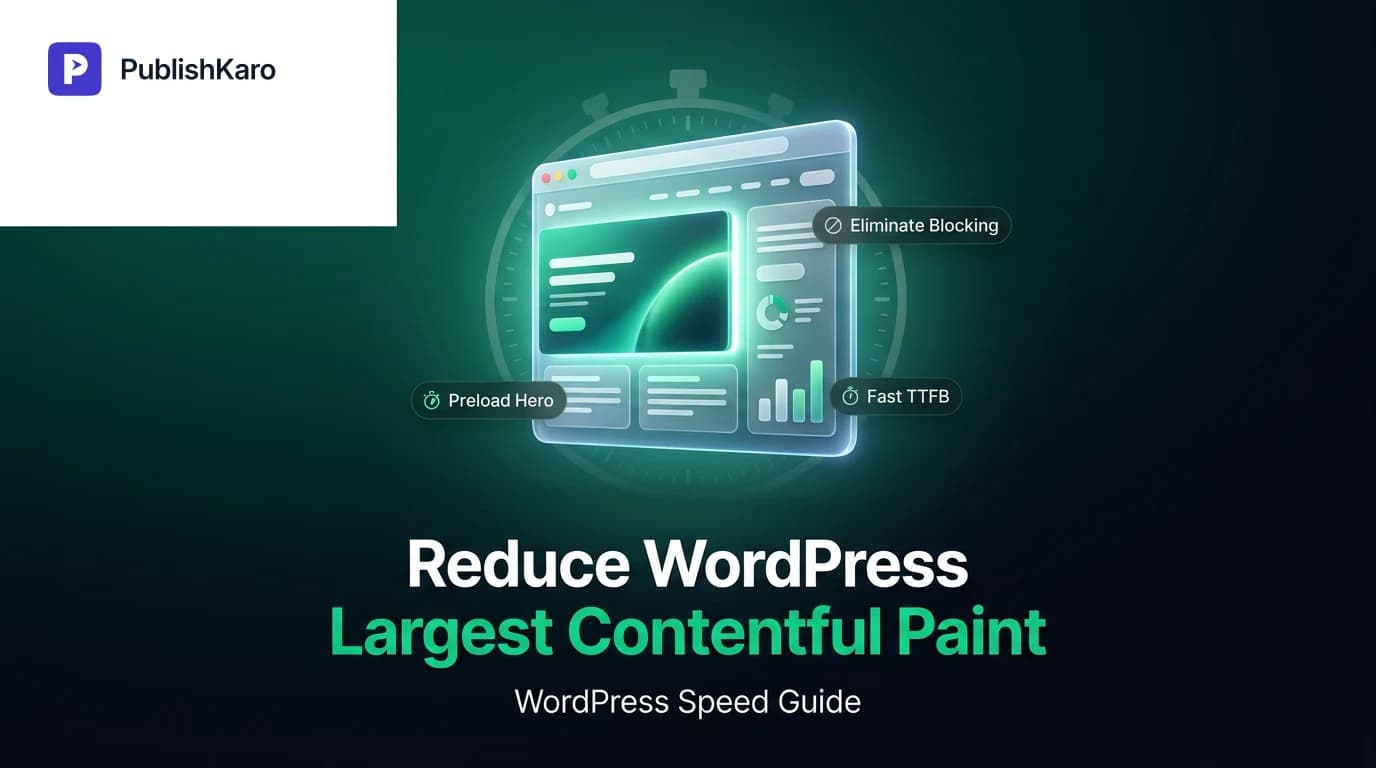
Largest Contentful Paint (LCP) is an essential user-centric performance metric defined under Google's Core Web Vitals. It evaluates perceived load speed by tracking how long it takes for the largest visual block of content within the viewport to fully render on screen. This element is typically a hero banner, a featured product photograph, a responsive slider, or a large text heading block.
Per Google's benchmark standards on Core Web Vitals, an optimal LCP score is 2.5 seconds or lower for at least 75% of page visits across mobile and desktop devices. Measurements between 2.5 and 4.0 seconds require improvement, while render times exceeding 4.0 seconds are classified as poor.
For commercial websites and growing brands, visual responsiveness directly shapes user perception. If prospective buyers experience a sluggish initial screen, they often leave before engaging with your services. Technical performance forms an integral foundation of modern discoverability, as detailed in Google's SEO Starter Guide. When pages render promptly, visitors explore more pages, and conversion pathways function predictably.
Whether you create tailored platforms through custom websites or operate high-traffic business sites using professional WordPress sites, mastering WordPress LCP optimization is vital to delivering clean, reliable visitor journeys.
Step 1: Identify Your WordPress LCP Element
Before modifying theme files or installing plugins, you must isolate the exact HTML node designated as the LCP asset across your core templates.
- Launch Google Chrome, open an incognito window, and open PageSpeed Insights.
- Submit the URL of your target WordPress page (test your homepage, a standard blog post, and a core landing page separately).
- Navigate to the "Diagnostics" section and expand the entry marked Largest Contentful Paint element.
- Examine the DOM element provided. In standard WordPress builds, this is generally an
<img>tag, a background image defined in CSS, a video container poster, or a large<h1>heading with custom typography.
To see how this behaves during dynamic rendering, open Chrome DevTools (F12), switch to the Performance tab, and record a page reload. In the Timings row, locate the LCP marker to view the precise request initiation, asset download duration, and visual render delay.
Step 2: Optimize and Preload Hero Images
Hero imagery represents the primary LCP node on most business websites. Inefficient handling of these graphics creates significant delays in visual rendering.
Convert Assets to Next-Gen Formats
Traditional formats such as PNG and uncompressed JPEG inflate page weight unnecessarily. Convert your media library assets to WebP or AVIF. These formats maintain visual clarity while reducing file weight substantially. Many modern servers or image compression plugins handle this conversion dynamically upon upload.
Eliminate Lazy-Loading on the First Viewport Image
By default, WordPress adds the loading="lazy" attribute to content images. While lazy loading saves bandwidth on below-the-fold content, applying it to your primary hero graphic delays rendering. The browser pauses downloading until layout passes determine that the element resides within the viewport.
Ensure your hero element explicitly includes loading="eager" and fetchpriority="high". Theme templates can be updated via hooks outlined in the official WordPress documentation:
<img src="/wp-content/uploads/hero-banner.webp" fetchpriority="high" loading="eager" alt="Business consulting overview" width="1200" height="675">Preload the Target LCP Asset
When you preload hero image WordPress assets, you instruct the browser engine to start requesting the visual element immediately, alongside the initial stylesheet discovery:
<link rel="preload" as="image" href="/wp-content/uploads/hero-banner.webp" type="image/webp" fetchpriority="high">Insert this directive in your child theme's header.php or inject it dynamically through your caching system.
Step 3: Eliminate Render-Blocking Resources
Even when an image is compressed, visual rendering stops if external stylesheets and unoptimized JavaScript files block the main rendering thread.
Defer Secondary JavaScript Files
Audit every plugin loading JavaScript files inside your site's <head>. External tracking scripts, interactive widgets, and form validators should carry the defer or async attribute so they execute without halting the construction of the visual DOM.
Extract and Inline Critical CSS
Generate Critical CSS—the specific styles necessary to display the top viewport—and inline it directly into a <style> block in your document header. Configure non-critical styles to load asynchronously. This strategy ensures the browser paints the primary visual container without waiting for multi-kilobyte global stylesheets to finish downloading.
Step 4: Improve Server Response Time (TTFB)
Visual rendering cannot start until the browser receives the initial HTML document. If your server response time (Time to First Byte or TTFB) takes 1.2 seconds, reaching a 2.5-second LCP benchmark leaves barely 1.3 seconds for stylesheet parsing, font loading, image downloads, and screen painting.
To improve your WordPress TTFB:
- Implement Full-Page Caching: Configure page caching at the server level (such as Nginx FastCGI cache or LiteSpeed) to deliver pre-rendered static HTML rather than executing PHP scripts and MySQL database queries on every hit.
- Use Object Caching: Deploy Redis or Memcached to retain persistent database queries, improving responsiveness on dynamic templates and user portals.
- Update PHP Engine: Verify your hosting stack uses PHP 8.1 or newer to take advantage of faster code execution.
- Deploy a Content Delivery Network: Serve cached HTML and static assets via global edge nodes to minimize latency for visitors located far from your origin server.
For teams driving commercial demand through SEO and Google Business or managing paid traffic via ads management, rock-solid hosting infrastructure ensures inbound visitors land on a fast, responsive interface.
Step 5: Prevent Font Delays and Visual Layout Shifts
When a page's largest visual element is a headline rather than an image, unoptimized web fonts can trigger a Flash of Invisible Text (FOIT), stalling LCP until the font file arrives.
To resolve font-driven LCP delays:
- Apply
font-display: swap;inside your CSS@font-faceblocks to allow system fallback fonts to render text instantly while custom typefaces finish loading. - Host Google Fonts locally on your server to avoid external DNS lookups and remote server connection overhead.
- Preload your primary headline font file in your WordPress header:
<link rel="preload" href="/wp-content/themes/custom-theme/fonts/primary-bold.woff2" as="font" type="font/woff2" crossorigin>Managing font stability and contrast also supports clean readability in accordance with the guidelines maintained by the W3C Web Accessibility Initiative.
Comparison Table
| LCP Bottleneck | Underlying Cause | Recommended Technical Fix | Impact Level |
|---|---|---|---|
| Lazy-loaded hero graphic | WordPress core or plugins applying loading="lazy" above the fold | Add fetchpriority="high", declare loading="eager", or inject preload link | High (Reduces LCP by 400ms–1.5s) |
| High server latency (TTFB) | Uncached database queries, slow PHP version, shared hosting | Deploy Nginx/LiteSpeed page caching, enable Redis, upgrade to PHP 8.1+ | Critical (Improves all timing metrics) |
| Render-blocking CSS | Full theme and builder stylesheets loading synchronously in <head> | Extract Critical CSS, inline it, and load secondary stylesheets asynchronously | High (Accelerates visual paint phase) |
| Uncompressed media files | Unoptimized JPEG or PNG files exceeding 500KB | Convert to WebP or AVIF; scale resolution to exact container dimensions | Moderate to High |
| Font download delays | External web fonts blocking text element display | Self-host font files, preload WOFF2 files, and use font-display: swap | Moderate |
| Render-blocking JavaScript | Marketing scripts, chat software, and plugins executing in header | Defer non-critical scripts or relocate them to the footer template | Moderate |
Visual guide
Five Steps to Fix WordPress LCP
Follow this sequence to detect bottlenecks and speed up your largest page element.
Handling Above-the-Fold Hero Images
Check how your WordPress theme loads your main banner to ensure the browser fetches it immediately.
Key Upgrades for Fast Response Times
Combine server-level improvements to reduce Time to First Byte and speed up visual rendering.
Practical Examples
Example 1: Removing Lazy-Loading on Single Post Featured Images
Many WordPress themes automatically inject lazy loading across all featured images. To instruct WordPress to treat the primary post thumbnail as an eager asset, include this hook in your child theme's functions.php:
function custom_optimize_featured_image_lcp($attr, $attachment, $size) {
    if (is_singular('post') && did_action('loop_start') === 1) {
        $attr['loading'] = 'eager';
        $attr['fetchpriority'] = 'high';
    }
    return $attr;
}
add_filter('wp_get_attachment_image_attributes', 'custom_optimize_featured_image_lcp', 10, 3);
This hook targets the single post template, ensuring the initial featured image begins downloading immediately when the HTML parser encounters it.
Example 2: Preloading Builder Background Images
Visual site builders frequently apply hero images through inline CSS declarations like background-image: url(...). Browsers cannot discover these files until the styling rules are computed. To preload these assets manually, hook into wp_head:
function custom_preload_hero_background() {
    if (is_front_page()) {
        echo '<link rel="preload" fetchpriority="high" as="image" href="https://example.com/wp-content/uploads/front-hero.webp" type="image/webp">' . "\n";
    }
}
add_action('wp_head', 'custom_preload_hero_background', 1);
This injects the preload tag at the very top of the <head> markup, allowing the network thread to download the asset while CSS files parse in parallel.
Example 3: Correcting Font Display for Custom Headings
If your theme enqueues Google Fonts or custom typefaces via CSS stylesheets, add font-display: swap to prevent text rendering delays. Here is how to configure a local @font-face rule in your child theme's stylesheet:
@font-face {
    font-family: 'CorporateSans';
    src: url('/wp-content/themes/child/fonts/corporate-sans.woff2') format('woff2');
    font-weight: 700;
    font-style: normal;
    font-display: swap;
}

h1.hero-title {
    font-family: 'CorporateSans', -apple-system, BlinkMacSystemFont, 'Segoe UI', Roboto, sans-serif;
}
Using system fallbacks ensures the text displays immediately, preventing the browser from hiding copy during font transfers.
Checklist
Review this checklist before and after deploying site updates:
- Establish Baseline: Record mobile and desktop LCP scores via PageSpeed Insights and WebPageTest.
- Identify the LCP Node: Verify whether the largest painted element is an image tag, a CSS background element, or a text container.
- Remove Lazy Loading Above the Fold: Confirm that the primary hero asset does not carry
loading="lazy". - Set High Fetch Priority: Ensure the LCP element includes
fetchpriority="high". - Preload Key Image: Inject a
<link rel="preload" as="image" ...>tag for hero visuals or CSS backgrounds. - Adopt WebP or AVIF: Compress media assets and deliver modern formats scaled to the exact container dimensions.
- Inline Critical Path CSS: Extract above-the-fold CSS styles and defer global theme stylesheets.
- Defer Non-Essential JavaScript: Apply
deferorasynctags to secondary plugins and tracking scripts. - Host Fonts Locally: Store WOFF2 font files locally and declare
font-display: swapin stylesheet definitions. - Verify Server Page Caching: Check response headers for edge or server cache hits (e.g.,
cf-cache-status: HITorx-cache: HIT). - Track Field Data: Monitor real-user performance data inside Google Search Console's Core Web Vitals report over a 28-day window.
Integrating Technical Performance Into Your Marketing System
Technical website performance does not exist in isolation. When your landing pages render reliably under 2.5 seconds, paid campaigns deliver better return on ad spend, bounce rates decline, and search engines crawl your content more effectively.
If you manage multi-channel campaigns, high performance must extend to every platform you run. Businesses operating Shopify stores face similar asset prioritization demands, while teams running social media marketing require rapid landing pages to capture incoming mobile visitors.
Your creative design choices also influence load times. As highlighted in our guide on how to design responsive logos for brands, using lightweight vector SVG graphics rather than oversized raster files protects load speed across all screen sizes.
When scaling publication cadences across several social channels, structured processes keep marketing teams focused. Many teams coordinate their multi-channel distribution using the PublishKaro publishing app, which simplifies drafting, caption editing, and direct scheduling to Instagram, Facebook, LinkedIn, and YouTube from Google Sheets.
For more guides on platform performance, explore the PublishKaro blog and check out our dedicated Websites resource section.
If your organization requires hands-on assistance optimizing theme code, rebuilding server architecture, or resolving complex Core Web Vitals issues, explore our tailored PublishKaro services. Every project is quoted after a free call, at a fixed price agreed in writing, providing your team with complete source code ownership and transparent delivery.
Key Takeaways
- Inspect the LCP Element Directly: Use PageSpeed Insights diagnostics to pinpoint whether an image, background block, or headline is driving your LCP measurement.
- Never Lazy-Load Hero Graphics: Add
loading="eager"andfetchpriority="high"to viewport media so the browser fetches it immediately. - Address Time to First Byte: Fast front-end code cannot compensate for slow servers. Deploy server-level page caching and edge distribution to keep TTFB low.
- Clear the Critical Rendering Path: Inline critical above-the-fold CSS and defer secondary scripts to allow the visual layout to render unimpeded.
- Preload Critical Assets: Manually preload primary hero graphics and local WOFF2 font files to eliminate discovery and network download delays.
Frequently asked questions
What is a good Largest Contentful Paint score in WordPress?
According to Google's Core Web Vitals guidelines, an ideal LCP score is 2.5 seconds or less for at least 75% of page visits across mobile and desktop devices. Scores between 2.5 and 4.0 seconds require improvement, while scores over 4.0 seconds are classified as poor.
Why does lazy loading hurt my LCP score in WordPress?
Lazy loading instructs the browser to delay downloading an image until it finishes computing layout positions. When applied to hero banners, this postpones asset discovery and forces the browser to wait, increasing your total LCP measurement.
How do I prioritize my hero image in WordPress?
Ensure your hero image element does not have loading="lazy". Add the attribute fetchpriority="high" to the <img> tag and include a <link rel="preload" as="image" href="image-url.webp"> tag inside your site header.
Does caching improve Largest Contentful Paint?
Yes. Page caching significantly improves server response times (Time to First Byte or TTFB). Because LCP timing includes the initial request duration, a faster TTFB directly shortens the time required to begin downloading and rendering your LCP asset.
Why is my LCP element a text block instead of an image?
If your page has no large above-the-fold image or if the image is very small, the browser identifies the largest visual element as your primary heading or paragraph block. To optimize text-based LCP, preload your primary font file and use font-display: swap to prevent visual blocking.
Do WordPress plugins alone fix LCP issues?
While performance plugins handle file minification, caching, and image compression, they cannot solve structural design issues. You may still need to adjust theme code, server hardware, external script injection, or block layouts to achieve consistent sub-2.5-second scores.
How can I verify that my LCP preload is working?
Open Chrome DevTools, navigate to the Network panel, reload your page, and sort by the "Waterfall" column. Your preloaded image should appear near the top of the network request list, initiating download alongside the primary CSS stylesheets.