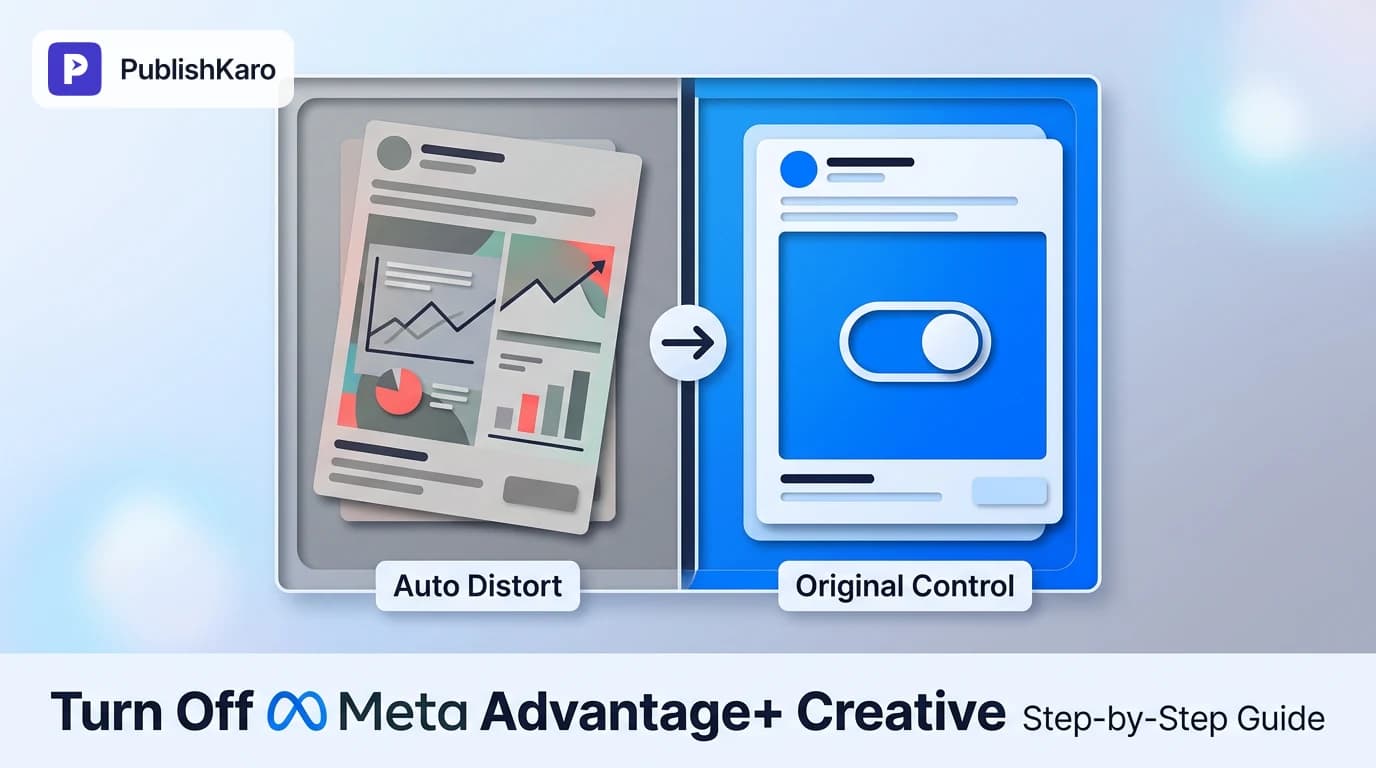
What Are Advantage+ Creative Enhancements in Meta Ads?
Meta Advantage+ creative (formerly standard enhancements and dynamic creative elements) is an automated system powered by machine learning that adjusts your ad visuals, sound, and text per user. As outlined in the Facebook Business Help Center, these algorithms evaluate individual user habits across Facebook and Instagram to dynamically alter aspect ratios, brightness, background audio, and text placements.
While automated adjustments aim to maximize estimated actions, they routinely introduce friction for brands with specific guidelines, calibrated packaging colors, or strict regulatory disclosures. Learning how to turn off advantage plus creative enhancements ensures your creative team maintains total authority over how your company presents itself in feeds, Stories, and Reels. If you also manage search campaigns, reviewing guidelines in Google Ads Help shows that platform-level automations across ad networks require similar manual oversight to protect brand safety.
To preserve strict creative standards, many brands choose to disable advantage plus creative meta ads automations across their accounts. When automations alter assets unpredictably, testing becomes noisy and brand perception suffers.
The Common Types of Automatic Enhancements
Meta groups its automated enhancements into several functional categories within Ads Manager:
- Standard Visual Enhancements: Automatic contrast adjustments, white balance modifications, image sharpening filters, template overlays, and aspect ratio expansions that stretch or blur borders.
- Text and Headline Variations: Swapping headlines into primary copy fields, displaying user comments directly under ad creatives, or superimposing short text fragments onto images.
- Audio Additions: Automatically overlaying stock music or ambient audio over static images and silent video clips in vertical placements.
- Compositional Adjustments: Generating subtle 3D motion, simulated panning across still photography, or auto-building carousels from multi-product still photos.
Teams handling multi-channel campaigns through professional [/services/ads](Ads management) regularly review these toggles. Left unmonitored, automated enhancements can disrupt deliberate design systems and confuse prospective customers.
Why Brands Choose to Disable Advantage+ Creative Adjustments
Meta enables these automated adjustments by default whenever you upload a new image or video asset. While automation promises speed, real-world deployment presents practical risks for businesses.
Protecting Brand Identity and Visual Integrity
Automated cropping can cut directly through product silhouettes, essential badges, or brand logos placed near asset perimeters. Furthermore, algorithmic color boosting frequently oversaturates neutral or pastel palettes, causing digital product displays to differ significantly from physical items.
Preserving Legal and Regulatory Compliance
Companies in regulated fields—including finance, healthcare, and specialized retail—must display specific disclaimers within their primary copy or visible frames. When Meta moves headlines, truncates body copy behind a read-more link, or repositions text overlays, ads can fall out of compliance. For more details on compliance standards across Meta's automated toolsets, read our guide on Meta AI video ad disclosure rules.
Maintaining Clean Creative Testing Variables
Sound creative testing requires isolated variables. If you are comparing two separate creative hooks, letting Meta inject unvetted music tracks, brightness adjustments, and copy repositioning invalidates test results. You cannot determine whether your core creative angle won or if algorithmic adjustments skewed user behavior.
Preventing Inappropriate Audio Pairings
Meta's audio feature automatically pairs catalog tracks with static images in vertical placements like Reels. These algorithmically selected songs often clash with premium, corporate, or sensitive offerings. Disabling automated audio ensures your brand voice remains consistent.
Step-by-Step Guide: How to Turn Off Advantage+ Creative Enhancements
Disabling creative enhancements takes place within individual ad settings in Meta Ads Manager. Follow these practical steps to disable all or selected enhancements.
Step 1: Open Meta Ads Manager and Go to the Ad Level
Log in to your Meta Ads Manager account. Select the campaign and ad set containing the ad you want to adjust. Click the checkbox next to the specific ad and select Edit to open the side configuration panel.
Step 2: Locate the Ad Creative Section
In the ad editing pane, scroll past the Identity and Ad Setup modules down to the Ad Creative area. Underneath your uploaded media files, locate the Advantage+ creative module.
Step 3: Click Edit on the Advantage+ Creative Card
Meta provides a preview card displaying active enhancements (such as Standard enhancements or Music). Click the Edit button in the upper-right corner of the Advantage+ creative box.
Step 4: Toggle Off Master or Individual Enhancements
An editing window will open displaying visual previews for active enhancements:
- To disable all enhancements: Switch off the primary master toggle labeled All enhancements at the top of the window.
- To disable specific features: Select individual sub-tabs (Visuals, Text, or Audio) and manually switch off items like Image brightness and contrast, Music, or Text variations.
Step 5: Save and Publish Your Changes
Click the blue Save button in the lower-right corner of the modal window. Check the ad preview pane to ensure your visual assets and copy appear exactly as intended without automated filters or borders. Finally, click Publish to push your updates live.
How to Disable Enhancements at Account and Ad Set Levels
While visual adjustments are managed inside individual ads, campaign architecture choices also influence how Meta handles your creative assets.
Flexible Ad Formats vs. Standard Ads
Selecting the Flexible ad format under Ad Setup allows Meta to blend up to 10 images or videos with multiple copy lines dynamically. To maintain complete control over visual hierarchy and presentation, select Single image or video or Carousel instead of the Flexible option.
Catalog Campaigns and Dynamic Creative Settings
If you operate dynamic catalog ads for Shopify stores or WordPress sites, catalog settings can apply automatic cropping or template tags. When configuring your ad sets, review creative toggles prior to publishing, as dynamic creative settings established at the ad set level cannot always be modified once the ad set goes live.
Comparison Table
This breakdown outlines what Meta modifies across each creative enhancement, the operational risks involved, and recommended settings for brand campaigns.
| Enhancement Feature | What Meta Changes Automatically | Primary Risk for Advertisers | Recommended Setting for Brands |
|---|---|---|---|
| Standard Visual Adjustments | Adjusts exposure, contrast, white balance, and sharpness filters dynamically. | Distorts delicate brand palettes and alters true product appearance. | Off |
| Aspect Ratio Expansion / Crop | Crops images or adds blurred sidebars to fill vertical 9:16 placements. | Cuts off custom typography, perimeter logos, and product framing. | Off |
| Image Templates & Badges | Places promotional badges (e.g., Free Shipping) over the creative. | Obscures designed graphic elements and disrupts visual hierarchy. | Off |
| Background Music | Pairs royalty-free stock music with silent visuals in Reels and Stories. | Tone mismatch; casual or energetic music applied to formal offers. | Off |
| 3D & Motion Animation | Adds simulated camera pans or subtle 3D tilt effects to static imagery. | Unnatural product distortion and unintended focal shifts. | Off |
| Text Swapping & Highlight | Moves headlines into primary copy fields or highlights select user comments. | Disrupts structured copy logic and risks compliance violations. | Off |
| Visual Touch-Ups (Catalog) | Zooms in on product silhouettes and cuts original lifestyle backgrounds. | Removes styling context and background production work. | Off |
Visual guide
Turning Off Enhancements in Ads Manager
Follow these steps inside Meta Ads Manager to disable automated changes and protect your original creative files.
Auditing Creative Risks by Brand Need
Evaluate your campaign requirements to determine whether to disable specific enhancements or shut off all automations.
Exporting Tailored Creative for Placements
Prepare platform-specific asset ratios in production so you can safely turn off Meta's automated cropping.
Practical Examples
Example 1: DTC Apparel Brand Protecting Product Color Fidelity
A direct-to-consumer apparel company ran Meta ads featuring linen clothing photographed under natural studio lighting. When Meta's standard visual enhancements activated automatically, the algorithm raised contrast and saturation, rendering muted olive shirts as bright green. Customers ordered the garments expecting vivid tones and subsequently initiated returns upon receiving natural earth-toned clothing.
The media buying team opened Ads Manager, edited their active creatives, clicked into the Advantage+ creative menu, and toggled off Standard enhancements. With automated color adjustments disabled, ad imagery accurately reflected the physical garments, cutting return complaints tied to color mismatches.
Example 2: Financial Services Team Protecting Mandatory Disclaimers
A commercial lending firm ran paid acquisition campaigns with mandatory licensing disclaimers positioned in the primary text field. Meta's automated copy optimization began swapping headlines with body text, pushing critical disclosure phrasing below the fold where users had to click "See More" to view it.
To eliminate regulatory exposure, the team navigated to the ad editing dashboard and toggled off Text variations and Relevant comments. This prevented the algorithm from reorganizing text hierarchies, ensuring all required disclosures remained visible directly under the initial hook.
Example 3: Professional B2B Firm Disabling Unwanted Music
A boutique consulting firm launched video testimonials recorded in executive settings. While the firm was exploring tailored campaigns through [/services/ads](Ads management), they noticed their vertical Reels placements featured upbeat electronic background music automatically applied by Meta over spoken dialogue.
By accessing the Advantage+ creative editor and toggling off Music, the agency removed the automated soundtrack, ensuring clean audio where spoken client testimonials were easily heard.
Maintaining Quality from Production to Ad Account
Disabling automated creative adjustments means your marketing team must provide clean, properly formatted creative assets from the start. Instead of relying on Meta's algorithms to crop a square visual to fill a 9:16 vertical placement, export dedicated files tailored to each specific placement:
- 1:1 Square (1080 x 1080 px): Desktop feeds, mobile feeds, and secondary network placements.
- 9:16 Vertical (1080 x 1920 px): Instagram Stories, Facebook Stories, and Instagram Reels.
- 16:9 Landscape (1920 x 1080 px): In-stream video feeds and desktop placements.
Managing creative assets across channels requires organized scheduling workflows. For organic publishing pipelines, our platform [/publishing](the PublishKaro app) lets marketing teams prepare posts in Google Sheets, review typography and caption details, and schedule content across Instagram, Facebook, LinkedIn, and YouTube using verified APIs.
If your marketing infrastructure connects advertising traffic to complex sales funnels, high-performing creative must land on stable, optimized digital assets. Whether your operations involve technical store updates like our guide on switching to new customer accounts in Shopify, reviewing WooCommerce HPOS migration, or optimizing web vitals via reducing Largest Contentful Paint in WordPress, technical health and creative control work together to drive campaign success.
Brands expanding multi-channel engagement also benefit from automated lead follow-ups. You can review our practical guide on how to qualify Click to WhatsApp leads automatically to build structured qualification funnels for paid ad traffic, or explore how to reorder Instagram carousel posts to fine-tune organic creative sequences alongside your paid campaigns. If local visibility is part of your acquisition strategy, our guide on why Google reviews are not showing up offers actionable recovery steps.
Checklist
Review this operational checklist before publishing any campaign in Meta Ads Manager to verify your creative settings remain fully under your control:
- Navigated directly to the Ad Level inside Ads Manager.
- Selected Single image or video or Carousel rather than the dynamic Flexible format.
- Uploaded placement-specific creative dimensions (1:1, 9:16, 16:9) to avoid automated aspect ratio stretching.
- Clicked Edit in the Advantage+ creative module.
Switched off All enhancements or unchecked specific automated features:
- Standard enhancements (contrast, brightness, saturation filters)
- Aspect ratio expansion (blurred borders and algorithmic zoom)
- Image templates and automated promotional badges
- Background music and automated sound effects
- 3D motion and simulated camera animation
- Text variations, headline swaps, and highlighted user comments
- Checked desktop and mobile placement previews to confirm typography and visual margins.
- Verified that destination URLs, UTM tracking codes, and pixel events are correctly configured.
- Clicked Save and Publish.
Key Takeaways
- Automations are active by default: Meta automatically applies Advantage+ creative enhancements to new ads unless you manually turn them off at the Ad level.
- Protect your brand assets: Disabling enhancements prevents altered color balances, awkward image crops, and automated music tracks that dilute brand presentation.
- Preserve compliance: Disabling text adjustments keeps mandatory legal disclaimers and brand headlines in their intended positions.
- Export dedicated aspect ratios: Providing 1:1, 9:16, and 16:9 formats directly eliminates reliance on Meta's automated background fills and cropping.
- Maintain clean test environments: Turning off automated creative variables ensures your team measures true creative performance rather than algorithmic tweaks.
Frequently asked questions
Where do I find the setting to turn off Advantage+ creative enhancements?
Open Meta Ads Manager, navigate to the Ad level, and click Edit on your selected ad. Scroll down to the Ad Creative module, locate the Advantage+ creative section, and click the Edit button in the top-right corner. From there, switch off the master toggle labeled All enhancements or adjust individual features.
Will turning off Advantage+ creative enhancements hurt my ad performance?
Turning off creative enhancements does not hurt performance if your original creative is high-quality, readable, and properly sized for each placement. While Meta notes enhancements can improve estimated conversion rates, disabling them prevents color distortion, awkward crops, and misplaced copy that can damage brand perception.
Can I turn off specific enhancements while leaving others on?
Yes. Meta's Advantage+ creative editing modal offers granular controls. You can keep subtle visual adjustments enabled while disabling background music, 3D animations, and headline swapping.
Why does Meta keep turning Advantage+ creative back on for new ads?
Meta's system defaults to enabling Advantage+ creative features whenever you build a new ad or duplicate existing ad sets. You must manually inspect the Ad Creative section for each new ad and disable enhancements before publishing.
Does turning off Advantage+ creative affect Advantage+ budget optimization or audience targeting?
No. Creative enhancements operate independently from Advantage+ campaign budget optimization (CBO) and Advantage+ audience expansion. Disabling visual enhancements only controls media files and copy delivery, leaving audience targeting and bidding strategies unchanged.
What happens to my ads if I disable the music enhancement?
Disabling music ensures static graphics and silent video creatives run quietly across placements like Instagram Reels and Stories without automated stock audio. Any video assets uploaded with their own original sound or voiceover will remain unchanged.
Looking to build high-converting ad campaigns with strict brand control? Explore PublishKaro's professional [/services/ads](Ads management) to deploy disciplined marketing funnels, or check our comprehensive agency [/services](services directory) to support your digital growth.