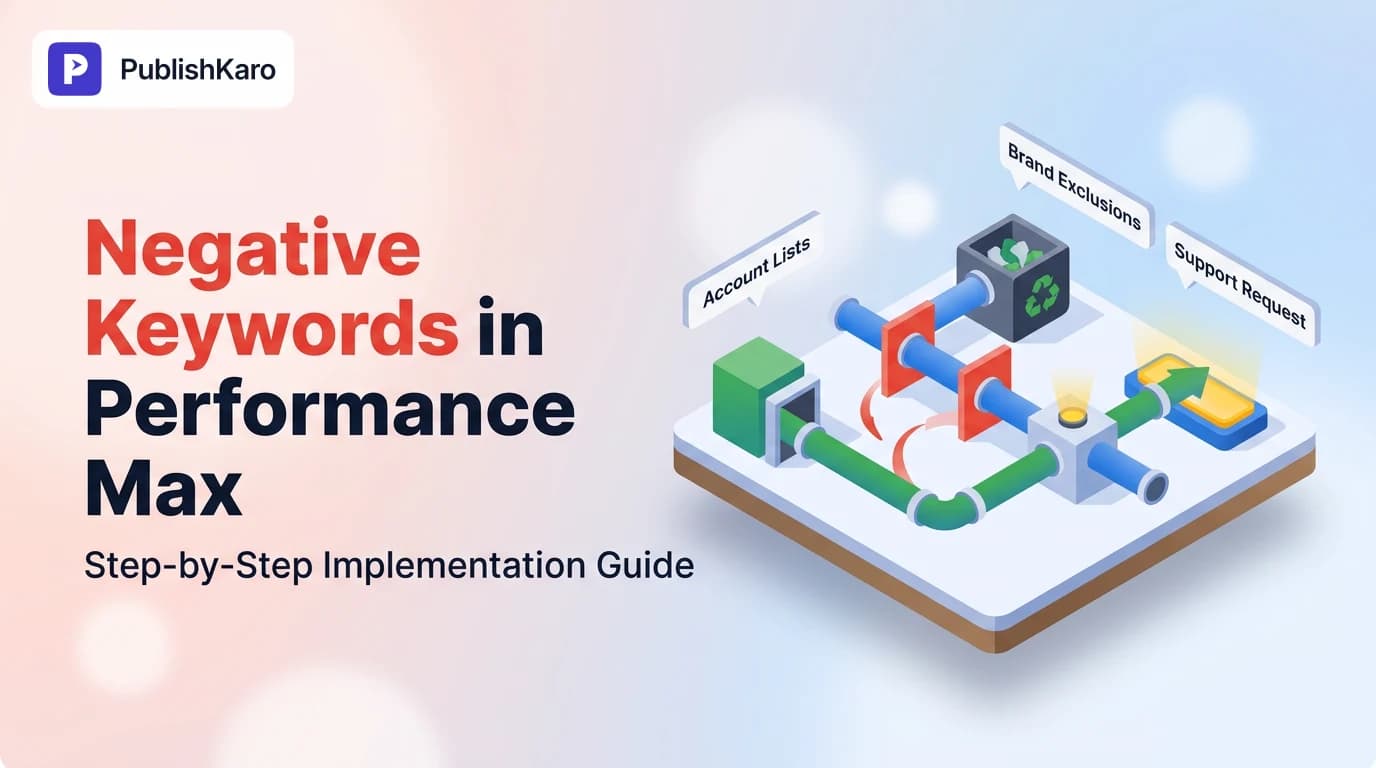
Understanding Negative Keywords in Performance Max Campaigns
Performance Max campaigns streamline multi-channel advertising by serving creative assets across Search, YouTube, Display, Discover, Gmail, and Google Maps from a single automated campaign container. While this consolidated approach helps discover unexpected search demand, it also removes many manual controls that pay-per-click (PPC) advertisers relied on for years.
Unlike traditional Google Search campaigns, you cannot open a Performance Max campaign tab and paste a standard list of negative keywords into a dedicated ad group interface. Because Performance Max relies heavily on automated targeting and machine learning, Google restricts standard ad-group-level negative keyword management.
However, leaving query matching entirely unmonitored can lead to ad spend waste on unqualified queries, mismatched search intents, and unwanted brand terms. Understanding your exclusion options ensures your budget focuses exclusively on prospects with genuine purchase intent.
If you manage cross-channel acquisition alongside Meta & Google Ads management, mastering these negative keyword workflows is essential for maintaining efficient conversion costs across your entire digital portfolio. You can also explore our broader perspective on campaign performance across the PublishKaro blog or dive into our dedicated Ads category.
Why Negative Keywords Matter for Performance Max
Automated bidding and broad matching logic in Performance Max campaigns attempt to find conversions wherever search behavior matches your asset group themes. Without clear boundaries, campaigns often display ads for queries that drain your budget without delivering value:
- Unwanted Search Queries: Terms like "free," "jobs," "internships," "login," or "wholesale" when your business sells premium direct-to-consumer goods or high-value enterprise services.
- Brand Cannibalization: Performance Max capturing branded search traffic that your dedicated, lower-cost Search campaigns are already structured to capture.
- Mismatched Product Lines: Queries related to services or product lines you do not stock, do not service in specific regions, or have intentionally discontinued.
- Competitor Overlaps: Terms identifying direct competitors whose audiences may not align with your specific pricing tier or product capabilities.
Unmonitored spending on poor-quality clicks distorts automated performance models. When an algorithm optimises toward irrelevant search clicks, it continues serving ads to similar low-intent audiences. By eliminating waste upfront, you provide cleaner conversion signals to the algorithm. Implementing an account level negative keywords google ads framework gives you consistent protection across your entire advertising footprint.
Method 1: Account-Level Negative Keyword Lists
The most straightforward way to add negative keywords across Performance Max campaigns without contacting external support is through account-level negative keywords. Applying negative terms at the account level blocks those queries across traditional Search campaigns, Shopping campaigns, and Performance Max campaigns simultaneously.
Step 1: Open Google Ads Account Settings
Log in to your Google Ads account. In the main navigation bar on the left, click Admin, then select Account settings.
Step 2: Expand the Negative Keywords Section
Scroll down to the section titled Negative keywords. Click to expand the panel. Here, you will see options to enter terms directly or select existing shared lists.
Step 3: Enter Negative Terms and Choose Match Types
Type or paste your negative keywords into the input box. You can apply standard match type syntax:
- Broad match:
keyword - Phrase match:
"keyword" - Exact match:
[keyword]
Google Ads accounts allow up to 1,000 account-level negative keywords. Once entered, click Save. These terms apply across your active campaigns immediately, preventing Performance Max from showing ads on Search and Shopping placements for those queries.
For official technical documentation on account configurations and policy guardrails, consult Google Ads Help.
Method 2: Campaign-Level Brand Exclusions
One common challenge with Performance Max is preventing automated assets from capturing brand-name queries that belong in dedicated brand search campaigns. Google provides a native feature called Brand Exclusions designed specifically for this issue.
Step 1: Navigate to Campaign Settings
From your Google Ads dashboard, click on Campaigns, select the specific Performance Max campaign you wish to refine, and click Settings.
Step 2: Access Brand Exclusions
Scroll down through campaign settings to find the Brand exclusions dropdown. Click Additional settings if it is not visible by default.
Step 3: Select or Build a Brand List
Choose an existing brand list or create a new one. A brand list contains your brand name, common misspellings, and related corporate entities. If your brand is not pre-populated in Google's database, you can submit a request within the interface to add your custom brand identity.
Applying performance max brand exclusions prevents your Performance Max campaign from entering the auction for those branded search terms, directing traffic to your dedicated Search campaigns instead.
Method 3: Submitting Campaign-Level Negative Lists via Google Support
What happens when you need to exclude specific non-brand terms from a single Performance Max campaign, but still want those queries active in another campaign within the same account? Because the self-serve interface lacks campaign-level negative lists for Performance Max, you must request this implementation through Google Ads Support.
Step 1: Create a Negative Keyword List in Shared Library
First, navigate to Tools and settings in the top navigation menu. Under the Shared library column, click Negative keyword lists. Click the blue plus button, label your performance max negative keyword list clearly (for example, PMax Exclusions - Campaign A), paste your negative keywords, and save the list. Do not apply it to any campaign yet.
Step 2: Contact Google Ads Support
Click the Help icon (question mark) in the top-right menu and choose Contact Us or submit a ticket via the Google Ads Help support portal.
Step 3: Provide Specific Account Details
In your support ticket, state clearly:
- Your 10-digit Google Ads Customer ID
- The name of the specific Performance Max campaign
- The exact name of the Negative Keyword List created in your Shared Library
- An explicit written request asking the support representative to apply that negative keyword list directly to your Performance Max campaign
Once the support specialist confirms the application, the list becomes active on that single campaign.
Comparison Table
| Feature / Method | Account-Level Negative Keywords | Campaign Brand Exclusions | Support-Applied Negative List |
|---|---|---|---|
| Implementation Speed | Instant (Self-serve) | Instant (Self-serve) | 24 to 72 hours (Requires support rep) |
| Scope | Entire Google Ads account | Selected Performance Max campaign | Selected Performance Max campaign |
| Best For | Universal negative terms (e.g., "free", "jobs") | Protecting branded search terms | Campaign-specific non-brand product queries |
| Capacity Limit | Up to 1,000 keywords | Brand lists defined in account | Standard list limits (up to 5,000 keywords) |
| Maintenance Effort | Low; direct dashboard updates | Low; toggle brand lists | High; updates require support intervention |
| Impact on Other Campaigns | Affects all campaigns in account | Performance Max campaign only | Performance Max campaign only |
| Self-Serve Capability | Fully self-serve | Fully self-serve | Requires support ticket |
Finding Wasted Search Terms in Performance Max
To identify which negative keywords to add, you must audit the search terms your campaign triggers. Performance Max historically offered minimal search query visibility, but Google now provides Search terms insights.
Navigate to your Performance Max campaign and click Insights and reports, followed by Insights. Review the search query categories and individual search terms generating impressions and conversions. Look for terms with significant clicks but zero conversions, as well as terms that show poor intent for your offering.
Understanding user queries and aligning them with relevant landing pages connects directly with search engine principles outlined in the Google Search Central SEO Starter Guide. If your paid landing pages require organic discoverability or technical overhauls, check our offerings for SEO & Google Business Profile and comprehensive custom website development.
Visual guide
Choose Your Performance Max Exclusion Method
Select the right negative keyword approach based on whether your unwanted search terms are universal, branded, or specific to one campaign.
Adding Account-Level Negative Keywords
Follow these steps in Google Ads Account Settings to instantly block irrelevant queries across all Performance Max campaigns.
Requesting Campaign-Level Exclusions via Support
When you need non-brand negatives applied to a single Performance Max campaign, create a shared list and submit a support ticket.
Practical Examples
Example 1: B2B SaaS Platform Excluding Consumer Terms
A B2B enterprise software provider running Performance Max noticed ad spend going toward queries like "free download," "student software discount," and "open source alternatives."
Action Taken: The team used Method 1 (Account-Level Negative Keywords) to add "free", "student", "crack", and "open source" as phrase-match negatives across the entire account. Because these terms represent unqualified intent across all products, applying them at the account level instantly stopped waste without affecting specific campaigns.
Example 2: Multichannel Retailer Protecting Branded Search
An online apparel retailer discovered that its Performance Max campaign was bidding aggressively on its own brand name, claiming conversions that were historically handled by a dedicated brand campaign with lower cost-per-click thresholds.
Action Taken: The retailer implemented Method 2 (Campaign-Level Brand Exclusions). They selected their verified brand list in the Performance Max campaign settings. Performance Max immediately stopped entering auctions for the retailer's brand queries, allowing the dedicated Search campaign to maintain lower acquisition costs.
Example 3: Segmented Product Offerings in High-Growth Stores
A business selling both luxury custom furniture and budget flat-pack desks needed to prevent the luxury Performance Max campaign from serving on queries for cheap flat-pack terms, while still allowing the flat-pack campaign to target them.
Action Taken: The marketing manager used Method 3. They built a dedicated negative keyword list in the Shared Library titled PMax Luxury - Exclude Budget Terms containing queries like "cheap desk" and "assemble yourself". They submitted a ticket to Google Ads Support requesting the list be applied exclusively to the luxury campaign. Within 48 hours, the campaign-specific exclusion was active.
Businesses running multifaceted digital marketing programs often handle synchronized campaigns across paid search, social media, and direct messaging. When scaling creative assets across platforms, tools like the PublishKaro publishing app help teams plan social posts in Google Sheets, generate AI captions, run automated spell checks on images and videos, and schedule directly to social networks while paid search captures targeted demand.
Step-by-Step Implementation Best Practices
To make your negative keyword strategy efficient and repeatable, establish a structured cadence. Follow these operational guidelines when managing exclusions:
Match Type Discipline
Be intentional with match types. Broad match negatives can unintentionally block relevant long-tail variations. Phrase match negatives are typically the safest choice for phrases such as "free course" or "job openings". Exact match negatives should be reserved for queries that are partially relevant but fail to convert in a specific phrasing.
Audit Weekly During Campaign Ramp-Up
During the first 4 to 6 weeks of running a Performance Max campaign, review Search Terms Insights at least once every 7 days. Mark non-converting categories early before they accumulate disproportionate budget shares.
Coordinate Across Campaign Types
Maintain documentation of your Shared Library lists. If you create campaign-specific negative lists for Performance Max, ensure they do not conflict with active keyword lists in standard Search or Shopping campaigns.
For ecommerce businesses managing extensive product catalogs on platforms like Shopify, ensuring product feeds and search intents align is crucial. If your ecommerce architecture needs streamlining, explore our solutions for Shopify stores and WordPress sites.
If you manage customer communications or marketing automation alongside paid acquisition, review our operational guides on how to lower email bounce rate under 2 percent and WhatsApp Business API pricing changes explained to build a unified conversion funnel.
Checklist
Follow this verification checklist before and after applying negative keywords to Performance Max campaigns:
- Audit Search Term Insights: Review current queries under Campaign > Insights to identify irrelevant patterns.
- Classify Negative Intent: Categorize unwanted queries into Universal Negatives, Brand Queries, or Campaign-Specific Negatives.
- Check Match Type Syntax: Ensure exact brackets
[], phrase quotation marks"", or broad match formats are entered correctly. - Apply Account-Level Lists: Navigate to Admin > Account Settings > Negative Keywords to add universal exclusion terms.
- Configure Brand Exclusions: In Performance Max Campaign Settings, attach your brand list to stop brand cannibalization.
- Prepare Support Lists: If campaign-specific non-brand exclusions are required, build the list inside the Shared Library first.
- Submit Support Documentation: Include the 10-digit Customer ID, campaign name, and list name when submitting a support ticket.
- Verify Spend Distribution: Check spend shifts 7 days after application to confirm budget moves toward high-intent queries.
Key Takeaways
- Multiple Methods Exist: While Performance Max lacks an in-line negative keyword tab at the ad-group level, you can apply negatives via Account Settings, Brand Exclusions, or Google Support requests.
- Account Negatives Protect Everything: Account-level negative keyword lists support up to 1,000 terms and apply automatically to all Search, Shopping, and Performance Max campaigns in the account.
- Brand Exclusions Preserve Dedicated Budgets: Use native Brand Exclusions in campaign settings to prevent Performance Max from taking traffic from lower-cost branded search campaigns.
- Campaign-Level Flexibility Requires Support: To exclude non-brand terms from a single Performance Max campaign, build the list in your Shared Library and request manual application through Google Ads Support.
- Regular Insights Audits Prevent Waste: Consistently review the Search Terms Insights report to spot emergent irrelevant search patterns before ad spend escalates.
Managing paid ad performance requires a comprehensive marketing ecosystem. If your business is evaluating broader acquisition or brand strategies, explore our full suite of all PublishKaro services to elevate your digital presence. You can also learn related optimization techniques such as how to appeal Google Business Profile suspensions and how to clean a hacked WordPress site in our resource library.
At PublishKaro, every agency project—from full ad account setups to custom development—is quoted after a free discovery call, at a fixed price agreed in writing, ensuring clients maintain full ownership of all accounts, files, and assets.
Sources and Further Reading
Frequently asked questions
Can you add negative keywords directly to a Performance Max campaign without support?
You can add negative keywords independently at the account level via Account Settings, which impacts all campaigns. You can also apply Brand Exclusions directly within Performance Max campaign settings. However, applying campaign-specific non-brand negative keywords still requires contacting Google Ads Support.
How many account-level negative keywords can I add in Google Ads?
Google Ads permits up to 1,000 account-level negative keywords per account. These terms apply globally to all Search, Shopping, and Performance Max campaigns operating in that account.
Do negative keywords in Performance Max affect Display or YouTube placements?
Account-level negative keywords primarily block queries on Search and Shopping inventory. They do not block placements across Display Network or YouTube video channels, which require placement exclusions and content suitability settings.
How long does Google Ads Support take to apply a negative keyword list to Performance Max?
Google Ads Support typically processes negative keyword list attachment requests within 24 to 72 business hours. You will receive an email confirmation once the representative links the Shared Library list to your Performance Max campaign.
Will adding negative keywords reset the Performance Max learning phase?
Adding a standard list of negative keywords generally does not reset the core machine learning phase unless the exclusions eliminate a substantial percentage of your campaign's historical conversion volume. Gradual, targeted negative keyword updates are standard account maintenance.
What happens if a keyword is in both my asset group search themes and my negative list?
Negative keywords always override positive targeting signals. If you have a search term in your negative keyword list, Google Ads will prevent your ads from entering the auction for that query, even if the term is present in your asset group search themes.
Can I exclude competitor brand names using Brand Exclusions?
Yes. Brand Exclusions allow you to select or request lists containing competitor brands as well as your own brand, preventing Performance Max from serving ads on competitor brand queries.