Why Your Store Needs a Dedicated Sending Domain
When you launch an email marketing account on any cloud platform, outgoing messages route through shared infrastructure by default. Under standard Internet mail protocols, every email message contains two separate sender identifiers: the "Header From" address that recipients see in their inbox (such as hello@yourstore.com) and the "Envelope From" address (also called the Return-Path) that mail servers check to track delivery errors and bounces.
Without a dedicated sending setup, mailbox providers like Gmail and Yahoo note that the Header From belongs to your brand while the Envelope From belongs to a shared server. As a result, inboxes often display an unbranded tag showing that the email arrived "via klaviyomail.com". This setup groups your store into a shared pool with thousands of other accounts. If any sender on that shared cluster distributes low-quality campaigns or triggers elevated bounce rates, your inbox deliverability can drop.
Configuring a dedicated sending domain aligns your Header From address directly with your Return-Path domain. This technical alignment allows your campaigns to pass Sender Policy Framework (SPF) and DomainKeys Identified Mail (DKIM) checks cleanly. Setting up correct klaviyo dns settings guarantees that mailbox algorithms evaluate your business based solely on your own sending practices rather than the habits of unknown senders.
At PublishKaro, when our team implements email marketing architectures for growing ecommerce brands, establishing clean domain authentication records is always the first technical task completed before launching a campaign. Businesses exploring cross-channel customer journeys often integrate automated email alerts alongside messaging touchpoints like a conversational bot; our guide on how to set up a WhatsApp AI chatbot for business outlines how modern stores unite conversational platforms with inbox campaigns.
Understanding Klaviyo DNS Settings and Authentication Protocols
To understand why domain configuration matters, you need to understand the three core protocols governing email authentication across the web: SPF, DKIM, and DMARC.
Sender Policy Framework (SPF)
SPF is an authentication method that specifies which mail servers are authorized to send messages on behalf of your domain. Instead of editing your apex TXT record to include dozens of external IP addresses, Klaviyo isolates your marketing traffic by using a dedicated sending subdomain (such as send.yourbrand.com). By pointing a CNAME record to Klaviyo's servers, Klaviyo publishes and manages the exact SPF requirements for that specific subdomain automatically.
DomainKeys Identified Mail (DKIM)
DKIM adds a tamper-proof cryptographic signature to the header of every outbound message. When an inbox receives your campaign, it retrieves the public DKIM key published in your domain's DNS records to verify that the email originated from you and was not altered in transit. A custom domain setup creates branded DKIM records that align with your sender domain.
Domain-based Message Authentication, Reporting, and Conformance (DMARC)
DMARC builds directly on SPF and DKIM. It tells receiving servers what action to take if an incoming message fails authentication checks: monitor it (p=none), quarantine it in spam (p=quarantine), or reject it outright (p=reject). Modern inbox rules from major providers mandate that senders maintain an active DMARC record on their root domain. Configuring a branded sending domain ensures your marketing messages pass DMARC alignment smoothly.
For additional context on how cloud platforms structure sender authentication, consult official resources on the Klaviyo Help Center alongside guidance from platforms like the Brevo Help Center.
Prerequisites Before Configuring Klaviyo DNS Records
Before you begin the implementation, gather the necessary account credentials and administrative access:
- Klaviyo Account Access: You need an account assigned the Owner, Admin, or Manager role to modify deliverability and domain settings.
- DNS Hosting Access: You need administrative access to your domain registrar or cloud DNS manager (such as Cloudflare, GoDaddy, Namecheap, AWS Route 53, or Google Domains).
- Active Root Domain: Ensure your root apex domain (e.g.,
brandstore.com) is registered and functioning. Avoid setting up sending records on temporary development URLs or staging environments. - Baseline DMARC Record: Confirm that your apex domain features an active DMARC record. Even a basic monitoring policy (
v=DMARC1; p=none;) fulfills basic authentication mandates.
If your online storefront is hosted on Shopify stores or powered by WordPress sites, your DNS zone file already contains records directing traffic to store servers and web hosts. Take care not to delete or modify existing MX or root web records while adding new entries.
Step-by-Step Guide: How to Set Up Branded Sending Domain Klaviyo
Follow these sequential steps to generate, apply, and verify your custom sending domain records without interrupting daily business communications.
Step 1: Open Domain Settings in Klaviyo
- Sign in to your Klaviyo administrative dashboard.
- Click your account name or profile avatar in the lower-left corner and choose Settings.
- From the internal settings menu, select Domains and IP.
- Locate the section labeled Branded Sending Domain and select Add Domain.
Step 2: Define Your Root Domain and Sending Subdomain
Klaviyo presents two input fields required to configure your sending identity:
- Root Domain: Enter your apex domain without
https://,http://, orwww(for example,brandstore.com). - Sending Subdomain: Select a clean prefix dedicated entirely to outbound marketing campaigns. Standard prefixes include
send,mail,trk, orem.
Important Infrastructure Rule: Never select a prefix currently used by your primary business email. If your team relies on Google Workspace or Microsoft 365 through mail.brandstore.com, choose an alternative prefix such as send.brandstore.com. Using an identical subdomain will create MX routing collisions and disrupt daily correspondence.
Select your DNS hosting provider from the available menu (such as Cloudflare or GoDaddy). If your provider is not shown, select Other. Click Next to generate your custom DNS table.
Step 3: Copy the Generated DNS Records
Klaviyo generates a table of DNS entries required to establish SPF, DKIM, and link-tracking alignment. The generated entries typically consist of:
- CNAME Records (3 to 4 entries): These map your chosen sending subdomain and tracking prefixes to Klaviyo's servers, authorizing DKIM keys and handling secure link redirection.
- TXT Record (1 entry): This provides domain ownership verification and explicit subdomain authentication.
Leave your Klaviyo browser window open while you access your DNS provider in a separate tab.
Step 4: Publish the Records in Your DNS Host
Log in to your DNS hosting account and navigate to the DNS management console for your apex domain. Add each record exactly as specified in Klaviyo, paying close attention to these technical nuances:
- Host Name Formatting: Certain DNS providers (such as Cloudflare, Namecheap, and cPanel) automatically append your root domain to any host entry. If Klaviyo lists the host as
send.brandstore.com, enteringsend.brandstore.cominto these providers will createsend.brandstore.com.brandstore.com. In these consoles, input only the prefix (send). - Cloudflare Proxy Settings: If you use Cloudflare, ensure that every mail-related CNAME record is configured as DNS Only (represented by a grey cloud). If Cloudflare's proxying (orange cloud) is turned on, the system attempts to route mail authentication through web proxies, causing verification to fail.
- Time to Live (TTL): Set the TTL to automatic or the lowest available value (such as 300 seconds or 5 minutes). This ensures that any adjustments propagate rapidly across nameservers.
Step 5: Verify the Domain in Klaviyo
Return to your Klaviyo dashboard and click Verify Domain:
- Klaviyo initiates global queries to check whether your DNS records match the expected keys.
- If the records are detected, Klaviyo displays a success indicator confirming validation.
- Click Apply Domain to activate the records across your sending profile.
DNS changes often take between 15 minutes and two hours to resolve globally, though some registrars may take longer.
Comparison Table
Understanding how a dedicated sending domain differs from shared sending infrastructure highlights why this setup is critical for growing brands.
| Deliverability Dimension | Shared Sending Domain (Default) | Branded Sending Domain (Dedicated) | | :--- | :--- | :--- | | | Sender Alignment | Shared Return-Path (klaviyomail.com) | 100% Brand-Aligned (send.yourbrand.com) | | Header Visibility | Displays "via klaviyomail.com" in recipient inboxes | Clean sender display; no third-party platform tag | | Reputation Control | Shared with all senders on the default pool | Completely isolated to your brand's sending habits | | DMARC Compliance | Incomplete alignment under strict enforcement | Fully aligned SPF and DKIM satisfying DMARC | | Link Tracking | Shared Klaviyo tracking URLs | Branded tracking links matching your domain | | Bulk Sender Standards | Vulnerable to shared pool delivery drops | Meets current ISP authentication standards | | Implementation Effort | Zero configuration required | DNS record creation (CNAME/TXT) and verification |
Practical Examples
Examining real-world implementation scenarios illustrates how different store architectures manage domain verification.
Example 1: DTC Apparel Brand on Cloudflare DNS
A direct-to-consumer apparel store running on Shopify manages its DNS records through Cloudflare. When generating branded domain records in Klaviyo, the store receives:
- Type:
CNAME| Host:send.apparelbrand.com| Value:send.klaviyo.com - Type:
CNAME| Host:kl._domainkey.send.apparelbrand.com| Value:kl._domainkey.klaviyomail.com
The Problem: The store manager pastes the full hostname and leaves Cloudflare's default proxy setting turned on. The records fail verification repeatedly.
The Resolution: The manager edits the entries to use shorthand host values (send and kl._domainkey.send) and switches the proxy toggle from "Proxied" (orange cloud) to "DNS Only" (grey cloud). The domain verifies on the subsequent check.
Example 2: Home Decor Brand with Existing Google Workspace
A home goods retailer running on custom ecommerce infrastructure uses Google Workspace for daily team communication. The internal team considers setting their Klaviyo subdomain as mail.homedecor.com.
The Problem: Because mail.homedecor.com already contains MX records pointing to Google Workspace, creating Klaviyo CNAME records on the same subdomain would break inbound team email.
The Resolution: The business selects em.homedecor.com as their Klaviyo subdomain. This isolates their promotional email routing completely from their primary corporate mail channels, preventing any record collisions.
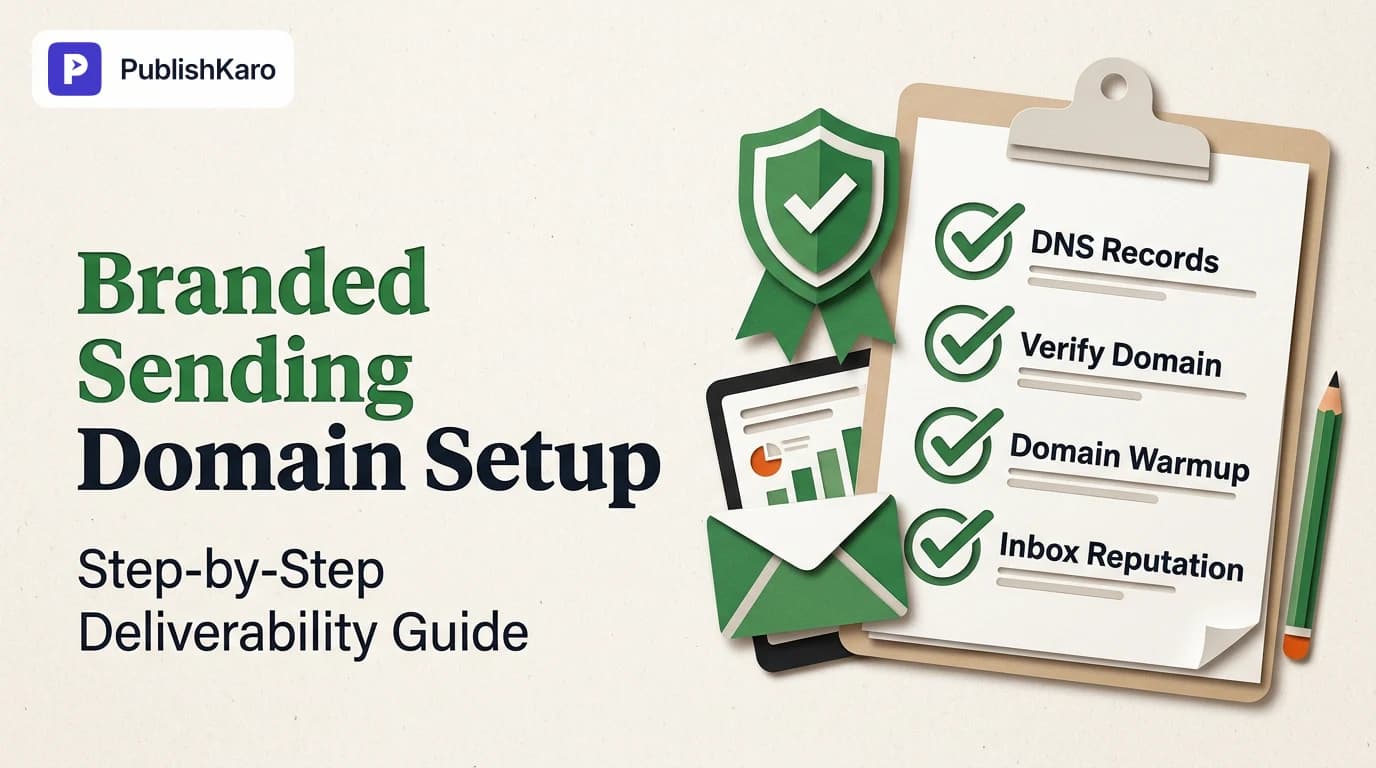
What to Do After Setup: The Domain Warmup Phase
Activating your branded sending domain gives you a clean sending reputation with major mailbox providers. Because Google, Yahoo, and Microsoft view your new domain as an unestablished entity, sending high-volume blasts immediately can trigger spam filtering.
Protect your domain health during the warmup phase with these steps:
- Isolate an Engaged Segment: Build a recipient segment consisting solely of contacts who have opened or clicked an email in the past 30 days.
- Restrict Initial Campaigns: For the first 14 to 30 days, send marketing broadcasts exclusively to this highly engaged audience.
- Expand Gradually: After two weeks of steady engagement, broaden your sending segment to include contacts engaged within 60 days, followed by 90 days.
- Keep Unsubscribe Links Clear: Make unsubscribing simple so disinterested contacts opt out rather than clicking spam complaint buttons.
Healthy list acquisition works hand-in-hand with inbound traffic. If your business runs paid acquisition campaigns via ads management, ensure your opt-in forms use double opt-in or active validation to keep invalid email addresses out of your database.
Visual guide
Setting Up Your Branded Sending Domain
Follow these core steps inside Klaviyo and your DNS provider to authenticate your domain and protect deliverability.
Selecting Safe Sending Subdomain Prefix
Check whether your desired subdomain is used by business email tools like Google Workspace before adding it to Klaviyo.
Cloudflare DNS Verification Checklist
Avoid the two most common setup errors in Cloudflare before submitting your domain for verification.
Checklist
Use this operational checklist to track your domain setup from initial planning through warmup completion:
- Ensure administrative permissions in Klaviyo and your DNS hosting dashboard.
- Confirm an active DMARC record exists on your root apex domain.
- Choose an unused sending subdomain prefix (such as
sendorem). - Generate your branded sending domain records within Klaviyo Settings.
- Enter all CNAME and TXT records accurately into your DNS management portal.
- Set all mail-related CNAME records in Cloudflare to DNS Only (grey cloud).
- Run domain verification in Klaviyo and apply the configuration.
- Update campaign "From" addresses to match your verified domain.
- Create a 30-day engaged subscriber segment for warm-up sending.
- Monitor delivery metrics closely over the initial 30 days of active sending.
Connecting Email Deliverability to Your Broader Marketing Strategy
A verified sending infrastructure ensures that your promotional campaigns and automated flows reach the inbox reliably. However, inbox delivery is only one part of an effective digital marketing strategy.
If your landing pages load slowly or exhibit layout shifts, even high open and click rates will struggle to generate conversions. Review our practical guide on website speed optimization for small business or explore how to fix Shopify Interaction to Next Paint to ensure your web storefront aligns with the performance standards detailed in the official Google Core Web Vitals documentation.
Similarly, strong customer communication requires alignment across organic search and social media channels. Reviewing our technical guide on how to switch to block theme WordPress can help streamline your publishing infrastructure alongside recommendations found in the Google SEO Starter Guide.
If your brand is undertaking a strategic refresh or updating its domain identity, evaluating our guide on how much does rebranding cost small business owners provides clarity on budgeting domain and brand migrations. Visual product presentation also benefits from modern digital formats; explore our breakdown on 3D product animation cost for ecommerce to learn how rich creative assets support retention flows.
For ongoing content planning, our PublishKaro publishing app allows marketing teams to organize multi-channel social media calendars directly inside Google Sheets. The application utilizes AI to generate platform-ready captions from your custom prompts, runs strict spell-checks on captions and visual assets, and publishes directly to Instagram, Facebook, LinkedIn, and YouTube via official APIs while logging statuses back to your spreadsheet.
Explore our full selection of tutorials on the PublishKaro blog or browse dedicated resources in our email marketing blog category. For technical search optimization, our team delivers dedicated SEO services to help businesses build sustainable visibility. Every organization has unique operational requirements; at PublishKaro, all client projects are quoted after a free discovery call, at a fixed price agreed upon in writing, with clients retaining complete ownership of every account, DNS record, and digital asset.
Key Takeaways
- Dedicated Domain Alignment: Configuring a branded sending domain removes your reliance on Klaviyo's shared sending infrastructure and builds sender reputation tied directly to your domain.
- Careful Subdomain Choice: Select a dedicated prefix like
sendoremthat avoids collisions with corporate email hosting on Google Workspace or Microsoft 365. - Disable Cloudflare Proxying: Ensure that all mail-related DNS CNAME records are set to DNS Only (grey cloud) to avoid verification failures.
- Follow a Warmup Schedule: Never blast your full subscriber database immediately following verification; ramp up volume gradually starting with your 30-day engaged audience.
- Maintain DMARC Coverage: Ensure an active DMARC record is published on your root domain to comply with current mailbox provider standards.
Frequently asked questions
How long does it take for Klaviyo DNS records to propagate?
DNS propagation typically takes between 15 minutes and several hours. Depending on your domain registrar and TTL settings, full global propagation can occasionally take up to 48 hours.
Will changing my sending domain affect my existing email flows?
Yes, automated flows begin routing through your newly branded domain immediately after records are applied. For this reason, ensure your live flows target active, engaged subscribers during the initial warmup window.
Why is Klaviyo showing a verification failure on my CNAME records?
Verification errors most often occur when a DNS provider automatically appends the root domain (resulting in duplicated domain names) or when records are set to "Proxied" rather than "DNS Only" in platforms like Cloudflare.
Do I need a branded sending domain if I send fewer than 5,000 emails a day?
Yes, setting up a branded sending domain is recommended for businesses of all sizes. It protects your sender reputation, establishes SPF and DKIM alignment, and eliminates third-party "via" tags in recipient inboxes.
Can I use the same subdomain for both Klaviyo and Google Workspace?
No. You should never use the same subdomain prefix for both your daily business email and Klaviyo marketing messages. Choose a dedicated prefix like send.yourdomain.com for marketing campaigns to prevent MX record conflicts.
What is the difference between root domain and sending subdomain?
The root domain is your primary apex web address (e.g., brandstore.com), while the sending subdomain is a dedicated prefix (e.g., send.brandstore.com) that isolates marketing mail traffic from your main web server.