Understanding Time to First Byte in WordPress
Time to First Byte (TTFB) is a foundational performance metric that measures the duration between when a client browser issues an HTTP network request and when it receives the very first byte of data from the destination web server. For webmasters and digital marketing teams running WordPress websites, TTFB acts as the gating factor for all downstream rendering metrics. If your origin server requires two seconds simply to start sending back HTML, optimizations like script deferral, CSS minification, and image compression cannot prevent your visitors from experiencing an unresponsive blank screen.
According to Google's official guidance detailed in their Core Web Vitals documentation, a good TTFB score is 0.8 seconds (800 milliseconds) or lower. If server response times surpass 1.8 seconds, the site enters poor performance territory. TTFB is not a single isolated event; it represents three consecutive phases: the time required for network transmission from browser to server, the server processing time necessary to interpret code and generate content, and the return network transit time needed to deliver that opening byte back to the browser.
In standard WordPress installations, server processing time is almost invariably the main bottleneck. When an uncached visitor requests an article or category archive, the underlying web server (such as Nginx, Apache, or LiteSpeed) receives the incoming connection, initializes the PHP execution runtime, loads core WordPress files, triggers active plugins, parses theme templates, and runs dozens of queries against a MySQL or MariaDB database before assembling the finished HTML document. If any component in that dynamic sequence encounters resource starvation or poor code, server response times degrade.
Understanding how server responsiveness impacts search engine crawlers is equally essential. As documented in the Google SEO Starter Guide, fast server responses allow search bots to crawl content rapidly and thoroughly without encountering timeouts or exhausting crawl quotas. Mastering how to fix high TTFB in WordPress directly supports both user satisfaction and indexing efficiency.
Primary Root Causes of WordPress Server Latency
Diagnosing sluggish server responses requires analyzing four distinct layers of the web stack: physical hosting infrastructure, dynamic application code execution, database retrieval, and network routing. Addressing only one layer rarely solves persistent performance degradation.
1. Inadequate Hosting and Resource Contention
Budget shared hosting packages group hundreds or thousands of client accounts on a shared physical server. When an adjacent site experiences a traffic surge or runs unoptimized background tasks, your account suffers from noisy neighbor syndrome. Your WordPress processes face CPU throttling, insufficient RAM allocations, and disk I/O bottlenecks. Additionally, low-cost hosts often maintain outdated software environments, keeping sites stuck on obsolete PHP versions that execute dynamic scripts far slower than modern interpreters.
2. Absence of Full-Page Caching
WordPress is fundamentally dynamic by default. Without an active caching mechanism, the web server executes the entire PHP and database cycle for every individual pageview, even when delivering identical content to consecutive visitors. A robust page-caching layer saves the rendered HTML snapshot to memory or fast disk storage, allowing subsequent requests to bypass dynamic execution entirely.
3. Bloated Database Tables and Autoloaded Options
Every WordPress installation utilizes an options table (typically wp_options) containing an attribute designated as autoload. Options set to autoload are retrieved in a single massive database query during the very first phase of WordPress startup, before plugins and themes even initialize. Over months and years of testing plugins and marketing tracking tools, abandoned transients, analytical counters, and uncleaned settings build up. When this autoloaded payload grows from several hundred kilobytes to multiple megabytes, every single request incurs severe database latency.
4. Inefficient Plugins and Unindexed Database Queries
Plugins that make unindexed database queries, query external third-party APIs synchronously during page assembly, or run resource-intensive routines on every front-end hit will quickly degrade responsiveness. A single poorly constructed plugin can add 500 to 1,500 milliseconds of backend execution time to every pageview.
5. Physical Geographic Distance and DNS Latency
Physical network distance imposes absolute latency constraints due to the physics of light traveling through fiber-optic cables. If your web host is physically located in North America and a customer visits from Europe or Australia, network round trips add hundreds of milliseconds to the connection handshake before server processing even begins. Slow, un-anycasted DNS providers compound this initial delay.
Step-by-Step Guide: How to Fix High TTFB in WordPress
Resolving high server response times requires a systematic engineering approach. Follow these practical steps to identify, isolate, and resolve server latency across your entire WordPress stack.
Step 1: Benchmark the Baseline and Separate Network from Application Lag
Before changing configurations, establish clear baseline measurements. Test your slowest pages using tools like WebPageTest, Google PageSpeed Insights, or the Network panel inside Chrome Developer Tools. Under the Network tab, inspect the document request and locate the "Waiting for server response" measurement.
To isolate whether latency originates from network routing or PHP/database execution, perform a static file test:
- Create a plain text file named
ping.htmlcontaining the word "OK". - Upload this file directly to the root public folder of your WordPress installation (
public_htmlor equivalent). - Request the file directly in your browser:
https://yourdomain.com/ping.html. - Measure the TTFB of this static file.
If the static file returns in under 80 milliseconds while your WordPress homepage requires 1,200 milliseconds, your server hardware and network stack are healthy; your problem lies entirely within dynamic WordPress processing. If the static file itself takes 800+ milliseconds, your issue stems from network geography, DNS resolution, or severe host-level resource throttling.
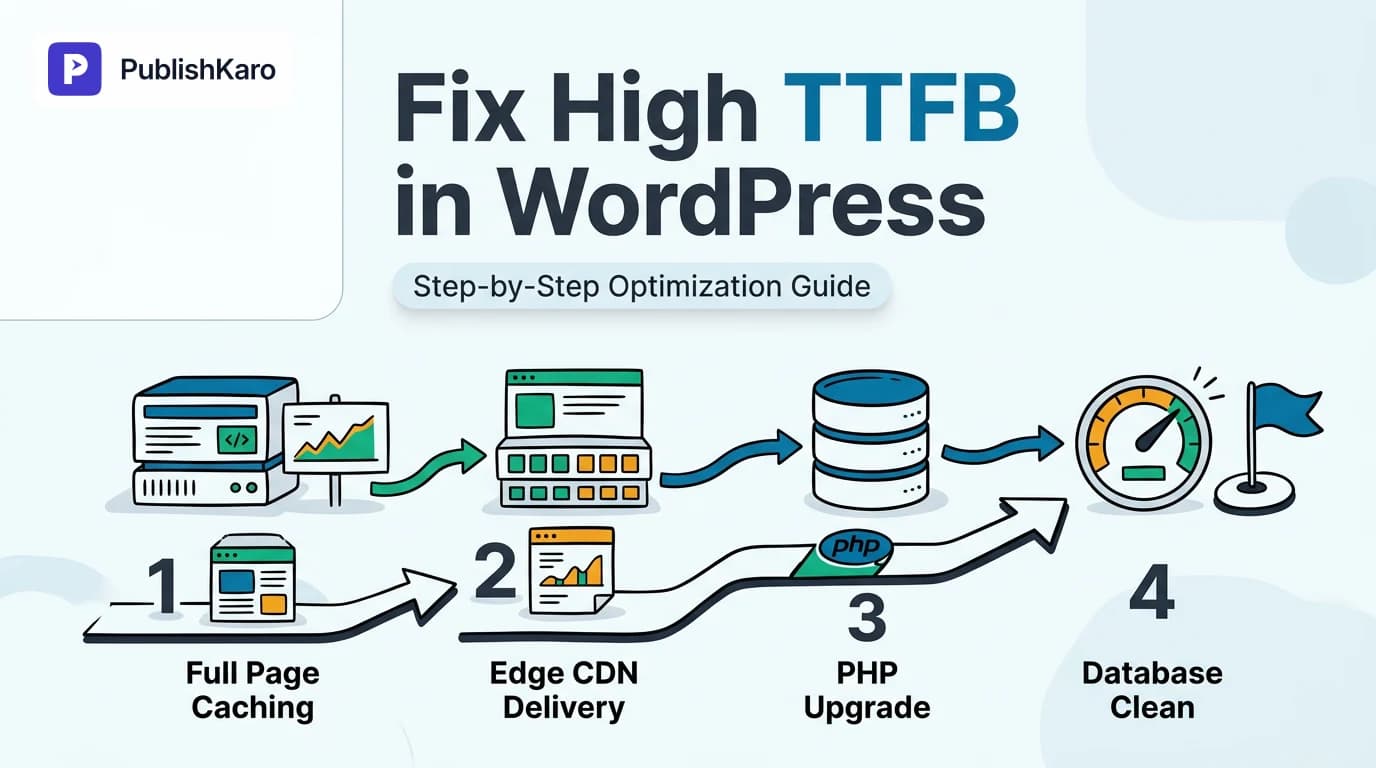
Step 2: Implement Page Caching at the Web Server or Plugin Level
Implementing page caching is the most effective way to achieve meaningful wordpress ttfb optimization on content-driven websites. By storing the final HTML output, the server eliminates dynamic processing for non-logged-in visitors.
Choose the implementation level that matches your technical setup:
- Server-Level Caching (Recommended): If you manage your server or your host supports it, use Nginx FastCGI Cache or the LiteSpeed Cache engine. Server-level caching catches requests before they hit the PHP process manager, serving cached pages in 30 to 100 milliseconds.
- Plugin-Level Disk Caching: If server-level caching is unavailable, deploy reputable caching plugins like WP Rocket, Cache Enabler, or W3 Total Cache. Ensure the plugin writes rewrite rules directly to your web server configuration (such as
.htaccesson Apache) so static files can be served without initializing PHP.
For businesses looking to overhaul complex hosting or application stacks, our dedicated team builds and maintains high-speed WordPress sites tailored for optimal enterprise performance.
Step 3: Upgrade to PHP 8.2 or 8.3 and Fine-Tune OPcache
Upgrading your PHP environment yields immediate processing speed improvements across all core functions and active plugins:
- Log into your hosting control panel (cPanel, Plesk, or your managed hosting dashboard).
- Test plugin and theme compatibility on a staging environment prior to updating.
- Change the active PHP version to PHP 8.2 or PHP 8.3.
- Verify that OPcache is active. OPcache saves precompiled script bytecode directly into shared system memory, ensuring PHP does not re-read, parse, and compile
.phpfiles on every visit. Recommended OPcache settings in your
php.iniconfiguration:opcache.memory_consumption = 256opcache.interned_strings_buffer = 16opcache.max_accelerated_files = 10000opcache.validate_timestamps = 0(or1for active development environments)
- Set
memory_limitto at least256M(or512Mif operating high-traffic ecommerce stores).
Step 4: Audit Plugins with Query Monitor
To locate specific application bottlenecks, install the developer tool Query Monitor on a staging site or during scheduled off-peak maintenance:
- Activate the plugin and load your slowest front-end pages as an authenticated administrator.
- Open the top toolbar Query Monitor summary to inspect total page generation time and database query counts.
- Navigate to Queries > Queries by Component to see which specific plugin accounts for the highest execution time.
- Review Slow Queries to identify any lookups taking longer than 0.05 seconds.
- Identify redundant external HTTP API calls being made during page rendering.
Deactivate or replace plugins responsible for excessive overhead. Common culprits include abandoned social feed scrapers, complex form builders executing uncached queries, and legacy analytic trackers.
Step 5: Clean Up Bloated Autoloaded Options
A bloated wp_options table degrades performance on every single page hit. Maintain database health by consulting the official database documentation provided in the WordPress documentation.
Connect to your database via phpMyAdmin or the MySQL command line and run this calculation to measure your total autoloaded footprint:
SELECT SUM(LENGTH(option_value)) AS autoload_size_bytes
FROM wp_options
WHERE autoload = 'yes';
If the resulting value exceeds 800,000 bytes (approximately 800 KB), identify the largest individual records using the following query:
SELECT option_name, LENGTH(option_value) AS option_size_bytes
FROM wp_options
WHERE autoload = 'yes'
ORDER BY option_size_bytes DESC
LIMIT 20;
Review the top results. You will frequently find expired transient caches, uncleaned options from deleted plugins, or large serialized arrays left behind by themes. Safely delete orphaned records after taking a full database backup, or update their status to prevent autoloading:
UPDATE wp_options SET autoload = 'no' WHERE option_name = 'orphaned_option_name';Step 6: Deploy Edge HTML Caching via a Content Delivery Network
Traditional CDNs cache static assets like images, scripts, and stylesheets. However, edge page caching distributes the entire generated HTML document across hundreds of worldwide points of presence (PoPs):
- Point your domain's authoritative nameservers to a fast Anycast CDN provider such as Cloudflare.
- Enable edge HTML caching features (such as Cloudflare Automatic Platform Optimization or custom Cache Rules).
- Establish clear bypass rules for administrative paths (
/wp-admin/*), preview queries, and users carrying specific login or shopping cart cookies. - When an international visitor accesses your site, the edge node geographically closest to them delivers the pre-rendered HTML in under 100 milliseconds, bypassing your origin server entirely.
For companies requiring custom web experiences or evaluating headless architectures where edge delivery is standard, explore our engineering approach for custom websites.
Practical Examples
Example 1: Resolving a Heavily Bloated WooCommerce Setup
A mid-sized online store operating on WooCommerce experienced an uncached TTFB averaging 2,650 milliseconds on single product pages. The marketing team noted high bounce rates on mobile ad campaigns. Using Query Monitor, the technical team discovered two major issues: a legacy customer loyalty plugin was generating over 140 individual SQL queries per pageview, and the wp_woocommerce_sessions table had accumulated more than 350,000 expired session rows.
The team applied the following fixes:
- Removed the unoptimized loyalty plugin and replaced it with a modern, lightweight alternative.
- Cleared out expired sessions through the native WooCommerce tools panel and scheduled regular database cron purges.
- Installed and configured Redis object caching on their dedicated VPS to store repetitive product queries in memory.
Following these changes, uncached server response times dropped from 2,650 ms to 340 ms, while cached visits loaded in under 95 ms.
Example 2: Eliminating Cross-Continent Latency for a Professional Consultancy
A consultancy firm hosted its corporate WordPress website on a high-spec virtual private server physically located in Chicago, Illinois. While North American visitors experienced an acceptable TTFB of 480 ms, prospective clients visiting from London, Frankfurt, and Singapore faced response latencies of 1,800 to 2,400 ms due to transit delays across global fiber routes.
The team executed these steps:
- Migrated DNS management to an enterprise Anycast DNS network, reducing DNS lookup latency from 140 ms to under 20 ms globally.
- Activated edge HTML caching across global edge nodes, ensuring public content was cached across regional edge servers.
- Configured cache bypass rules for contact form submissions and authenticated sessions.
As a result, TTFB across European and Asian markets dropped to 90–150 ms for public pages, creating a uniform, fast user experience regardless of geographic location.
Comparison Table
| Optimization Strategy | Implementation Complexity | Primary Latency Target | Typical TTFB Reduction | Ongoing Maintenance Requirement |
|---|---|---|---|---|
| Full-Page Caching | Low to Medium | Dynamic PHP Execution | 65% – 85% | Low (automated cache purge rules on updates) |
| PHP 8.2+ & OPcache | Low | Script Interpretation Time | 15% – 30% | Low (verify plugin compatibility periodically) |
| Redis Object Caching | Medium | Repetitive Database Queries | 25% – 45% | Medium (monitor RAM utilization and keyspace) |
| Autoload Data Cleanup | Medium to High | Initial Database Boot Payload | 20% – 50% | Medium (conduct quarterly database maintenance) |
| Edge HTML CDN Caching | Medium | Physical Geographic Latency | 50% – 80% (remote users) | Low (maintain cache bypass exceptions) |
| High-Performance VPS | High | Hardware Resource Contention | 40% – 70% | High (server security and OS patching) |
Visual guide
Diagnosing Your Server Response Delay
Follow this test to quickly find out whether your slow response time comes from your host network or internal WordPress code.
Cleaning Bloated Database Autoloaded Data
This workflow guides you through auditing and clearing out unnecessary autoloaded options that slow down your initial page loads.
Edge Caching Request Delivery Path
See how a content delivery network prevents heavy dynamic page generation by serving cached pages right at the edge.
Aligning Technical Speed with Multi-Channel Marketing
A fast, responsive website provides the technical foundation for modern digital marketing. When you direct targeted prospects to your landing pages through our paid ads management solutions or capture organic search interest through ongoing SEO & Google Business campaigns, keeping server response times minimal ensures prospective customers do not abandon your site before your offer appears.
Similarly, maintaining technical performance must be paired with consistent multi-channel marketing workflows. Digital marketing teams frequently lose hours every week manually formatting, reviewing, and posting content across social networks. With the PublishKaro publishing app, teams simplify content creation by planning schedules inside Google Sheets, generating engaging captions with AI, running automated text and image spell-checks, and auto-publishing directly to Facebook, Instagram, LinkedIn, and YouTube using official APIs. Pairing streamlined content publishing workflows with a high-speed web infrastructure keeps your marketing agile and dependable.
If your organization manages multi-platform setups, such as operating both dynamic content portals and dedicated Shopify stores, maintaining quick response times across all digital touchpoints protects your customer journey. You can also explore our broader technical and operational insights across all PublishKaro articles, including practical guides like How to Prepare Your Website for the European Accessibility Act: A Practical Compliance Guide and How to Build Brand Guidelines for Small Business: Step-by-Step.
Checklist
Follow this practical checklist to methodically identify and fix high TTFB in your WordPress setup:
- Establish baseline TTFB: Test three key URLs (homepage, article, commercial page) across multiple global testing locations.
- Perform static file test: Upload a basic
ping.htmlfile to isolate network delays from dynamic WordPress execution. - Verify hosting resource utilization: Check server dashboard metrics for CPU, RAM, and disk I/O throttling.
- Implement page caching: Activate server-level caching (FastCGI/LiteSpeed) or a tested caching plugin.
- Upgrade PHP environment: Transition to PHP 8.2 or 8.3 with OPcache enabled and memory limit set to at least 256M.
- Run Query Monitor audit: Identify and resolve slow database queries, plugin execution bottlenecks, and external API calls.
- Audit
wp_optionstable: Measure total autoloaded bytes; clean orphaned records and unneeded transient caches. - Configure object caching: Implement Redis or Memcached to prevent redundant database lookups on dynamic queries.
- Deploy edge HTML caching: Configure a modern CDN to serve pre-rendered HTML pages from global edge locations.
- Re-test Core Web Vitals: Verify that field and lab TTFB measurements register well below the recommended 800 ms standard.
Key Takeaways
- TTFB measures server responsiveness; a high TTFB delays all subsequent page rendering and degrades Core Web Vitals.
- Google benchmarks recommend keeping TTFB under 800 milliseconds for a good user experience.
- Full-page caching is the fastest way to reduce TTFB on WordPress content pages by serving static HTML snapshots.
- Autoloaded database bloat and unindexed queries in
wp_optionsare leading contributors to uncached server latency. - Running modern PHP 8.2 or 8.3 with an active OPcache configuration immediately accelerates dynamic code processing.
- Edge caching via an Anycast CDN resolves physical network distance by serving HTML from locations close to the visitor.
For more technical tutorials and development resources, explore our WordPress archive, or view our full suite of all PublishKaro services to see how our engineering and marketing teams support scalable digital growth. For any specialized development or custom architecture projects, all engagements are quoted after a free call, at a fixed price agreed in writing.
Frequently asked questions
What is considered a good TTFB for a WordPress site?
According to Google Core Web Vitals standards, a good TTFB is 800 milliseconds or lower. Sites utilizing properly configured server-level page caching or edge CDN delivery typically achieve TTFB scores between 50 and 200 milliseconds for cached visits.
Does a caching plugin completely fix high TTFB in WordPress?
A caching plugin eliminates high TTFB for public, cached visits by serving pre-rendered static HTML files instead of executing dynamic PHP code. However, it will not fix high TTFB for dynamic or uncached requests—such as the WordPress admin dashboard, cart updates, or checkout flows—which still rely on underlying server and database efficiency.
How does an outdated PHP version impact WordPress TTFB?
Older PHP versions (such as PHP 7.4) process scripts more slowly and consume more memory than modern versions like PHP 8.2 or 8.3. Updating your hosting environment to PHP 8.2+ with OPcache enabled can reduce script execution time by 15% to 30% without changing your site code.
What is autoloaded data in WordPress and why does it cause high TTFB?
Autoloaded data consists of settings stored in the wp_options table where the autoload column is set to 'yes'. WordPress retrieves all of these records in a single database query every time a page initializes. When plugins leave behind massive serialized data or expired transients, this query bloats, causing significant server response delays.
How does edge caching differ from standard CDN asset caching?
A standard CDN caches static assets like images, CSS, and JavaScript files, while the HTML document is still generated by your origin server. Edge caching stores the entire compiled HTML page across edge servers worldwide, allowing users to receive the initial byte from a nearby local server without querying your origin host.
Can database transients increase server response times?
Yes. While transients are intended to store temporary cached data, poorly configured plugins often fail to clean expired transients from the wp_options table. This creates thousands of stale database rows that slow down database lookups during page generation.
What is the difference between TTFB and overall page load time?
TTFB measures only the initial duration from the user's request until the very first byte of data reaches their browser. Overall page load time measures the complete time required to download, parse, and render all page resources, including images, fonts, styles, and interactive scripts.