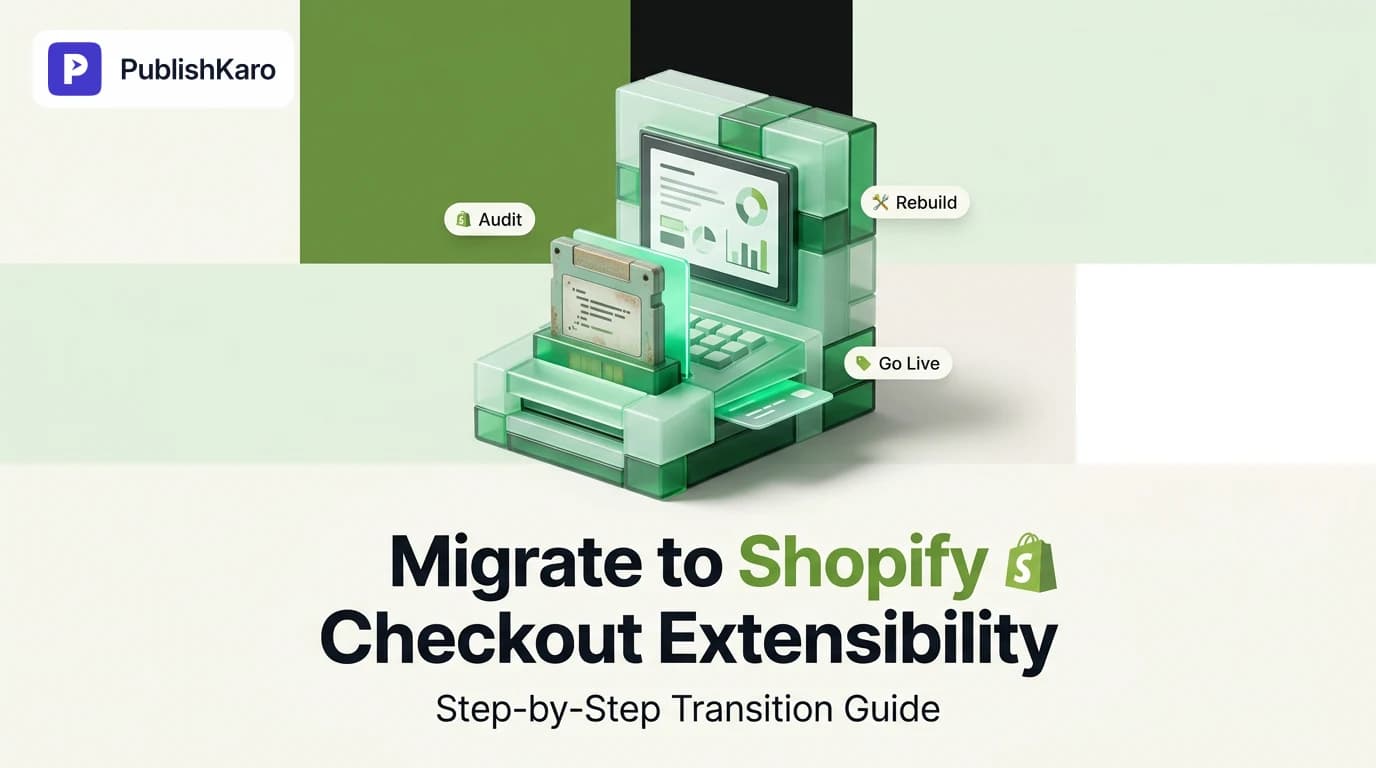
Why Shopify Replaced checkout.liquid
For years, growing ecommerce merchants customized their purchase funnels by directly modifying checkout.liquid. While editing that file provided substantial flexibility, it introduced major maintenance challenges. Custom code frequently conflicted with core platform updates, exposed stores to security risks, and degraded performance through unoptimized external scripts.
Shopify introduced Checkout Extensibility to eliminate these risks. The modern framework relies on app blocks, sandboxed UI extensions, and modern platform APIs rather than raw template editing. According to documentation in the Shopify Help Center, this architecture guarantees that checkouts remain upgrade-safe, mobile-responsive, and performant under massive traffic spikes.
Transitioning away from a legacy template is not merely an administrative chore; it is an important infrastructure upgrade. Clean architecture directly benefits core site stability. As documented in Google's performance guidelines at web.dev Core Web Vitals, responsive interfaces with minimal render-blocking code prevent layout shifts and protect user experience.
If you run paid acquisition through ads management or schedule promotional content with our publishing platform, your purchase pathway must process orders without technical hitches. Learning how to migrate to shopify checkout extensibility ensures your business maintains seamless sales operations without losing valuable customer data.
Core Architecture: Extensions, Functions, and Pixels
Transitioning away from checkout.liquid requires understanding the three technological pillars that replace your legacy modifications:
1. Checkout UI Extensions
Checkout UI extensions allow merchants to surface custom interface elements—such as delivery notes, gift wrap checkboxes, trust badges, or product upsell widgets—inside specific dynamic drop-zones. These extensions execute within a secure sandbox, preventing custom layout elements from interfering with payment security or cart calculations.
2. Shopify Functions
Previously, complex business logic like tiered discounts, payment gateway reordering, or custom shipping restrictions required fragile JavaScript hacks or legacy Ruby scripts. Shopify Functions allow developers to write custom server-side logic that executes directly on Shopify infrastructure in milliseconds, keeping cart calculations reliable under heavy load.
3. Web Pixels and Customer Events
Modern marketing stacks rely heavily on conversion tracking. Legacy scripts pasted into checkout templates or the Additional Scripts box are replaced by Web Pixels. Pixels operate in a secure container that communicates with your customer's browser via standard event streams, keeping your tracking organized and privacy-compliant.
To explore more foundational ecommerce optimization, browse our dedicated Shopify services or check the broader PublishKaro blog for operational insights.
Pre-Migration Audit: Evaluating Your Current Checkout
Before modifying settings in your store admin, compile an exhaustive inventory of everything your current checkout handles. Missing a single script or custom form field can disrupt attribution or fulfillment workflows.
1. Cataloging checkout.liquid Modifications
Open your theme code editor and locate checkout.liquid. Review the template line by line. Document:
- Hardcoded marketing tags and tracking snippets.
- Custom CSS overrides altering button styles, typography, or spacing.
- DOM-manipulating JavaScript that shows or hides fields based on customer shipping addresses.
- Custom fields collecting registration numbers, delivery dates, or order comments.
2. Auditing Order Status and Additional Scripts
Navigate to your checkout settings and scroll down to the Additional Scripts field. Document every script deployed here, including:
- Google Analytics purchase events.
- Ad network tags for major social platforms and search engines.
- Affiliate tracking codes and customer review collection widgets.
- Custom Thank You page banners or instructions.
If your marketing team regularly manages acquisition campaigns, reviewing how tracking updates align with tutorials like how to add negative keywords to Performance Max ensures your data ecosystem remains unified.
3. Reviewing Legacy Scripts and Apps
If your store utilizes the legacy Script Editor for automated discounts, free gift thresholds, or shipping rate filtering, list each active script. These will need to be transitioned to modern apps powered by Shopify Functions.
Step-by-Step Migration Guide
Following a structured workflow prevents broken layouts and missing data during your store's transition.
Step 1: Create a Draft Checkout Profile
Never make edits directly to a live checkout. Inside your Shopify admin, navigate to your checkout settings, find the checkout customization area, and create a draft checkout profile. This provides an isolated sandbox where you can build and preview your changes without affecting current shoppers.
Step 2: Configure Global Branding Settings
Checkout Extensibility introduces a visual editor that controls colors, typography, borders, and logo placement. Instead of relying on custom CSS hacks:
- Open the draft profile in the visual checkout editor.
- Click the branding panel to manage your design tokens.
- Upload your high-resolution logo, set your primary brand colors for buttons and links, and define font pairings.
- Configure corner radiuses and input field styling to match your primary storefront. When building custom experiences across custom websites or standard platforms, unified design maintains buyer trust.
Step 3: Replace Visual Elements with UI Extensions
For every custom visual component identified in your pre-migration audit, choose an appropriate modern extension:
- Trust Badges and Banners: Install an extension app from the Shopify App Store or deploy an in-house app block, placing it into predefined slots such as above the express checkout buttons or below shipping options.
- Custom Upsells: Position product offer blocks in the order summary sidebar. These can dynamically query cart data to propose relevant add-ons without page reloads.
- Order Notes and Delivery Pickers: Add extension blocks that save structured metadata directly into the order attributes, accessible via the admin API for fulfillment teams.
Step 4: Migrate Tracking to Web Pixels
Every conversion pixel previously placed in checkout.liquid or Additional Scripts must be shifted to Customer Events:
- Open your admin settings and select customer events.
- Connect official sales channel apps, which automatically install first-party Web Pixels without manual code injection.
- For custom tracking networks or internal data pipelines, create a custom pixel. Write clean event listeners subscribing to standard checkout events such as checkout started, payment info submitted, and checkout completed.
Step 5: Replace Legacy Scripts with Shopify Functions
Install apps that utilize Shopify Functions to handle your commercial logic. Whether you are bundling promotional items, providing loyalty-tier discounts, or restricting delivery options to specific postal codes, modern apps execute these rules instantly on the server side.
Step 6: Update Thank You and Order Status Pages
Checkout Extensibility covers the post-purchase funnel, including the Thank You and Order Status pages. Use the visual editor to place tracking blocks, post-purchase surveys, and customer support links on these confirmation screens, phasing out legacy post-purchase scripts.
Comparison Table
Understanding how legacy checkouts compare to Checkout Extensibility highlights the strategic value of completing your migration.
| Feature or Attribute | Legacy checkout.liquid | Shopify Checkout Extensibility |
|---|---|---|
| Customization Method | Direct editing of liquid, HTML, CSS, and JS | Visual editor, modular app blocks, UI components |
| Upgrade Path | Manual code merges; risk of platform breaks | Automatic platform updates without breaking UI |
| Performance Impact | Often slow due to render-blocking scripts | Sandboxed execution; fast and lightweight |
| Tracking Implementation | Raw tags in liquid and Additional Scripts | Isolated, privacy-safe Web Pixels |
| Business Logic | Ruby-based Shopify Scripts | High-speed Shopify Functions |
| Post-Purchase Funnel | Disconnected, unstyled script blocks | Unified visual editor across all checkout steps |
| Security Standard | Broad access to checkout DOM | Strict sandboxing preventing unauthorized data access |
| Maintenance Overhead | High technical debt across theme updates | Low maintenance handled through app ecosystem |
Visual guide
Step-by-Step Checkout Migration Flow
Follow this structured six-step sequence to rebuild and launch your checkout safely without disrupting active shoppers.
Legacy Customization Replacement Decision
Determine which modern Extensibility tool replaces each customization from your legacy checkout setup.
Pre-Launch Checkout Verification Checklist
Run your draft profile through critical validation gates before replacing your live checkout.
Practical Examples
To make this migration concrete, consider these practical scenarios showing how common custom requirements are handled in the modern architecture.
Example 1: Migrating a Custom Gift Note Field
In legacy setups, adding a gift message required injecting arbitrary form code into the shipping step and binding custom JavaScript to post data back to cart attributes.
The Modern Implementation:
- Install an extensible form app or deploy a custom UI extension using standard development tools.
- In the visual checkout editor, drag the Gift Message block into the Information page layout below the contact form.
- Set the block configuration to bind input directly to the order note attributes under a dedicated key.
- The input is automatically stored in Shopify's order schema, safely formatted, and immediately visible in fulfillment workflows without custom template coding.
Example 2: Migrating Conversion Pixels to Customer Events
Previously, marketing teams pasted raw conversion scripts into Additional Scripts, which often failed when browser updates restricted third-party cookies.
The Modern Implementation: Under Customer Events, you create a custom Web Pixel with a clean event listener subscription:
analytics.subscribe('checkout_completed', (event) => {
  const checkout = event.data.checkout;
  window.dataLayer = window.dataLayer || [];
  window.dataLayer.push({
    event: 'purchase',
    ecommerce: {
      transaction_id: checkout.order.id,
      value: checkout.totalPrice.amount,
      currency: checkout.currencyCode,
      items: checkout.lineItems.map((item) => ({
        item_id: item.variant.id,
        item_name: item.title,
        price: item.variant.price.amount,
        quantity: item.quantity
      }))
    }
  });
});
This structured approach ensures clean data passes to your analytics without exposing customer payment details to external scripts.
Best Practices for Testing and Going Live
Before publishing your draft checkout profile, conduct thorough end-to-end testing across various scenarios:
- Execute Test Transactions: Enable test modes or test credit cards in your payment gateway. Walk through the entire journey: product selection, cart, checkout steps, payment processing, and the final Order Status page.
- Check Multi-Currency and Multi-Language Displays: Ensure your custom app blocks properly render translated strings and format localized currencies accurately.
- Verify Tag Attribution: Open browser developer tools and monitor your Web Pixels network tab. Confirm that purchase events fire with accurate order totals, excluding shipping and tax where required by your tracking setup.
- Review Mobile Viewports: Inspect how your custom UI blocks collapse or re-stack on smaller screens to ensure checkout buttons remain easily clickable.
Once testing confirms all extensions and data flows are functioning properly, return to your checkout settings, select your draft profile, and publish it. Your old checkout template is retired instantly, moving your store onto the modern framework.
Checklist
Use this pre- and post-launch checklist to keep your migration on schedule:
- Audit Legacy Files: Extract all code from
checkout.liquidand save a local backup. - Document Tracking Tags: Catalog all scripts inside the Additional Scripts field under checkout settings.
- Review Active Scripts: List custom discount, payment, or shipping rules running in legacy apps.
- Create Draft Profile: Initialize an unreleased checkout customization profile in the admin.
- Configure Brand Settings: Set corporate colors, typography, logos, and button styling in the visual editor.
- Install UI Extensions: Add modular blocks for custom fields, marketing banners, or upsells.
- Configure Shopify Functions: Replace legacy scripts with modern apps for cart and discount logic.
- Migrate Pixels: Set up official app integrations or custom Web Pixels inside Customer Events.
- Modernize Order Status Pages: Configure the Thank You and Order Status layouts with modern blocks.
- Execute End-to-End Test Orders: Confirm payment processing, metadata capture, and pixel firing.
- Publish Profile: Set the newly configured draft profile live.
- Archive Legacy Code: Remove retired scripts from the Additional Scripts box to prevent duplicate event firing.
Key Takeaways
- Mandatory Modernization: Moving to Checkout Extensibility is required as Shopify phases out
checkout.liquidand legacy script injection. - Superior Reliability: Extensions run in sandboxed environments, guaranteeing that visual customizations or third-party apps will not break future platform updates or checkout stability.
- Performance and Stability: Cleaner rendering architectures and streamlined styling directly improve interface responsiveness across devices.
- Data Integrity: Replacing Additional Scripts with sandboxed Web Pixels safeguards customer privacy while providing consistent, accurate analytics to marketing channels.
- Structured Transition: Auditing your existing code, rebuilding features with modern apps and functions, and thoroughly testing in a draft profile ensures a smooth rollout.
When to Seek Expert Development Support
While basic branding customizations are straightforward using Shopify's drag-and-drop checkout builder, stores running bespoke ERP integrations, private apps, complex business rules, or intricate multi-brand tracking stacks often benefit from technical assistance.
At PublishKaro, our digital agency works with ecommerce brands worldwide to execute clean, secure transitions. From custom Shopify builds and theme optimizations via our Shopify services to enterprise engineering across WordPress sites, our technical team approaches every project with meticulous precision.
If you are modernizing multiple digital properties, reviewing resources like how much does a custom small business website cost or our guide on how to clean a hacked WordPress site can help you plan technical upgrades effectively. For broader marketing stability, maintaining strong deliverability through guides like how to lower email bounce rate under 2 percent protects your core channels.
Every project is quoted after a free call, at a fixed price agreed in writing, and the client owns every account, file, and asset upon completion. If you are also scaling your audience acquisition across organic and paid channels, explore our SEO services or read our deep-dives in the PublishKaro Shopify blog.
Sources and Further Reading
Frequently asked questions
What is the primary difference between checkout.liquid and Checkout Extensibility?
Legacy checkout.liquid relied on editing a monolithic template file with custom code, which risked breaking during core platform updates. Checkout Extensibility uses sandboxed, modular UI extensions and Shopify Functions, providing higher security, faster rendering speeds, and seamless compatibility with automatic platform updates.
Can I keep using checkout.liquid indefinitely?
No, Shopify is systematically retiring checkout.liquid across all checkout steps, including the information, shipping, payment, Thank You, and Order Status pages. Stores that do not migrate will see their legacy scripts deactivated and will revert to the default, uncustomized Shopify checkout.
Do I need Shopify Plus to use Checkout Extensibility?
Basic checkout customization, visual branding settings, and modern post-purchase capabilities are accessible across standard plans. Advanced custom UI apps, custom app blocks, and Shopify Functions provide the deepest controls for merchants on Shopify Plus.
How does Checkout Extensibility impact checkout loading performance?
Checkout Extensibility runs in isolated Web Workers and sandboxed containers. This architecture prevents third-party tracking scripts and rogue styles from blocking the main thread, helping maintain strong Core Web Vitals across devices.
What happens to tracking scripts and Google Tag Manager during migration?
Traditional custom scripts pasted directly into checkout.liquid or the Additional Scripts box will cease to function. Instead, tracking events must be routed through Shopify Web Pixels, which isolate third-party trackers to protect user privacy and checkout stability.
Can PublishKaro assist my store with Checkout Extensibility migration?
Yes, our development team audits legacy checkout setups and rebuilds custom checkout logic into compliant apps and Web Pixels. Every project begins with a free discovery call, followed by a fixed price agreed in writing, ensuring you own every asset upon delivery.