Understanding the Abandoned Cart Flow in Klaviyo
An abandoned cart sequence is an automated, event-driven communication pathway. It triggers when an identified digital shopper adds merchandise to an online cart, begins the checkout process, submits contact credentials, but exits before completing payment. In modern ecommerce, this sequence targets one of your highest-intent audiences.
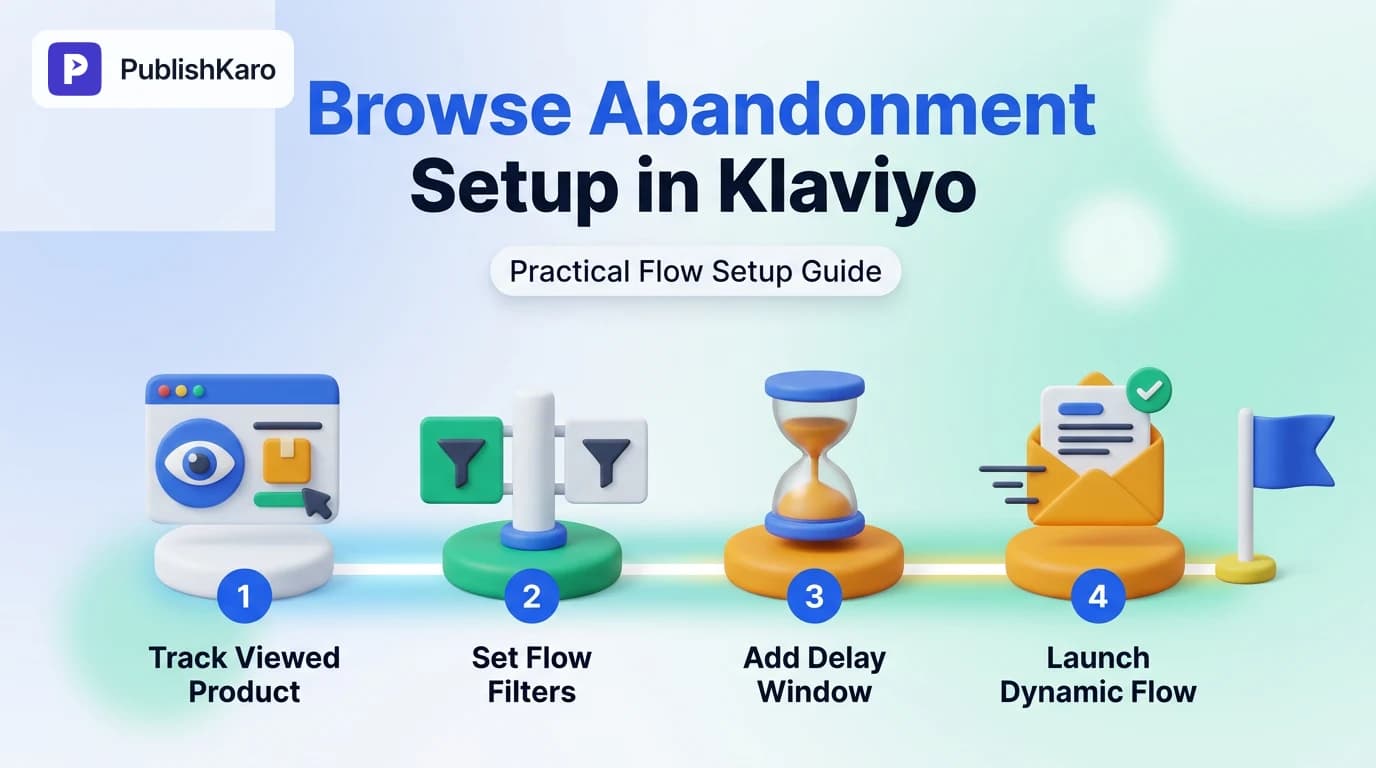
Many store operators confuse browse abandonment with abandoned cart sequences. Browse abandonment targets users browsing store catalog pages without initiating checkout. An abandoned checkout flow triggers only when a shopper actively initiates checkout. For detailed integration requirements and webhook specifications, consult the official Klaviyo Help Center.
Setting up this automation requires reliable data synchronization between your ecommerce foundation—such as Shopify stores or custom WordPress sites—and your customer marketing database. Whether your internal marketing team handles campaigns directly or partners with specialists in email marketing, clean event mapping maintains deliverability and customer goodwill across your entire pipeline.
Prerequisites Before You Begin
Before constructing automation logic in your dashboard, confirm your infrastructure fulfills three baseline requirements:
- Integration Status: Confirm that your ecommerce platform integration syncs order events reliably. When updating storefront operations, such as reviewing how to migrate to WooCommerce HPOS or discovering how to switch to new customer accounts in Shopify, verify that order webhooks continue sending standard checkout payloads.
- Klaviyo Web Tracking Snippet: Ensure your storefront loads
klaviyo.json every customer page so user sessions link to known profiles. - Identified Profiles: An automated checkout message can only send if Klaviyo associates an email address with the active browsing session. A shopper becomes identifiable when logging into an existing account, clicking through an email campaign, completing an opt-in modal, or submitting their contact email on the first page of checkout.
Step-by-Step Guide: How to Set Up Abandoned Cart Flow in Klaviyo
Follow these sequential steps to configure, verify, and launch your automated recovery sequence.
Step 1: Create the Flow Structure
- Log into your Klaviyo account interface.
- Navigate to Flows in the primary sidebar navigation.
- Click the Create Flow button in the upper right corner.
- Type "Abandoned Cart" into the search bar. Select the standard pre-built template tailored to your connected platform (such as Shopify or WooCommerce), or select Create from Scratch to build your canvas manually.
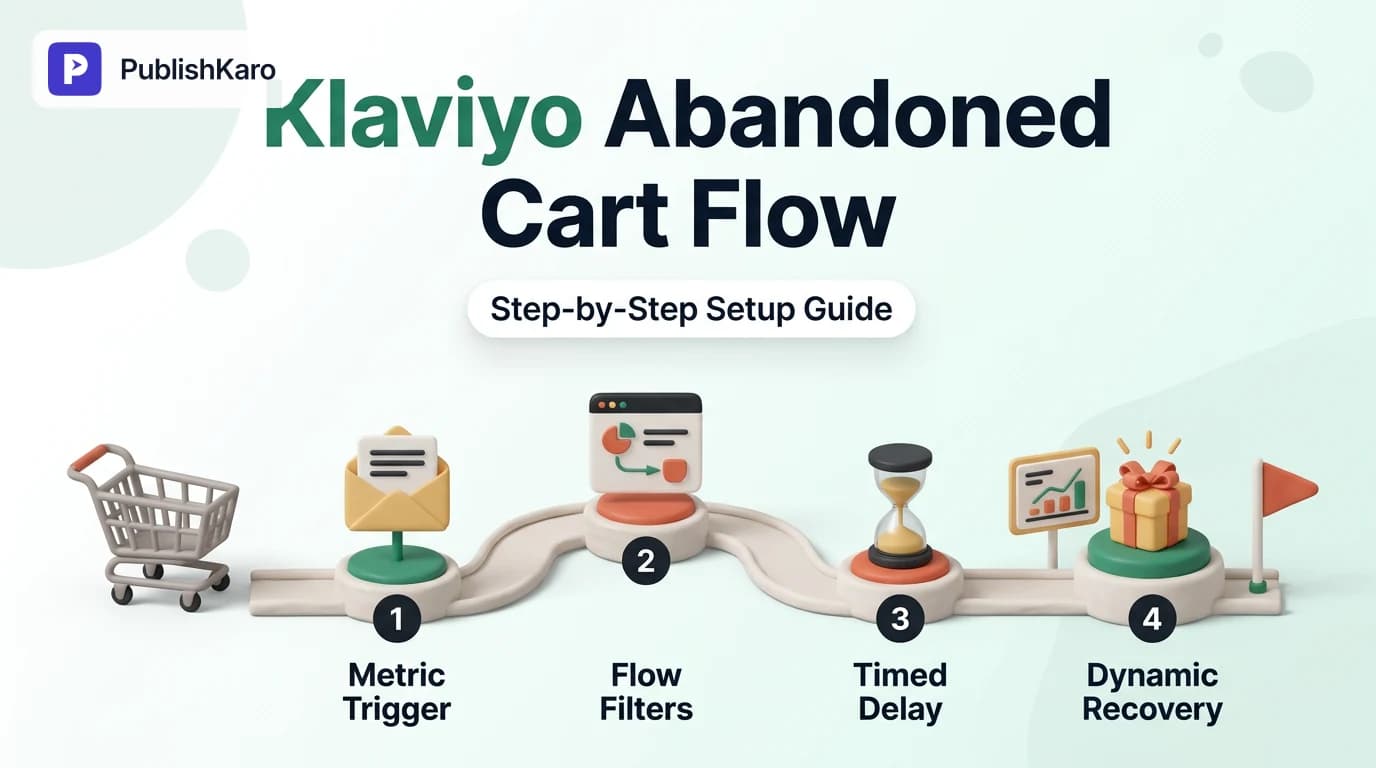
Step 2: Configure the Trigger Metric
In Klaviyo, a standard abandoned cart sequence relies on an event-driven metric:
- Trigger Metric: Set your trigger to Started Checkout.
- Do not use Added to Cart as your primary trigger for this specific automation. An Added to Cart trigger powers an "Add to Cart Abandonment" flow, which targets shoppers who placed items in their bag but never advanced to checkout.
Step 3: Configure Flow Filters
Essential abandoned cart flow filters stop irrelevant reminders from reaching shoppers who have already converted or recently received similar messages. In the flow settings panel, add these conditions:
- What someone has done (or not done) > Placed Order zero times since starting this flow: This condition evaluates in real time before every message dispatch. If the shopper converts after Message 1, Klaviyo immediately cancels subsequent messages.
- Has not been in this flow in the last X days (typically 7 to 14 days): This prevents frequent repeat visitors from receiving repetitive emails during multiple store visits within the same week.
- Optional filter: Checkout Started zero times since starting this flow: This addresses edge cases where a shopper begins multiple separate checkouts in short succession, ensuring they only trigger one unified path.
Step 4: Establish Strategic Time Delays
Add a Time Delay block directly beneath the Started Checkout trigger:
- Message 1 Delay: Set between 2 and 4 hours. Sending an email within 15 minutes can interrupt shoppers who are still completing their purchase, while waiting 24 hours risks losing the sale to a competitor.
- Message 2 Delay: If sending a multi-step sequence, insert an additional time delay of 20 to 24 hours after the first email.
- Message 3 Delay: Insert a final delay of 24 to 48 hours for your final recovery notice.
Step 5: Design Templates and Dynamic Cart Elements
Open your email template inside the drag-and-drop builder. Automated cart recovery emails rely on dynamic event data to show customers their exact abandoned items:
- Insert an Item Table or dynamic section that pulls properties from the
Started Checkoutpayload, displaying product titles, variant names, item images, and quantities. - Configure your call-to-action (CTA) button with your platform's dynamic checkout URL, such as
{{ event.extra.checkout_url }}for Shopify stores. This link returns shoppers directly to their pre-filled checkout session. - Write helpful, service-oriented copy. Address common hesitations such as return policies, payment options, and delivery timelines.
Step 6: Review, Preview, and Activate
- Select the Preview and Test button in the template editor. Choose a real, recent
Started Checkoutevent from your activity history to verify that images, item titles, prices, and recovery links display properly. - Once preview tests pass, change each email's status from Draft to Live using the card dropdown.
- Return to the visual flow canvas and confirm the entire sequence is published and active.
Optimizing Flow Architecture with Conditional Splits
Once your basic recovery sequence is live, you can segment customers using conditional splits to send more tailored messaging.
High-Value Versus Low-Value Orders
Add a Conditional Split based on cart size: $value is greater than [X] currency units. Customers with larger order totals can receive priority customer service, direct assistance links, or dedicated support options, while standard carts follow your core recovery messaging.
First-Time Buyers Versus Returning Customers
Split your flow based on customer order history: What someone has done > Placed Order zero times over all time. First-time buyers often hesitate over trust factors, brand legitimacy, or sizing. Use your messaging to highlight independent reviews and customer support channels. For returning customers, emphasize account convenience, rewards balances, or quick reordering.
To explore wider growth strategies, browse our blog and read our specialized guides on email marketing and automated customer journeys.
Comparison Table
Comparing different recovery automations helps prevent overlapping messages, customer confusion, and list fatigue.
| Feature / Attribute | Browse Abandonment Flow | Abandoned Cart Flow (Started Checkout) | Added to Cart Flow | Post-Purchase Flow |
|---|---|---|---|---|
| Trigger Metric | Viewed Product | Started Checkout | Added to Cart | Placed Order |
| Intent Level | Moderate (Browsing catalog) | Highest (Inside checkout funnel) | High (Cart consideration) | Converted buyer |
| Recommended Delay | 2 to 4 hours | 2 to 4 hours | 2 to 6 hours | Immediate to 3 days |
| Core Objective | Product re-engagement | Complete unfinished transaction | Advance item to checkout | Customer onboarding & cross-sell |
| Primary Dynamic Link | Product Detail URL | Dynamic Checkout Recovery URL | Cart Page URL | Account / Order Tracking URL |
| Risk of Email Fatigue | High if uncapped | Low when filtered correctly | Medium | Very Low |
Visual guide
Standard Cart Recovery Flow Sequence
Automate three timed check-in emails to recover abandoned shoppers before their cart expires. It keeps reminders helpful while protecting your profit margins.
Flow Filter Order Verification Logic
Klaviyo evaluates customer actions before dispatching every email to prevent sending awkward reminders to shoppers who already bought.
Segmenting by Customer Order History
Split your recovery sequence based on past purchases so new visitors receive trust-building proof while repeat buyers get fast reorder links.
Practical Examples
These three message structures can help you write recovery emails that maintain your brand's voice.
Example 1: The Helpful Customer Service Angle (Email 1)
- Timing: 2 to 4 hours post-checkout initiation.
- Subject Line: Can we help with your order?
- Preview Text: We saved your cart items so you can finish whenever you are ready.
- Body Structure: Focus on customer service. Browser crashes, payment gateway errors, and simple interruptions happen regularly. Provide a clear button linking to your dynamic checkout URL, alongside a direct support link or email address.
Example 2: The Social Proof and Reassurance Angle (Email 2)
- Timing: 24 hours after Email 1.
- Subject Line: See what verified buyers say about these items.
- Preview Text: Real reviews from customers who purchased recently.
- Body Structure: Address common purchasing hesitations. Share customer testimonials, size guides, return policies, and clear delivery timelines. Display the dynamic cart items again to remind the shopper what they left behind.
Example 3: The Inventory Expiry Notice (Email 3)
- Timing: 24 to 48 hours after Email 2.
- Subject Line: Your reserved cart is about to expire.
- Preview Text: Complete your order before these items return to general stock.
- Body Structure: Explain that unpurchased carts cannot be held indefinitely during busy shopping periods. This creates real urgency without relying on margin-eroding discount codes.
Managing multiple marketing channels requires organized planning. If your team coordinates social media schedules alongside email campaigns, try the PublishKaro publishing app to manage your content calendar directly from Google Sheets.
Checklist
Work through this verification checklist before setting your abandoned cart sequence live:
- Ecommerce store integration confirmed active and syncing customer events.
- Trigger metric explicitly configured to
Started Checkout. - Flow filter added:
Placed Order zero times since starting this flow. - Flow filter added:
Has not been in this flow in the last 7 to 14 days. - Initial time delay set between 2 and 4 hours.
- Dynamic product blocks display titles, prices, and images from the preview payload.
- Checkout recovery button linked to your platform's dynamic checkout URL tag.
- Sending domain authenticated and sender details verified.
- Unsubscribe links and physical business address tags included in template footers.
- Mobile and desktop previews tested across multiple devices.
- Message statuses switched from Draft to Live.
Klaviyo Technical Best Practices and Deliverability
Building your flow logic is only half the process; ensuring your emails reach the primary inbox is just as important. Keep these technical guidelines in mind:
Avoid Rushing into Discounts
Many merchants include promotional codes in their very first recovery email. This practice cuts into your margins and trains shoppers to abandon checkouts on purpose to get discounts. Save incentives for Email 3, or skip them entirely in favor of clear product details, helpful FAQs, and customer support.
Maintain Technical Standards and Page Performance
Make sure the checkout pages your emails link back to load quickly on all devices. Fast, stable pages create a smoother buying experience, as outlined in Google's guide on Core Web Vitals. Reducing page load times—which we cover in our guide on how to reduce Largest Contentful Paint in WordPress—helps prevent returning shoppers from bouncing off a slow checkout screen.
Make sure your product pages follow schema guidelines described in Google's structured data guidelines and review search best practices in the Google SEO Starter Guide to maintain a healthy technical baseline.
Coordinate Across Marketing Channels
If your team uses conversational channels like WhatsApp, ensure your support staff can answer checkout questions quickly. For practical advice on qualifying incoming leads, see our guide on how to qualify Click to WhatsApp leads automatically. If social channels drive your checkout traffic, review our tips on how to schedule Instagram trial reels.
For businesses seeking full-funnel marketing support, PublishKaro offers services across custom websites, ads management, and SEO & Google Business. Projects are quoted after a free call, at a fixed price agreed in writing, with clients retaining full ownership of all accounts and assets.
Troubleshooting Common Setup Issues
If your flow does not trigger as expected, check these common diagnostic points:
- Event Not Firing: Check your activity feed under Analytics > Metrics > Started Checkout. If no recent events appear, re-authenticate your store integration.
- Skipped Profiles: Look at the Skipped tab in your email performance metrics. Profiles are often skipped due to Smart Sending restrictions, recent purchases, or missing marketing consent.
- Broken Recovery Links: If your CTA button leads to an empty cart or a 404 error, check your checkout URL tag syntax. Different ecommerce platforms format checkout recovery tokens differently.
- SMS Consent Requirements: If adding SMS steps to your recovery sequence, confirm that shoppers gave explicit SMS consent during checkout. Marketing regulations require separate consent for SMS messages, independent of email permissions.
If your team uses multiple marketing tools, you can also consult the Brevo Help Center for documentation on managing automated customer journeys across platforms.
Key Takeaways
- Abandoned cart automations require a Started Checkout trigger, not a product view or add-to-cart metric.
- The flow filter
Placed Order zero times since starting this flowstops emails from sending to customers who have already purchased. - An initial delay of 2 to 4 hours gives shoppers time to finish on their own without letting the lead go cold.
- Dynamic event tags pull in cart items and take customers straight back to their saved checkout session in one click.
- Conditional splits by cart value or order history let you send relevant, targeted messages without relying on heavy discounts.
Frequently asked questions
What is the ideal time delay for the first abandoned cart email in Klaviyo?
The recommended delay for your first email is 2 to 4 hours after a customer initiates checkout. This gives shoppers time to complete orders on their own while keeping your brand top of mind.
What is the difference between an Added to Cart flow and an Abandoned Cart flow?
An Added to Cart flow triggers when a user clicks "Add to Cart" on a product page, targeting shoppers earlier in their consideration phase. An Abandoned Cart flow triggers only when a shopper begins checkout and enters contact details, signaling higher purchase intent.
Why are my dynamic cart products not displaying in preview emails?
Dynamic product blocks stay empty if the preview modal lacks recent event data. Select a recent Started Checkout profile in the preview window to confirm your integration is sending product arrays properly.
Should I include a discount code in my first abandoned cart message?
Avoid discounts in your initial email. Many shoppers abandon checkouts due to temporary distractions or payment questions. Offering discounts right away cuts into profits and trains customers to abandon carts on purpose.
How do I stop customers from receiving abandoned cart emails if they already completed their purchase?
Add the flow filter Placed Order zero times since starting this flow to your flow settings. Klaviyo checks this filter right before each message sends and cancels remaining emails if an order is detected.
Can I send abandoned cart recovery messages via SMS in Klaviyo?
Yes, you can include SMS steps in your flow, provided the customer opted in to receive SMS marketing during checkout. Privacy laws require explicit, separate consent for commercial text messages.
What should I do if my dynamic checkout recovery link is broken?
Check the checkout URL tag syntax in your template button settings. In Shopify, verify that {{ event.extra.checkout_url }} is placed in the Link URL field without extra quotation marks or spaces.