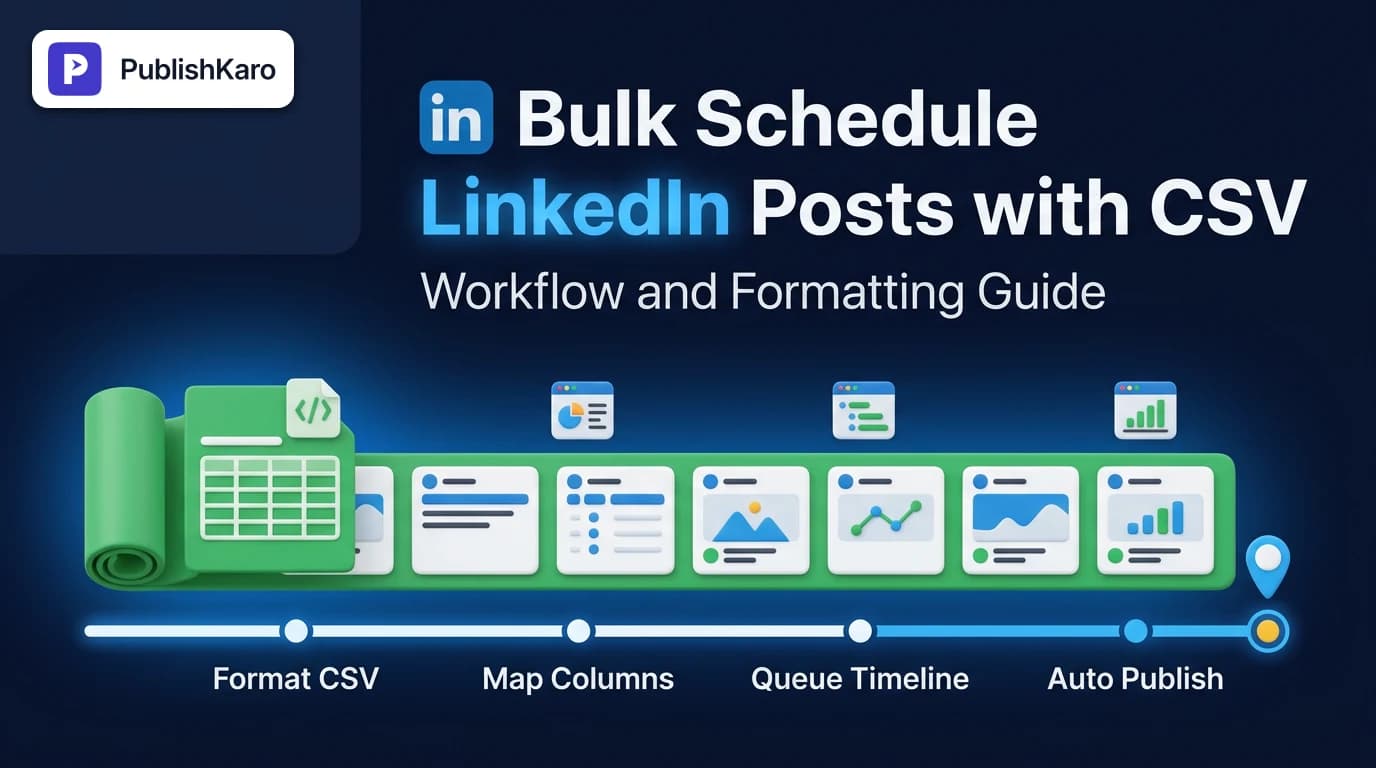
Why Teams Use Spreadsheets to Plan Content
Manual social publishing often leads to operational bottlenecks. A marketer drafting copy inside a browser tab every morning faces distractions, inconsistent posting rhythms, and disjointed campaign tracking. Adopting a structured workflow using a linkedin bulk scheduling spreadsheet transforms this piecemeal approach into an efficient production cycle.
When you organize content inside a spreadsheet, your team reviews drafts, edits messaging, checks legal compliance, and aligns marketing themes across entire months. Teams can collaborate in shared workspaces before any message is queued. According to LinkedIn Help, maintaining consistent activity on company pages helps organizations communicate brand milestones, share industry insights, and keep professional networks engaged. Batching content creation into spreadsheets directly supports this consistency without demanding daily platform logins.
Beyond saving hours of manual data entry, working with structured data protects editorial standards. Social managers can visually inspect hooks, character counts, external links, and hashtag usage across thirty to sixty updates at once. The process eliminates accidental duplicate updates and ensures balanced coverage across product announcements, customer case stories, and hiring news.
Anatomy of a LinkedIn Bulk Scheduling CSV
A comma-separated values (CSV) file is a plain-text file that uses specific structures to arrange tabular data. When building a spreadsheet for social uploads, precision is essential. A missing quotation mark or an unrecognized date format will cause parser failures during import.
To understand how raw data translates into fields, consider this standard five-column structure:
- Publish Date and Time: The exact timestamp when your post should go live. Most schedulers require 24-hour military notation (such as
2026-04-15 14:30) or ISO 8601 formats (YYYY-MM-DD HH:MM:SS). Always confirm whether your tool defaults to UTC or your local office timezone. - Post Text (Copy): The core update. This field contains your commentary, line breaks, emojis, and hashtags. Because CSVs use commas as delimiters, any cell text containing commas, line breaks, or quotation marks must be wrapped in standard double quotes (
"). - Media Link (Image or Video URL): A direct, publicly accessible web link ending in
.png,.jpg, or.mp4. Schedulers retrieve these assets at upload time to generate the post attachment. If a post is text-only, leave this cell empty. - Target Profile or Page ID: If your workspace manages multiple brands or personal profiles, an internal identifier specifies where the update should land.
- First Comment (Optional): Certain automation tools allow you to specify secondary links or campaign notes to publish automatically underneath the primary post.
Data structures rely on predictable formatting. Technical documentation such as the Google Sheets API Concepts Guide demonstrates how structured values, cell ranges, and delimiters dictate how applications parse information accurately. Applying these structured principles to your spreadsheet setup ensures error-free imports.
Step-by-Step: Formatting and Exporting Your File
Executing a clean bulk upload requires a repeatable workflow from blank document to validated schedule. Follow these concrete steps:
Step 1: Build the Template
Open Google Sheets, Microsoft Excel, or your preferred spreadsheet program. In the top row, enter your header fields exactly as expected by your scheduling software:
datetimecontentmedia_url
Keep column names entirely lowercase without extra trailing spaces.
Step 2: Populate Your Rows and Protect Formatting
Write your social copy directly into the cells or copy it over from your editorial drafts. When inserting line breaks, use Alt + Enter (Windows) or Option + Enter (Mac) rather than hard line returns that might split data across unintended rows.
If you include website URLs inside the update body, consider using clean tracking parameters to measure traffic alongside your broader SEO & Google Business and social reporting. Always preview character counts; while LinkedIn allows up to 3,000 characters for organic posts, concise updates between 150 and 300 words often deliver the clearest messaging.
Step 3: Format the Timestamps
Ensure that all date entries use uniform separators. If using YYYY-MM-DD, ensure the month and day always include leading zeroes (for instance, 2026-05-03 rather than 2026-5-3). Stagger your post times naturally throughout the business week rather than bunching multiple updates on identical minutes.
Step 4: Export Using UTF-8 Encoding
When your spreadsheet is populated and reviewed, navigate to your software's export options and select CSV (.csv). Crucially, choose UTF-8 encoding. Standard ASCII or legacy encoding formats frequently distort modern symbols, quotation marks, dashes, and emojis into garbled strings (such as é or ’). UTF-8 preserves all global characters perfectly.
Step 5: Validate and Upload
Before launching a fifty-row file, run a test import using a single test row containing a date twenty minutes in the future. Upload this single-row CSV to verify that timestamps align with your intended timezone and that formatting matches your expectations. Once verified, import the complete schedule.
Comparison Table
Ways to handle Bulk Schedule LinkedIn Posts Csv, side by side:
| Option | Best for | Setup Time | Media Flexibility | Ongoing Management |
|---|---|---|---|---|
| Native LinkedIn Interface Scheduling | Solitary creators publishing 1–2 times per week | Immediate; zero spreadsheet setup required | Full support for native polls, PDF documents, and carousels | High manual friction; must open LinkedIn and configure every post individually |
| CSV Spreadsheet Upload via Third-Party Tools | Marketing teams running consistent editorial calendars | Moderate; requires building a clean CSV template | Excellent for single images, text, and video URLs; complex documents require post-check | Fast; upload 30–60 updates in minutes across pages and personal profiles |
| Custom API Integrations | Enterprise organizations with internal development teams | Heavy; requires developer resources and ongoing token maintenance | Maximum programmatic flexibility tied to internal content management systems | Automated; requires technical maintenance when platform APIs update |
| Done-For-You Agency Management | Growing businesses prioritizing operational execution | Low internal effort; focused on strategic reviews | Complete management of copy, visual assets, and calendar scheduling | Managed; teams review batches monthly while specialists execute publishing |
Troubleshooting Common CSV Upload Errors
Even experienced digital marketers encounter parsing errors when importing large spreadsheets. Diagnosing these issues quickly saves hours of frustration.
Text Delimiter and Quotation Conflicts
Because CSV structures rely on commas to separate columns, text updates that include internal commas can confuse the ingestion software. When software encounters a comma inside unquoted copy, it assumes the subsequent words belong in the next column, throwing an error such as "Column count mismatch on row 14." To resolve this, always ensure your spreadsheet export program encloses text fields containing punctuation in double quotation marks.
Expired or Blocked Media URLs
If your CSV points to image or video files stored on private cloud drives (like restricted Google Drive links, temporary AWS pre-signed URLs, or Dropbox preview links), your scheduler's server will fail to download the file. Ensure that media URLs are public, direct, and end in clean file extensions. Testing each URL in an incognito browser window helps verify that external servers can access the media without requiring a login.
Timezone Mismatches
A frequent error occurs when a user schedules an update for 09:00, only to find the software published it at 04:00 or scheduled it for the following day. This stems from a mismatch between the CSV timestamp and the workspace's default timezone settings. Verify whether your scheduling tool operates in Coordinated Universal Time (UTC), Eastern Standard Time (EST), or your regional timezone, and adjust your spreadsheet timestamps accordingly.
Character Limits and Encoding Artifacts
When text is copied across disparate word processors, non-standard punctuation like curly quotation marks or typographic em dashes can cause import glitches if exported under basic ANSI formatting. Always review text fields for unusual symbols and ensure strict UTF-8 export settings. Just as maintaining clean code prevents technical issues when you clean a hacked WordPress site, keeping clean, standardized data ensures error-free social scheduling.
Visual guide
CSV Bulk Scheduling Workflow
Follow these five steps to format, validate, and schedule LinkedIn updates in batches. This process prevents formatting errors and saves hours of manual entry.
Troubleshooting CSV Upload Failures
Pinpoint the exact cause of spreadsheet import errors before re-uploading your file to the scheduler.
Essential Data for Post Scheduling
Every row in your bulk spreadsheet requires these core inputs to generate a complete LinkedIn post.
Practical Examples
B2B Software Startup Establishing Founder Presence
A boutique business-to-business software startup wanted to position its two technical founders as thought leaders on LinkedIn without pulling them away from software engineering every morning. The marketing associate created a collaborative spreadsheet containing twenty distinct updates covering product architecture lessons, open-source tooling, and team culture.
By preparing a dedicated template, the founders spent ninety minutes reviewing and approving all copy simultaneously on a Monday afternoon. The associate saved the file as a UTF-8 CSV, mapped the columns into their scheduling dashboard, and queued an entire month of updates across personal profiles and the company page. This eliminated daily interruptions while maintaining a consistent organic presence.
E-Commerce Brand Announcing Seasonal Lines
An e-commerce brand operating on Shopify stores needed to synchronize product updates, founder stories, and seasonal announcements across LinkedIn and other social platforms. Managing daily updates manually risked missed dates and broken discount links.
The team built a multi-channel content calendar in a spreadsheet, assigning image URLs directly from their media storage. After internal brand reviews confirmed visual assets matched their company style guide—much like establishing guidelines when you build brand guidelines for small business—they exported the LinkedIn subset as a CSV. Scheduling the entire campaign forty days ahead allowed the internal team to focus entirely on customer inquiries and fulfillment during launch week.
Consulting Firm Managing Cross-Platform Content Distribution
A mid-sized corporate consulting firm maintained an active publication schedule covering industry whitepapers, webinar recordings, and partner spotlights. Their marketing department previously spent two hours every morning reformatting text for LinkedIn, YouTube, and corporate blogs.
By adopting a standardized bulk scheduling workflow, their team batched thirty days of thought-leadership posts into a single spreadsheet. They paired these posts with structured video summaries, complementing broader distribution workflows like learning how to A/B test YouTube thumbnails for video assets. Stacking their updates weeks in advance freed up thirty hours each month, which they redirected toward client research and high-touch outbound networking.
Connecting LinkedIn Distribution to Broader Marketing Goals
Bulk social publishing delivers the greatest return when integrated into a unified multi-channel growth strategy. An active LinkedIn presence builds authority, but organic visibility works best when paired with sound technical foundations across your website and digital touchpoints.
For example, if your LinkedIn updates regularly drive readers to your website articles, ensure your destination pages are technically optimized and properly indexed by search engines. As outlined in the Google SEO Starter Guide, establishing clear site hierarchies, clean navigation, and fast page speeds helps retain visitors who discover your brand through organic social channels. If your digital hub suffers from slow load speeds or outdated styling, pairing social distribution with modern custom websites ensures professional impressions convert into qualified leads.
Similarly, businesses coordinating multi-channel paid acquisition can harmonize their organic messaging with targeted campaigns. Whether running LinkedIn Sponsored Content, Meta placements, or search ads managed through dedicated ads management workflows, having your organic company feed consistently updated through automated CSV scheduling reinforces credibility whenever prospective customers research your brand.
Checklist
Use this operational checklist before uploading your spreadsheet to ensure flawless execution:
- Verify Header Names: Column names match your scheduling tool's exact formatting requirements (e.g.,
date,time,content,media_url). - Standardize Dates: Timestamps follow ISO 8601 (
YYYY-MM-DD) or military format (HH:MM) with uniform separators. - Check Timezone Alignment: Confirm whether the upload software defaults to UTC or your organization's local timezone.
- Enclose Text with Delimiters: Wrap any post text containing commas, line breaks, or punctuation in double quotation marks (
"). - Audit Media URLs: Ensure all image and video links are public, accessible without login, and end in standard file extensions (
.jpg,.png,.mp4). - Review LinkedIn Character Counts: Keep post text within platform parameters, placing key hooks within the first 150 characters before the "see more" fold.
- Export to UTF-8 CSV: Save the document specifically as a comma-separated values file using UTF-8 encoding to prevent broken characters.
- Run a Single-Row Test: Upload one test row scheduled in the near future to confirm layout, spacing, and image rendering before uploading large multi-week files.
- Monitor First Live Post: Inspect the first live post directly on LinkedIn to verify that formatting, line breaks, and destination links display correctly.
Key Takeaways
- Using a spreadsheet to organize your content calendar lets teams review, edit, and approve updates in batches, removing the friction of manual daily posting.
- Precise file formatting is essential: always enclose text containing punctuation within quotation marks, use standardized 24-hour timestamp structures, and export using UTF-8 encoding.
- Ensure all media links point to public, unblocked URLs so publishing tools can retrieve your assets during scheduled posting windows.
- Integrate bulk publishing with broader marketing initiatives, including social media workflows, technical website improvements, and multi-channel paid campaigns.
- For businesses seeking end-to-end execution across design, development, and social publishing, explore all PublishKaro services. Projects outside standard video offerings are quoted after a free call, at a fixed price agreed in writing.
Sources and Further Reading
Frequently asked questions
Can you natively bulk schedule LinkedIn posts with a CSV directly on LinkedIn?
LinkedIn does not offer a direct CSV file upload feature within its native web interface. While LinkedIn permits users to schedule individual posts up to three months in advance one post at a time, bulk uploading requires third-party scheduling platforms integrated via the LinkedIn API, such as The PublishKaro publishing app.
What is the correct date format for bulk scheduling CSV files?
Most bulk scheduling engines require dates formatted according to the ISO 8601 international standard (YYYY-MM-DD) paired with 24-hour military time (HH:MM:SS), such as 2026-06-15 13:45:00. Always verify whether your scheduling dashboard requires dates and times in combined or separate columns, and confirm your account's target timezone before importing.
Can I upload multi-image carousels using a CSV bulk upload?
Standard CSV bulk uploaders typically accommodate a single direct image URL or video URL per row. Complex formats, such as multi-page PDF document carousels or multi-image grids, generally require manual asset attachment inside your platform's post editor after the raw text and dates have been imported via spreadsheet.
How do I prevent character truncation or broken emojis in CSV cells?
To preserve emojis, accents, and typographic quotation marks, always export your spreadsheet file using UTF-8 encoding. Standard ASCII encoding converts complex symbols into broken character strings. Additionally, ensure your export software wraps text fields containing commas or line breaks in standard double quotes.
What happens if a scheduled post in the CSV file has a past date?
When a CSV contains timestamps that have already passed relative to your selected timezone, scheduling tools will handle the rows in one of three ways: reject the entire file with an error notice, skip the expired rows while uploading future dates, or save the expired entries as unpublished drafts for manual review.
How many posts can you schedule at once using a CSV file?
Most social publishing software allows imports ranging between 50 and 300 posts per CSV upload. However, best operational practices suggest batching content in 30-day increments (approximately 20 to 60 posts). This keeps spreadsheets manageable and leaves room for timely updates based on ongoing business developments.
Keep reading
- All PublishKaro articles
- Social publishing guides and resources
- How to Add Negative Keywords to Performance Max: A Practical Step-by-Step Guide
- How to Lower Email Bounce Rate Under 2 Percent: Full Guide
- How to Appeal Google Business Profile Suspension: Full Guide
- Why Are My Instagram Reels Getting Less Views? A Practical Diagnosis and Recovery Guide
- How Much Does a Custom Small Business Website Cost? A Practical Pricing Guide
- Custom WordPress Site Development Services