Why Manage Social Content in Google Sheets?
Managing an active presence across multiple channels often leads to fragmented planning. Teams jump between disconnected planning boards, native apps, and ad hoc reminders. Using Google Sheets as a single source of truth brings structure, transparency, and collaboration to your content operations.
Spreadsheets allow marketing teams, copywriters, and business owners to draft content in bulk. Collaborators can review copy, insert campaign tags, review image links, and leave feedback without needing individual permissions inside every separate social account. The interface is universally understood, highly customizable, and completely accessible across distributed teams.
However, manually copying text and downloading creative files from a spreadsheet to paste into native scheduling interfaces creates bottlenecks and introduces human error. By setting up an automated mechanism to auto publish from Google Sheets to social media, you turn a passive planning doc into an active, automated distribution engine. This streamlines your entire social media routine while maintaining centralized oversight.
Core Architecture: How Sheet-to-Social Automation Works
Automating your publishing calendar involves three structural layers: data storage, logic processing, and endpoint distribution.
1. Data Storage: The Structured Sheet
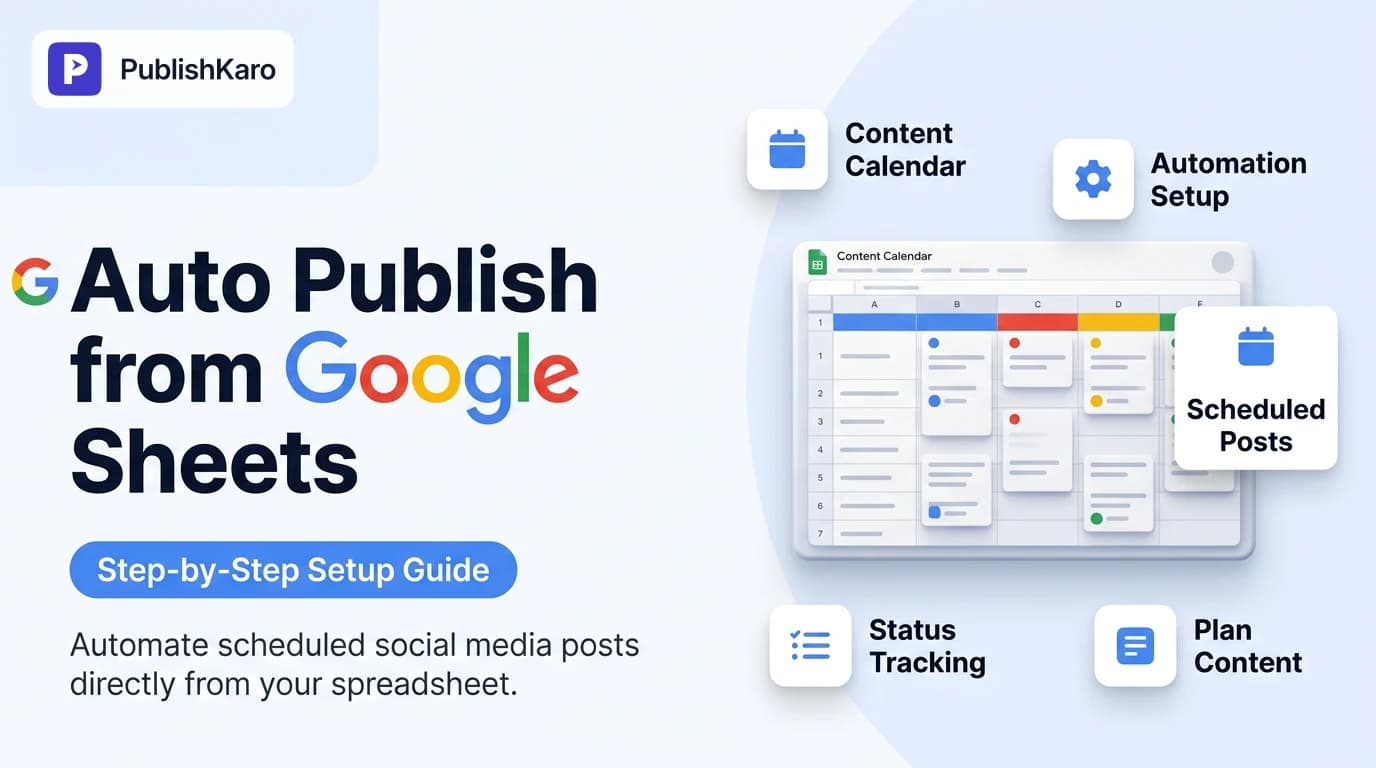
The spreadsheet acts as your database. As documented in the Google Sheets API overview, spreadsheets structure data into tabular rows and columns addressable via clear coordinate ranges. When building a publishing engine, every row represents a discrete post, and every column holds a necessary parameter—such as the scheduled timestamp, post type, text caption, public asset URL, target network, and delivery status.
2. Logic Processing: The Automation Bridge
A trigger must periodically scan your sheet to evaluate which rows are ready for publication. This engine can be built using Google Apps Script, an intermediate automation connector, or a specialized social publishing platform. The bridge reads rows where the date matches the current window and the status is set to 'Approved' or 'Queued'. It then validates that all required fields contain valid data before triggering the respective endpoints.
3. Endpoint Distribution: Official Network APIs
Social networks do not accept arbitrary data dumps; they require strict adherence to their developer protocols. For example, publishing to Instagram Business profiles requires compliant requests sent to the endpoints described in the Instagram Platform documentation. These APIs require authenticated access tokens, publicly accessible media URLs, and verified account identifiers. Once the API accepts and posts the payload, the automation bridge captures the response and writes a timestamped record back to your spreadsheet.
Structuring Your Social Media Content Calendar Spreadsheet
A robust social media content calendar spreadsheet prevents errors before they occur. If your columns are inconsistent or your asset links are broken, the automated process will fail.
Set up your Google Sheet with the following standard schema:
- Post ID: A unique identifier for every row (e.g.,
POST-101), useful for error tracking. - Scheduled Date & Time: Formatted in a standard international timestamp format, including timezone indicators (e.g.,
YYYY-MM-DD HH:MM). - Target Platform: A dropdown menu specifying platforms such as Facebook, Instagram, LinkedIn, or YouTube.
- Content Type: Indicates format, such as Single Image, Carousel, Reel, or Text Update.
- Caption: The exact text body of your post, including hashtags and line breaks.
- Media URL: A direct, publicly reachable link to the image or video (hosted on cloud storage or a dedicated media server).
- Publish Status: A constrained dropdown with values like
Draft,Needs Review,Approved,Published, andFailed. - System Log / Return ID: An empty column reserved for the automation script to write back API confirmation IDs, error messages, or direct post links.
Using data validation rules inside Google Sheets ensures that your team cannot accidentally enter invalid status flags. Restricting the Publish Status column strictly to predetermined strings helps ensure the automation trigger only evaluates rows that have passed internal editorial review.
Step-by-Step Guide to Auto Publish from Google Sheets to Social Media
Implementing a scheduled publishing workflow requires systematic execution. Here is how to configure and deploy the complete pipeline.
Step 1: Prepare Your Cloud Storage for Media Assets
Social media APIs cannot download media files directly from your personal desktop or private drives that require browser logins. When you automate Instagram posts from sheets or schedule video content, your media files must reside on a publicly accessible web address.
Store high-resolution creative assets—such as those created by your video and motion or design and branding teams—in an accessible cloud container (like Google Cloud Storage, Amazon S3, or a publicly accessible folder). Verify that the file URL ends with the appropriate format extension (.jpg, .png, .mp4) and loads properly in an incognito window.
Step 2: Configure Developer Accounts and API Access
To interact with social platforms directly, you need authenticated developer credentials:
- Meta for Business: Create a developer account and set up an app within the Meta Developer portal. Follow the setup standards detailed in Facebook Business Help to link your Facebook Page and Instagram Business account.
- LinkedIn Developer Portal: Register your organization and request access to the Share on LinkedIn and Sign In with LinkedIn products.
- Google Cloud Console: If targeting YouTube or configuring Google Workspace scripts, generate an OAuth 2.0 client ID and enable the relevant APIs.
Acquire long-lived user tokens or system user access tokens, granting the minimum necessary permissions (pages_manage_posts, instagram_content_publish, w_member_social).
Step 3: Choose Your Automation Method
Depending on your team's technical capacity, you can execute the workflow in one of three ways:
Option A: Custom Google Apps Script and Webhooks
If your organization has internal developers, you can write an Apps Script attached directly to your Google Sheet. Configure a time-driven trigger that runs every 5 to 15 minutes. The script iterates through rows, checks if the scheduled time is less than or equal to the current time, validates that the status equals Approved, sends HTTP POST requests to the platform APIs, and updates the row status to Published upon receipt of an HTTP 200 response.
Option B: Third-Party Webhook Connectors
Non-technical teams can use intermediate connectors. In this setup, a new or updated row in Google Sheets triggers an action in the connector, which maps fields into the target social media integration. While accessible, this approach can become expensive at scale and may struggle with complex video processing requirements or multi-image carousels.
Option C: Specialized Publishing Software
For companies seeking reliability without maintaining custom code, dedicated solutions handle API limits, token refreshes, and formatting nuances automatically. For example, the PublishKaro publishing app connects directly to your Google Sheet, uses AI to help produce platform-ready captions from your saved prompts, runs automated spell-checks on captions and visual assets, schedules posts via official APIs, and logs the real-time status back into your spreadsheet.
Step 4: Implement Strict Validation and Error Handling
Automated pipelines break when edge cases arise. Common failure points include:
- Captions exceeding character limits (e.g., LinkedIn posts or Instagram caption maximums).
- Aspect ratio mismatches (e.g., non-vertical videos sent to Reels or Shorts endpoints).
- Broken media links or inaccessible cloud storage permissions.
- Expired authentication tokens.
Build error-handling rules into your automation. If a post fails, the script should update the Publish Status to Failed and populate the System Log column with the exact API error code. This prevents the automation from continuously retrying broken rows and hitting rate limits.
Practical Examples
Examining specific implementations highlights how different organizations structure their automated distribution pipelines.
Example 1: E-Commerce Product Launch via Shopify
A modern retail brand launching new seasonal items synchronizes inventory records from their Shopify store into a Google Sheet content calendar. The marketing lead adds lifestyle imagery, promotional details, and set launch times. The automated script monitors the sheet, and at the designated hour, dispatches product photos and captions across Instagram and Facebook. The system writes back the live Instagram post URL into the sheet, giving customer service teams an instant index of live social conversations.
Example 2: B2B Thought Leadership for Technical Services
A technology consultancy offering custom websites and WordPress sites drafts technical insights in bulk twice a month. The editorial team maps out text snippets, article links, and presentation slides in a shared sheet. Because LinkedIn requires clear link previews, the sheet's automation utilizes formatted payloads adhering to Open Graph specifications, ensuring posts display branded previews and structured summaries reliably.
Example 3: Multi-Location Local Promotions
A regional service provider pairing local SEO and Google Business management with social outreach maintains a master sheet containing updates for multiple regional branches. Rows contain localized service links and localized phone numbers. The automation loops through the rows daily, posting targeted announcements to the corresponding Facebook pages and social feeds without requiring manual logins across multiple accounts.
Comparison Table
Selecting the right approach to auto publish from Google Sheets to social media depends on your technical resources, budget, and content complexity. The table below compares the three primary methods:
| Feature / Consideration | Custom Google Apps Script | Third-Party Webhook Connectors | Dedicated Platform (e.g., PublishKaro) |
|---|---|---|---|
| Setup Complexity | High (Requires development) | Medium (Visual builder) | Low (Plug-and-play spreadsheet sync) |
| Ongoing Maintenance | High (Manual API & token updates) | Low (Maintained by connector) | Managed (Platform manages API changes) |
| Cost Model | Free hosting; high engineering time | Variable usage-based subscription tiers | Predictable software licensing |
| Media Handling | Manual parsing & validation | Standard image/video uploads | Automated checks on visual & caption text |
| Multi-Image Support | Complex API container handling | Dependent on connector limitations | Built-in carousel and reel workflows |
| Status Logging | Custom scripted write-backs | Requires multi-step execution flows | Automatic bi-directional sheet sync |
Visual guide
How Sheet Automation Works
Data moves from your spreadsheet through an automation bridge directly to social networks, returning confirmation back to your sheet.
Pre-Publish Validation and Error Handling
The publishing system checks your post details before dispatching to prevent failed posts and platform rate limits.
Choosing Your Sheet Automation Method
Pick the right publishing setup based on whether your team prefers custom code, generic connectors, or specialized tools.
Connecting Organic Publishing with Broader Marketing Systems
Organic social media distribution should not exist in an operational silo. When you automate your social workflows, your team frees up capacity to focus on higher-leverage growth levers, such as running targeted Meta Ads and Google Ads campaigns, building conversion-focused funnels, or deploying lifecycle email marketing sequences.
Furthermore, incorporating intelligent tools like AI chat assistants for websites and WhatsApp ensures that when your automated social posts drive fresh traffic to your web properties, inquiries are captured and qualified instantly around the clock. Viewing your social calendar as an integrated channel within a complete ecosystem allows small and medium-sized businesses to run lean, scalable operations without enterprise-level overhead.
If you prefer to have professionals build and manage your technical marketing infrastructure, explore all PublishKaro services. As a digital agency based in Jaipur, India, working with clients worldwide, PublishKaro designs digital workflows, custom platforms, and creative campaigns. Every project is quoted after a free call, at a fixed price agreed in writing, and the client owns every account, file, and asset.
Checklist
Use this checklist before enabling automated publishing on your live spreadsheet:
- Spreadsheet Validation: Data validation rules applied to the
Publish StatusandTarget Platformcolumns. - Timezone Alignment: Sheet timestamps and automation server clocks synchronized to avoid premature publishing.
- Public Media Access: Asset URLs verified as publicly accessible via an incognito browser window.
- Format Compliance: Images formatted to accepted platform dimensions (e.g., 1:1, 4:5, or 9:16) and videos encoded in standard MP4 formats.
- API Access & Permissions: Developer applications verified and access tokens granted appropriate scopes.
- Character Limits Checked: Captions verified against network character restrictions and formatting requirements.
- Logging Columns Prepared: Designated columns reserved for API confirmation IDs, error strings, and update timestamps.
- Test Execution: A single post successfully triggered and validated across test accounts before running production workflows.
Key Takeaways
- Centralize Operations: Using a structured social media content calendar spreadsheet keeps your team aligned and establishes a single source of truth.
- Understand API Protocols: Reliable sheet-to-social publishing depends on structured data, valid public asset URLs, and compliant API requests.
- Prioritize Error Handling: Configure your workflow to log errors back to the sheet to quickly identify broken assets or failed posts.
- Automate Intelligently: Balance DIY custom scripts with purpose-built software based on your team's engineering capacity and maintenance overhead.
- Unify Your Marketing Stack: Connect organic social publishing with active ad campaigns, technical SEO, and conversion-optimized web assets.
Explore more operational frameworks and guides in all PublishKaro articles or dive into our focused social publishing section to discover modern strategies for managing digital presence.
Frequently asked questions
Can I auto publish from Google Sheets directly to Instagram?
Yes, you can auto publish directly to Instagram Business or Creator accounts using Meta's official Graph API. Your setup must provide publicly accessible image or video URLs, valid access tokens, and conform to Instagram's aspect ratio and formatting requirements. Tools like the PublishKaro app manage this integration automatically through verified API connections.
What happens if an automated social post fails to publish?
When a post fails, a well-configured automation captures the specific error code returned by the social network's API and writes it directly back to your spreadsheet's status column. This alerts your team to missing media links, character limit violations, or expired authorization tokens so you can correct the issue without re-entering the entire post.
Do I need developer experience to automate posts from Google Sheets?
Not necessarily. While creating custom scripts using Google Apps Script requires programming knowledge and ongoing API maintenance, you can also use no-code webhook connectors or dedicated tools. Dedicated solutions like PublishKaro allow teams to plan posts inside familiar spreadsheets without writing or managing code.
How should media files be stored for automated sheet publishing?
Media files must be hosted on cloud storage platforms with public read permissions, such as Amazon S3, Google Cloud Storage, or public content delivery networks. Social media APIs ingest visual assets by downloading them directly from the web address listed in your spreadsheet row during the API call.
Can Google Sheets publish carousels and multi-image posts?
Yes, but multi-image posts require advanced API payloads. For networks like Instagram and LinkedIn, the automation must first upload individual media containers for each image, await processing confirmation, and then bundle those containers into a single carousel object before final publishing.
Will publishing automatically from Google Sheets lower my reach?
No, social platforms do not penalize content simply because it is delivered through an official API. Platforms encourage the use of compliant developer endpoints for scheduling. Reach is driven by post quality, relevance, engagement, and creative execution rather than manual versus automated submission.
Have questions about setting up custom workflows or scaling your company's digital presence? Read more about PublishKaro or contact PublishKaro to discuss tailored strategies for your business.