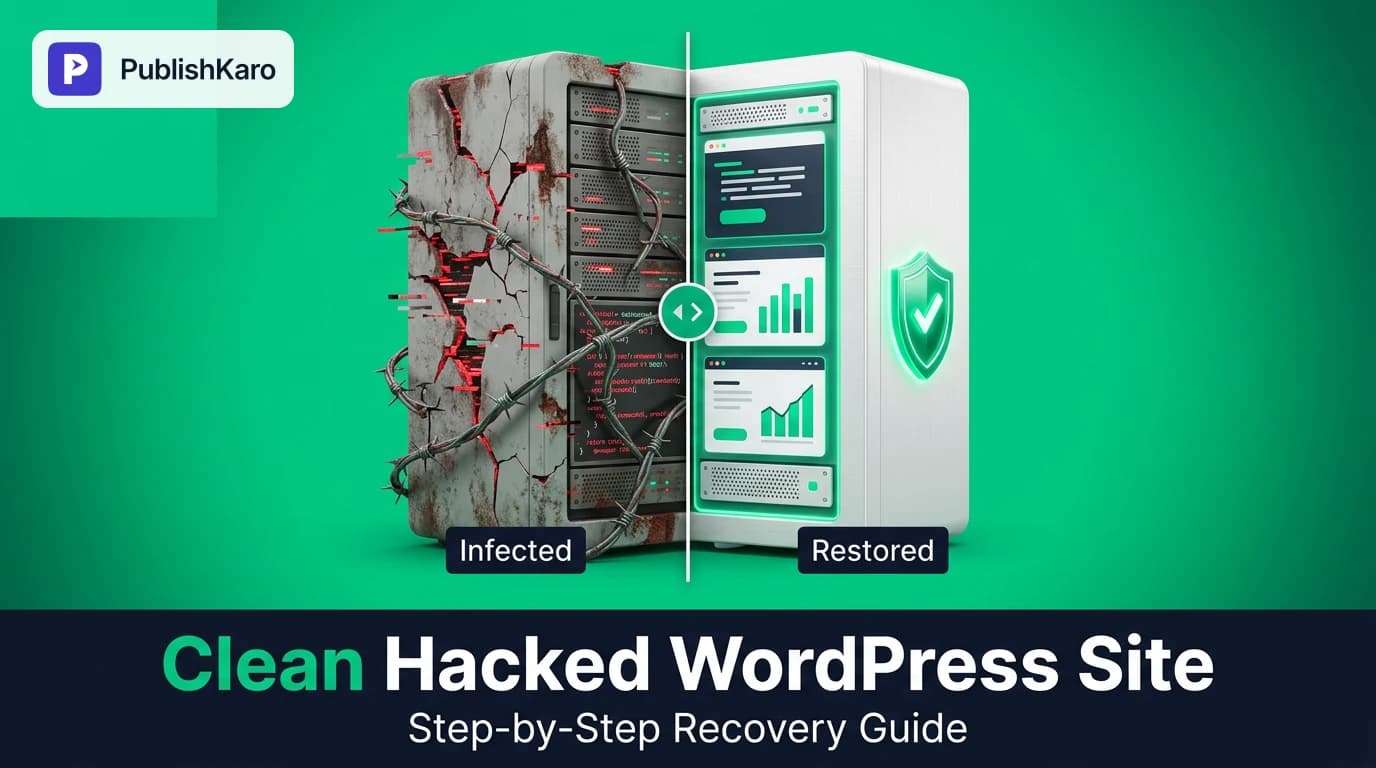
Understanding the Signs of a Compromised WordPress Site
Discovering that your business website has suffered a security breach is an urgent problem. A compromised site can disrupt daily sales, redirect visitors to suspicious web destinations, display rogue advertisements, or damage your hard-earned search rankings. For commercial websites, swift action combined with systematic execution is critical to minimize downtime and protect customer confidence.
Attacks usually produce visible symptoms such as unexpected external redirects, unrecognized administrator accounts, spam posts injected into site content, or browser security warnings. Search engines often identify these vulnerabilities and display security notices in search results. Reviewing resources like the Google Search Central SEO Starter Guide helps marketing teams understand how unindexed or spammy pages affect overall domain trust and visibility.
Before taking drastic measures, it is helpful to recognize how these intrusions occur. In most situations, automated scanning bots probe thousands of servers looking for unpatched plugins, outdated themes, weak SFTP passwords, or incorrect file permissions. Executing thorough wordpress malware removal requires patience, methodical inspection, and careful isolation.
If you prefer experienced developers to manage remediation, our team builds and repairs WordPress sites using hardened security architectures that restore functionality without risking critical data.
Step 1: Quarantine the Site and Take Complete Backups
Before deleting any suspicious files, preserve your current server environment. Deleting files immediately without an initial snapshot can break essential business functionality or erase log evidence needed to diagnose the vulnerability.
Place the Site into Maintenance Mode
Prevent site visitors and search engines from encountering spam payloads by taking the site offline temporarily. You can restrict public traffic by configuring server directives in your hosting control panel or editing your .htaccess file on Apache servers or configuration blocks on Nginx servers. Ensure server access is restricted exclusively to your own IP address.
Export Raw Backups
Export your database and site files using SSH, SFTP, or your hosting control panel. Do not rely solely on automated WordPress backup plugins during a breach, because malicious code can compromise internal plugin execution. Store this raw backup in an isolated folder on a secure local drive. Clearly label the folder as infected to prevent accidental deployment.
Change All Administrative Access Credentials
Terminate all active administrative sessions by immediately resetting your access credentials across every layer:
- Hosting account and control panel login credentials.
- SFTP, SSH, and FTP user accounts.
- Database user passwords in your hosting dashboard and your
wp-config.phpfile. - All WordPress administrator, editor, and author account passwords.
For companies re-evaluating their web stack after an incident, building custom websites with modern static frameworks can eliminate traditional CMS plugin vulnerabilities entirely.
Step 2: Compare and Replace Core WordPress Files
Intruders often alter standard core files such as index.php, wp-settings.php, or files inside the wp-includes and wp-admin directories. Replacing core files directly from official sources is significantly safer than attempting manual line-by-line file corrections.
Consult the official WordPress documentation for standard directory structures and release archives. Download a fresh archive of the exact WordPress release your site currently runs, or upgrade to the latest stable release.
# Terminal commands to replace core files via SSH
# 1. Download official WordPress core
wget https://wordpress.org/latest.tar.gz
tar -xzf latest.tar.gz

# 2. Remove infected core directories from web root
rm -rf /var/www/html/wp-admin
rm -rf /var/www/html/wp-includes

# 3. Copy clean core directories into web root
cp -R wordpress/wp-admin /var/www/html/
cp -R wordpress/wp-includes /var/www/html/

# 4. Replace root PHP files (excluding wp-config.php and .htaccess)
cp wordpress/*.php /var/www/html/
Never delete or overwrite your live wp-config.php file without reviewing it. Inspect wp-config.php using a text editor to confirm that only database connection details, database prefixes, and security salts are present. Check for obfuscated code strings such as eval(base64_decode(...)) or unauthorized PHP includes.
Generate fresh security keys and salts using the official WordPress salt generator, then update the authentication constants inside wp-config.php. This immediately invalidates active cookie sessions across all web browsers.
Step 3: Inspect and Reinstall Plugins and Themes
The wp-content directory holds your themes, plugins, and media uploads. This folder is the most common location for web shells and persistent backdoors.
Replace Plugins from Scratch
Compile a list of every active and inactive plugin your website requires. Then, delete the entire contents of wp-content/plugins/. Do not retain old plugin files. Download fresh, official copies of each plugin from the WordPress repository or verified commercial vendor portals, and reinstall them. If a plugin is unmaintained or abandoned, remove it permanently.
Audit Active Themes
Inspect your active theme inside wp-content/themes/. If you use an off-the-shelf commercial theme, download an untouched copy from the vendor and replace the theme folder completely. If you maintain a custom child theme, inspect every .php file using a diff tool against your local version control repository. Look for suspicious functions, unexpected curl executions, or unauthorized administrative user creation functions.
Clean the Uploads Directory
The wp-content/uploads/ directory must contain only static media such as images, videos, audio, and documents—never executable server scripts. Search your uploads directory for rogue script files:
# Find executable script files hidden inside uploads
find /var/www/html/wp-content/uploads -type f -name "*.php"
find /var/www/html/wp-content/uploads -type f -name "*.phtml"
find /var/www/html/wp-content/uploads -type f -name "*.suspected"
Delete any script files found in this folder. If your media library is extensive, verify that file extensions match their true MIME types to ensure executable code is not masquerading as an image file.
Step 4: Audit and Clean the Database
Malicious code frequently embeds itself directly in database tables. Intruders often target the wp_posts table to insert hidden spam links or external redirects, and the wp_options table to schedule persistent tasks via WordPress cron jobs.
Inspect the wp_users Table
Open your database manager, such as phpMyAdmin or Adminer, and review the wp_users and wp_usermeta tables. Look for user accounts created around the time of the breach that possess administrator privileges. Remove any unrecognized users and their associated meta rows.
Search for Injected Scripts
Execute SQL queries to search for common injection strings inside your post content:
-- Search for embedded script tags in posts
SELECT ID, post_title FROM wp_posts WHERE post_content LIKE '%<script%';

-- Search for base64 encoded strings
SELECT ID, post_title FROM wp_posts WHERE post_content LIKE '%base64_%';

-- Search for external iframes
SELECT ID, post_title FROM wp_posts WHERE post_content LIKE '%<iframe%';
If you identify injected code across multiple records, clean them using targeted search-and-replace queries or specialized database inspection scripts. Always test database modifications against your initial backup.
Check Scheduled Cron Jobs
Review the cron row in your wp_options table. Attackers frequently schedule recurring cron events that download replacement malicious files if an administrator deletes them from the filesystem. If you identify unfamiliar scheduled hooks, clear them using the WP-CLI utility (wp cron event list) or clean the serialized option row directly.
Step 5: Post-Cleanup Security Hardening and Google Review
Cleaning files resolves only part of the issue; preventing reinfection is just as essential. Once you confirm your site is free of malware, apply strict hardening measures:
- Implement Server File Restrictions: Prevent PHP script execution in directories intended exclusively for static uploads, such as
/wp-content/uploads/. - Enforce Multi-Factor Authentication: Require two-factor authentication across all administrator and editor roles to neutralize credential theft.
- Monitor SEO and Security Status: Log into Google Search Console. If your site received a security warning, submit a reconsideration request detailing the remediation steps you completed. Review Google's official documentation on structured data implementation to verify that spam payloads have not manipulated your structured schema markup.
- Audit Google Business Profiles: If local landing pages were compromised, verify your business addresses and phone numbers remain compliant with Google Business Profile policies to safeguard local search visibility.
For businesses coordinating communications during technical recovery, the PublishKaro publishing app offers a reliable way to plan social media campaigns in Google Sheets, generate AI captions, and publish updates across platforms without relying on your main site dashboard.
If your digital channels require broader optimization, PublishKaro provides hands-on expertise across SEO and Google Business, paid ads management, and multi-platform social media marketing. Agency projects begin with a free discovery call and are quoted at a fixed price agreed in writing, giving your brand complete ownership of all digital assets.
Comparison Table
Understanding how recovery methods compare helps your team balance speed, technical demands, and long-term security.
| Cleanup Approach | Typical Timeframe | Technical Skill Required | Risk of Residual Malware | Best For |
|---|---|---|---|---|
| Automated Plugin Cleanup | 1 to 3 hours | Low | Moderate to High | Non-technical website owners dealing with simple, known malware patterns. |
| Manual Core & Database Rebuild | 4 to 8 hours | Intermediate to Advanced | Low | Businesses needing complete verification without recurring software subscription costs. |
| Full Server & Host Migration | 1 to 2 days | Advanced | Very Low | Highly compromised server environments where root access may be insecure. |
| Professional Agency Remediation | Same day to 48 hours | None (outsourced) | Very Low | Growing brands requiring guaranteed uptime, hardened architecture, and SEO recovery. |
Visual guide
Step-by-Step Hacked Website Recovery Flow
Follow this order of operations to clean infected files and restore site security without losing critical customer data.
Cleaning the WordPress Uploads Directory
Media folders should only contain static assets. Use this decision tree to identify and neutralize hidden executable scripts.
Post-Cleanup Site Hardening Layers
Rebuilding clean files is only half the battle. Implement these four security safeguards together to stop repeat attacks.
Practical Examples
Example 1: Resolving a Japanese Keyword Injection
A boutique retailer discovered unexpected foreign-language pharmacy links appearing in their search engine index. The attacker exploited an unmaintained image slider plugin and altered the server .htaccess file to serve spam content selectively to search crawlers.
The recovery team placed the store in maintenance mode, removed the vulnerable slider plugin, and replaced WordPress core directories. By querying the wp_posts table for spam strings and deleting custom rewrite rules in .htaccess, the team purged all malicious code. After updating the XML sitemap in Google Search Console, search indexing normalized over several weeks.
Example 2: Eliminating Hidden Administrator Backdoors
A professional services company noticed that mobile visitors were occasionally redirected to third-party survey pages, while desktop users experienced normal browsing.
During inspection, the team identified an unauthorized administrator profile named system_admin created through an unpatched contact form plugin. The script injected obfuscated JavaScript into the active theme header. The team removed the insecure plugin, restored the original theme header from version control, deleted the rogue user account from the wp_users table, and generated new security salts in wp-config.php, completely restoring normal functionality.
Checklist
Use this operational checklist to track every step of the recovery process:
- Activate maintenance mode and restrict access strictly by IP address.
- Export raw copies of your web files and MySQL database to a secure, isolated folder.
- Reset passwords for hosting panels, SFTP, SSH, and database accounts.
- Download clean WordPress core files from WordPress.org and replace
/wp-admin/,/wp-includes/, and root PHP files. - Review
wp-config.php, remove suspicious code strings, and refresh authentication security keys. - Delete all directories inside
/wp-content/plugins/and install fresh copies from verified repositories. - Inspect theme files against clean local backups or official developer source files.
- Scan
/wp-content/uploads/and delete any.phpor executable script files. - Audit the
wp_userstable and delete unauthorized accounts with administrator roles. - Inspect
wp_postsandwp_optionstables for hidden iframes, base64 functions, and unfamiliar cron entries. - Reopen public site access, enable a web application firewall, and configure automated off-site backups.
- Check Google Search Console for security warnings and submit a reconsideration request if needed.
Key Takeaways
- Preserve First, Clean Second: Always export unedited backups of your database and file directories before attempting to delete or overwrite suspicious files.
- Replace Core Files Completely: Overwriting entire WordPress core directories and official plugins eliminates backdoors far more reliably than manual code edits.
- Audit Non-Code Locations: Malicious code often hides in database rows, media upload folders, and scheduled cron jobs rather than standard theme templates.
- Invalidate All Active Sessions: Updating authentication keys and database credentials ensures intruders cannot maintain access through lingering login cookies.
- Establish Ongoing Protection: Regular software updates, two-factor authentication, and automated off-site backups protect your business from recurring attacks.
To discover more practical web and digital growth guidance, review our resources on how much a custom small business website costs, setting up Shopify multi-currency markets, or explore the latest tutorials on the PublishKaro blog.
Frequently asked questions
How long does it take to clean a hacked WordPress site?
A standard cleanup typically takes two to six hours when handled systematically by an administrator familiar with file systems and SQL database operations. More extensive breaches involving multiple sites on the same server, deep database corruption, or search engine penalties may require twenty-four to forty-eight hours to resolve and confirm.
Can I clean a hacked WordPress site using only security plugins?
Automated security plugins are useful for scanning common signatures and highlighting altered files, but they often miss customized backdoors or complex database injections. For comprehensive recovery, combine automated scanners with manual core file replacement, uploads folder inspection, and credential rotation.
Why does my WordPress site keep getting reinfected after cleanup?
Reinfection occurs when original security vulnerabilities remain unpatched, hidden PHP scripts persist in media directories, or database cron jobs execute reinfection tasks. Attackers may also retain access through stolen hosting credentials or adjacent infected sites on the same shared server.
Will cleaning my hacked WordPress site restore my Google search rankings?
Removing malicious code halts further ranking drops, but restoring previous search visibility requires time. Once search crawlers re-index your clean pages without encountering malicious redirects or spam, rankings generally recover over several weeks.
Should I rebuild my site or clean the existing installation?
If your website contains a substantial amount of custom content and a healthy database, cleaning the existing installation is generally faster and more cost-effective. However, if the site relies on outdated legacy architecture or heavily compromised custom themes, rebuilding on a modern platform may offer better long-term reliability.