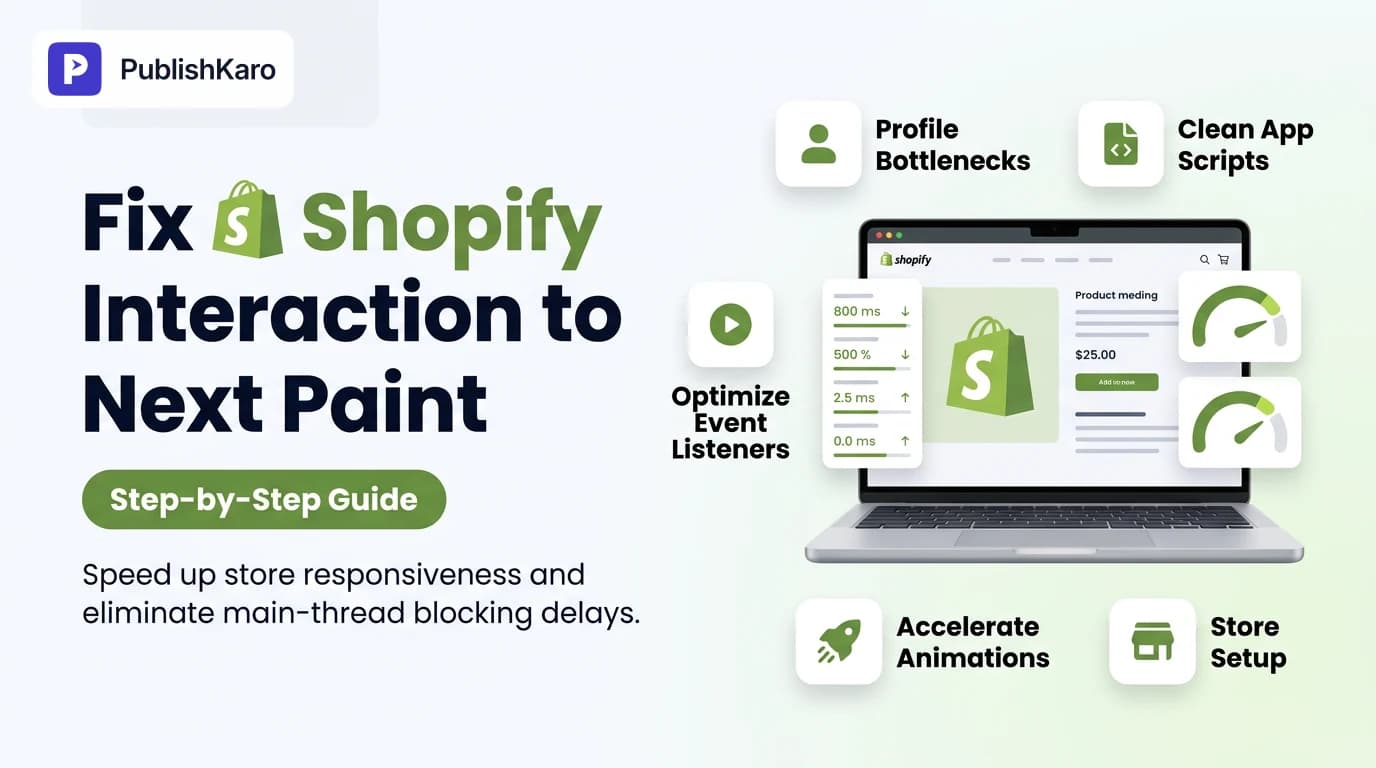
Understanding Interaction to Next Paint (INP) on Shopify
Interaction to Next Paint (INP) is a stable Core Web Vital metric introduced by Google to evaluate overall page responsiveness across the entire user session. According to official performance documentation on Google Web Vitals, INP measures the latency of every significant user interaction—including taps, clicks, and keypresses—throughout the entire lifespan of a page, reporting the worst latency observed while ignoring statistical outliers.
Unlike the deprecated First Input Delay (FID) metric, which only measured the initial delay before the browser started processing the very first interaction during page load, INP tracks the entire lifecycle of an interaction. This lifecycle consists of three distinct phases:
- Input Delay: The duration between when a user initiates a physical interaction (such as tapping an "Add to Cart" button or clicking a collection filter) and the exact moment the browser's main thread becomes free enough to trigger the registered JavaScript event callbacks.
- Processing Duration: The total time required for the theme's JavaScript event listeners and any associated third-party functions to execute and complete their logic.
- Presentation Delay: The time required for the browser engine to recalculate styles, perform layout computations, redraw DOM layers, and composite pixels onto the physical screen so the customer observes visual feedback.
For merchants running high-growth storefronts on Shopify, poor interaction latency creates immediate friction. When a customer taps a variant swatch, opens a slide-out cart drawer, or expands an accordion FAQ, any hesitation makes the interface feel broken or sluggish. If your technical team oversees diverse digital properties, comparing storefront bottlenecks with architectures across custom websites or standard WordPress sites highlights why dynamic JavaScript execution requires careful optimization.
Understanding these foundational dynamics is central to comprehensive shopify core web vitals optimization. When your main thread stays unblocked, visual updates occur within milliseconds, preserving customer trust throughout checkout.
Common Causes of Poor INP on Shopify Stores
Shopify provides a versatile modular architecture, but that same convenience often leads to accumulated script overhead. Pinpointing why interactions stall is the first step toward reclaiming performance.
1. App Bloat and Lingering Third-Party Scripts
Every time a merchant installs a review widget, size chart popup, live chat assistant, currency converter, or post-purchase upsell app, external JavaScript files inject themselves into the storefront. Even when an application is uninstalled via the Shopify Admin, leftover Liquid snippets, hardcoded script tags, and remote bundle calls frequently persist inside theme.liquid and snippets/ files. According to the Shopify Help Center manual, managing app permissions and systematically cleaning theme code after deleting apps is necessary to prevent orphaned assets from firing background listeners.
2. Monolithic Theme Bundles and Global Event Handlers
Many commercial Shopify themes compile sliders, modal dialogs, search predictive listeners, and swatch switchers into a single, massive JavaScript bundle (vendor.js or theme.js). These monolithic bundles often attach event listeners globally across the root document or window object. Whenever a customer taps any interface element, the browser is forced to evaluate multiple delegating functions, tying up the main thread during critical user actions.
3. Layout Thrashing and Forced Synchronous Reflows
Custom product swatches and interactive cart drawers often suffer from layout thrashing. This happens when JavaScript code repeatedly reads geometric layout properties (such as element.offsetHeight, element.offsetWidth, or window.getComputedStyle()) and immediately alternates by modifying DOM styles (such as changing class names or setting inline width properties). This anti-pattern forces the browser engine to discard existing render trees and run synchronous recalculations inside the active interaction frame, creating massive presentation delay.
4. Competing Analytics Tags on Primary CTAs
When a shopper clicks an "Add to Cart" button, themes commonly trigger synchronous tracking calls to multiple third-party marketing pixels simultaneously—such as Meta, Google Ads, TikTok, and affiliate networks. If these network calls and tracking libraries attach heavy analytical loops directly to the click handler, the button is blocked from rendering its visual "Loading" or "Added" state until the analytical scripts finish processing.
Step-by-Step Guide to Diagnosing INP Bottlenecks
Accurate diagnosis requires inspecting field data from real customers and reproducing interaction latency under simulated laboratory conditions.
Step 1: Examine Field Metrics in Google Search Console
Start by reviewing the Core Web Vitals report inside Google Search Console. This report surfaces real-user data gathered through the Chrome User Experience Report (CrUX) over 28-day rolling periods. Group your failing URLs by template type: product detail pages (PDPs), collection collection lists, or the homepage. Identifying whether failures are universal or isolated to specific liquid templates directs your engineering focus.
Step 2: Configure Chrome DevTools with CPU Throttling
Synthetic tests on high-end desktop computers mask interaction delays because powerful desktop processors execute JavaScript far faster than mobile devices. Open your store URL in an incognito window inside Google Chrome:
- Press
F12or right-click anywhere on the page and select Inspect to open DevTools. - Select the Performance tab.
- Click the gear icon in the top right corner of the DevTools panel to open capture settings.
- Set CPU throttling to 4x slowdown (or 6x slowdown to simulate low-to-mid-tier mobile hardware).
- Set Network throttling to Fast 3G or Slow 4G.
Step 3: Record Core Interactions
With throttling active, click the circular Record button in the Performance panel. Immediately perform the actions that a real shopper performs on your store:
- Tap the mobile hamburger menu icon.
- Switch product variant swatches (size, color, material).
- Open a size guide modal.
- Click the primary "Add to Cart" button.
- Toggle an accordion drop-down on the product description.
Click Stop once the interaction completes. DevTools will compile a performance flame graph.
Step 4: Analyze the Interactions Track
Locate the Interactions lane directly beneath the summary overview. Any interaction exceeding 200 milliseconds will display a red-tinted indicator bar. Hovering over the interaction reveals the exact duration split across Input Delay, Processing Duration, and Presentation Delay.
Expand the Main thread lane directly below the Interactions track. Look for long tasks designated with red flags in the corner. Zoom into the exact function names, script filenames, and execution call stacks running during that interaction to identify which specific app or theme script blocked the main thread.
Practical Code and Architectural Fixes
Resolving interaction latency requires rearchitecting your JavaScript execution so the browser can paint the subsequent visual frame within 200 milliseconds of user input.
1. Yielding Long Tasks to the Main Thread
When an interaction must complete multiple operations—such as toggling an element state, validating inventory, updating local storage, and notifying analytics—running all tasks in a single synchronous loop blocks the main thread. By implementing a non-blocking yielding function, you allow the browser engine to paint the visual response immediately after the user taps, shifting non-urgent tasks into the next available microtask frame.
// Yield helper function
function yieldToMain() {
  return new Promise((resolve) => {
    if ('scheduler' in window && 'yield' in window.scheduler) {
      window.scheduler.yield().then(resolve);
    } else {
      setTimeout(resolve, 0);
    }
  });
}

// Optimized Shopify Add to Cart listener
const addToCartBtn = document.querySelector('[data-add-to-cart]');

if (addToCartBtn) {
  addToCartBtn.addEventListener('click', async (event) => {
    event.preventDefault();

    // 1. Immediate visual feedback (Presentation paint)
    addToCartBtn.classList.add('is-loading');
    addToCartBtn.setAttribute('aria-busy', 'true');

    // Yield execution back to the browser to paint loading state
    await yieldToMain();

    // 2. Perform DOM mutations and mini-cart drawer trigger
    await handleCartSubmission(event.target.form);

    // Yield again before non-critical third-party analytics
    await yieldToMain();

    // 3. Dispatch background tracking payloads non-blockingly
    dispatchAnalyticsPayload({
      event: 'add_to_cart',
      variantId: addToCartBtn.dataset.variantId
    });

    addToCartBtn.classList.remove('is-loading');
    addToCartBtn.removeAttribute('aria-busy');
  });
}
2. Offloading Analytics with navigator.sendBeacon
Synchronous AJAX requests or blocking fetch() calls tied to button interactions force the browser to hold state while network streams resolve. For tracking pixels and conversion telemetry, replace synchronous payloads with the native navigator.sendBeacon() API or mark the fetch() call with keepalive: true. This offloads delivery to the browser process in the background without holding open the main execution thread.
function dispatchAnalyticsPayload(data) {
  const endpoint = 'https://analytics.example.com/collect';
  const payload = JSON.stringify(data);

  if (navigator.sendBeacon) {
    navigator.sendBeacon(endpoint, payload);
  } else {
    fetch(endpoint, {
      method: 'POST',
      body: payload,
      keepalive: true,
      headers: { 'Content-Type': 'application/json' }
    }).catch(() => {});
  }
}
3. Cleaning Orphaned Scripts in theme.liquid
Audit your Shopify theme files to ensure discarded applications do not continue to execute script hooks. Navigate to Online Store > Themes > Actions > Edit code:
- Inspect
layout/theme.liquidand identify third-party<script>tags referencing external domains of tools you no longer subscribe to. - Check
snippets/for deprecated files such associal-login-embed.liquid,app-review-widget.liquid, orcountdown-timer.liquid. - Delete obsolete liquid
{% render 'snippet-name' %}or{% include 'snippet-name' %}references from your layout files. - Verify that remaining tracking scripts carry either the
deferorasyncattribute so they do not block initial DOM parsing and touch event listener registrations.
For growing e-commerce operations managing complex app stacks, our dedicated team for Shopify stores handles complete theme refactoring, liquid cleanup, and custom feature engineering to secure consistent performance.
4. Transitioning from Heavy Sliders to Native CSS Scroll Snap
Older Shopify themes frequently load slider libraries like Slick Carousel or Swiper.js for product galleries. These libraries attach active pointerdown, touchstart, and touchmove listeners that execute computational math on every frame. You can replace these JavaScript engines with native CSS scroll snap:
/* Modern performant product carousel */
.product-gallery__slider {
  display: flex;
  overflow-x: auto;
  scroll-snap-type: x mandatory;
  -webkit-overflow-scrolling: touch;
  gap: 1rem;
  scrollbar-width: none;
}

.product-gallery__slider::-webkit-scrollbar {
  display: none;
}

.product-gallery__slide {
  flex: 0 0 100%;
  scroll-snap-align: start;
  position: relative;
}
This simple transition eliminates continuous JavaScript execution during swiping, delegating motion directly to the graphics hardware.
Comparison Table
Evaluating optimization targets helps store owners prioritize development resources based on engineering complexity and expected INP improvements.
| Area of Optimization | Typical Root Cause | Impact on INP | Implementation Effort | Recommended Action |
|---|---|---|---|---|
| Third-Party App Scripts | Marketing widgets running unoptimized loops on interaction | High | Low to Medium | Audit apps, uninstall redundant tools, and clean up orphan tags in theme.liquid. |
| Cart Drawer Execution | Synchronous DOM updates and simultaneous tracking calls | High | Medium | Decouple UI state changes from background analytics using asynchronous yielding. |
| Image Sliders & Galleries | JavaScript event listeners blocking touch/pointer movement | Medium | Medium to High | Migrate to modern CSS scroll-snap galleries with minimal runtime JS. |
| Faceted Collection Filters | Full DOM re-rendering on checkbox toggle | High | High | Implement asynchronous Fetch API updates with lightweight skeleton screens. |
| Global Tag Managers | Synchronous event triggers competing during click handlers | Medium | Low | Move third-party tags to background workers or requestIdleCallback loops. |
Visual guide
Diagnosing Shopify INP Bottlenecks
Follow this testing workflow in Chrome DevTools to locate slow storefront interactions before editing any code.
Resolving Uninstalled App Script Bloat
Removing apps from Shopify Admin often leaves orphaned scripts behind. Use this audit process to keep theme files lean.
Optimizing Click Handlers with Yielding
Breaking up single long tasks allows the browser to show instant visual feedback before executing background work.
Practical Examples
Review these technical scenarios encountered during Shopify store performance audits and the specific steps taken to remediate them.
Example 1: Resolving Click Lag on Mobile Variant Swatches
- Problem: A high-volume footwear brand experienced an INP score of 460ms on mobile product detail pages whenever users switched sizes. Performance profiling revealed an installed multi-currency converter and a third-party inventory notifier were both observing mutations across the entire DOM tree via continuous
MutationObservercallbacks. - Solution: The development team scoped the variant listener exclusively to target the price block and the image carousel element, rather than re-evaluating the parent container. The inventory app was updated to fetch stock levels via an asynchronous fetch call only after user selection, while currency conversions were restricted to static page-load swaps. The resulting variant click latency dropped to 85ms.
Example 2: Non-Blocking Quick-Add on Collection Grids
- Problem: On a cosmetics collection page, clicking the "Quick Buy" button resulted in a 340ms presentation freeze. The theme attempted to update the local cart object, trigger a slide-out cart animation, submit telemetry to three social advertising networks, and re-render cross-sell recommendations inside a single synchronous execution loop.
- Solution: The engineering team separated visual feedback from background operations. Clicking the button immediately added an active loading spinner to the button using CSS transitions. The cart drawer slide animation was switched to GPU-accelerated CSS transforms (
transform: translateX()). Analytics pings were offloaded tonavigator.sendBeacon(), lowering the overall interaction processing time to 110ms.
To align technical improvements with broader business growth, store owners should ensure their search presence is equally robust. Explore structured implementations through our SEO & Google Business solutions, and review Meta Ads Engage-Through Attribution Settings to ensure paid acquisition data flows accurately alongside optimized technical assets.
Checklist
Use this operational checklist to systematically evaluate and repair INP bottlenecks on your Shopify storefront:
- Audit Active Apps: Review every installed application in your Shopify admin panel; uninstall any tool that is redundant or no longer generating direct business value.
- Purge Residual Liquid Files: Open the theme code editor and remove abandoned snippet files, obsolete script tags, and unused style sheets left by deleted apps.
- Isolate App Embeds: Transition eligible apps to modern Theme App Extensions via the Shopify Theme Editor, allowing quick enable/disable testing without altering core liquid files.
- Implement Script Yielding: Refactor core event listeners inside
global.js,cart.js, andproduct.jsusingscheduler.yield()orsetTimeout(..., 0)to prevent blocking tasks. - Adopt GPU-Accelerated Animations: Restructure slide-out drawers, modals, and accordion transitions to rely solely on CSS
transformandopacityproperties. - Replace Heavy JavaScript Carousels: Swap out heavy slider plugins (such as Swiper or Slick) for native CSS scroll snap containers on product image galleries.
- Defer Marketing Scripts: Move non-essential marketing tags into Google Tag Manager with custom event triggers (such as
gtm.loador window idle states) rather than standard click triggers. - Offload Analytics Calls: Replace synchronous tracking loops on "Add to Cart" buttons with asynchronous
navigator.sendBeacon()orfetch({ keepalive: true })implementations. - Verify Structured Data Schemas: Confirm that dynamic product variant selections do not corrupt structured rich snippets, following guidelines from Google Structured Data guidelines.
- Validate Real-World Impact: Retest transactional customer flows inside Chrome DevTools using 4x CPU slowdown to confirm total INP stays comfortably below the 200ms threshold.
Key Takeaways
- INP Evaluates the Full Session: Unlike FID, which measured only the initial interaction during page loading, INP tracks every click, tap, and keypress across the shopper's entire browsing experience.
- Main-Thread Congestion is the Culprit: Excess third-party apps, monolithic script bundles, and DOM layout thrashing monopolize the browser's single thread, delaying next-frame rendering.
- Immediate Visual Feedback is Essential: The browser must render visual feedback to satisfy INP compliance. Split long tasks to paint the loading state first, delegating secondary logic to subsequent microtasks.
- App Audits Require Theme Cleanup: Removing an application from your Shopify Admin does not guarantee that its JavaScript has been removed from your theme templates. Routine manual liquid audits are critical.
- Holistic Marketing Drives Real Results: A lightning-fast storefront is the foundation of high-converting campaigns. Pair technical speed with organic content on our blog, automated social distributions using The PublishKaro publishing app, and omnichannel strategies across ads management and email marketing.
Frequently asked questions
What is a good Interaction to Next Paint (INP) score for Shopify?
According to Google Web Vitals documentation, an INP measurement of 200 milliseconds or less represents good responsiveness. An interaction latency between 200ms and 500ms indicates that improvements are required, while any interaction exceeding 500 milliseconds is classified as poor.
Why does Shopify struggle with INP more than custom-built websites?
Shopify stores often rely on multiple third-party apps to add features like reviews, upsells, and analytics. Each app injects external JavaScript into the storefront, creating competition for the browser's main thread during user interactions.
Does uninstalling a Shopify app automatically remove its JavaScript?
Not always. While modern app embeds can be toggled off cleanly in the theme customizer, older applications frequently leave residual code snippets, external asset links, and inline script tags in theme.liquid that continue executing.
Can I fix INP without editing liquid code or hiring a developer?
You can achieve modest improvements by uninstalling unused apps and reducing tracking tags within Tag Manager. However, resolving deeper INP issues—such as refactoring cart drawers or event handlers—typically requires editing theme JavaScript.
How does INP differ from First Input Delay (FID)?
First Input Delay only measured the input latency of the very first interaction a user had with a page during loading. In contrast, Interaction to Next Paint measures every interaction throughout the visit and accounts for event processing and rendering delays.
How does high INP impact e-commerce conversion rates?
When shoppers experience delayed responses after tapping variant options, size selectors, or cart buttons, they perceive the website as unresponsive or broken. This interaction lag introduces friction, increases cart abandonment rates, and reduces return on ad spend.
Where can I view real-user INP data for my Shopify store?
You can inspect real-user INP performance directly inside the Core Web Vitals report within Google Search Console, or by running individual storefront URLs through PageSpeed Insights, which displays Chrome User Experience Report (CrUX) data.