Prerequisites Before You Begin
Before launching your first bundle, make sure your digital storefront and catalog meet the technical prerequisites outlined in the official Shopify Help Center manual. Verifying these requirements early prevents configuration issues and checkout errors down the road.
- Online Store 2.0 Theme Architecture: Your live theme must support native JSON templates and modular app blocks. Vintage Liquid themes (pre-OS 2.0) cannot render native component pickers without custom liquid engineering.
- Catalog Product Baseline: Every single product or variant intended to sit inside a bundle must already exist as an active or draft product within your Shopify admin, complete with distinct SKUs, assigned weights, and active inventory tracking.
- Modern Checkout Infrastructure: Native bundles pass structured line-item components directly through the platform checkout. If your store relies on legacy checkout scripts or unapproved draft-order hooks, you should review your checkout compatibility to avoid cart drops.
- Automated Notification and Flow Review: If you run automated recovery sequences such as an abandoned cart flow in Klaviyo, ensure your dynamic email templates can parse nested bundle properties without crashing table layouts.
Whether you manage direct-to-consumer catalogs in-house or partner with specialized teams for dedicated Shopify stores, getting these technical fundamentals sorted is essential before publishing promotional packs.
Step-by-Step Guide: How to Set Up Shopify Bundles App
Follow these sequential phases to install, build, price, and launch your bundled merchandise across your sales channels.
Step 1: Install the Official Shopify Bundles App
Log in to your Shopify store admin. From the left-hand navigation menu:
- Open Apps and enter "Shopify Bundles" in the search field.
- Select the official application developed directly by Shopify (it carries no monthly software fee).
- Click Install app and review the API access scopes. The app requires standard read and write permissions for products, variants, and inventory levels.
- Pin the app to your admin navigation bar for quick access.
Step 2: Create and Name Your Bundle
Open the Shopify Bundles dashboard inside your admin:
- Click the green Create bundle button in the upper-right corner.
- Type an intuitive, customer-facing Title. For example, use descriptive names like "The Daily Skin Hydration Kit" or "Tri-Color Heavyweight Tee 3-Pack".
- Click Select products to view your active store catalog.
Step 3: Configure Components, Quantities, and Rules
The native app supports two primary structures:
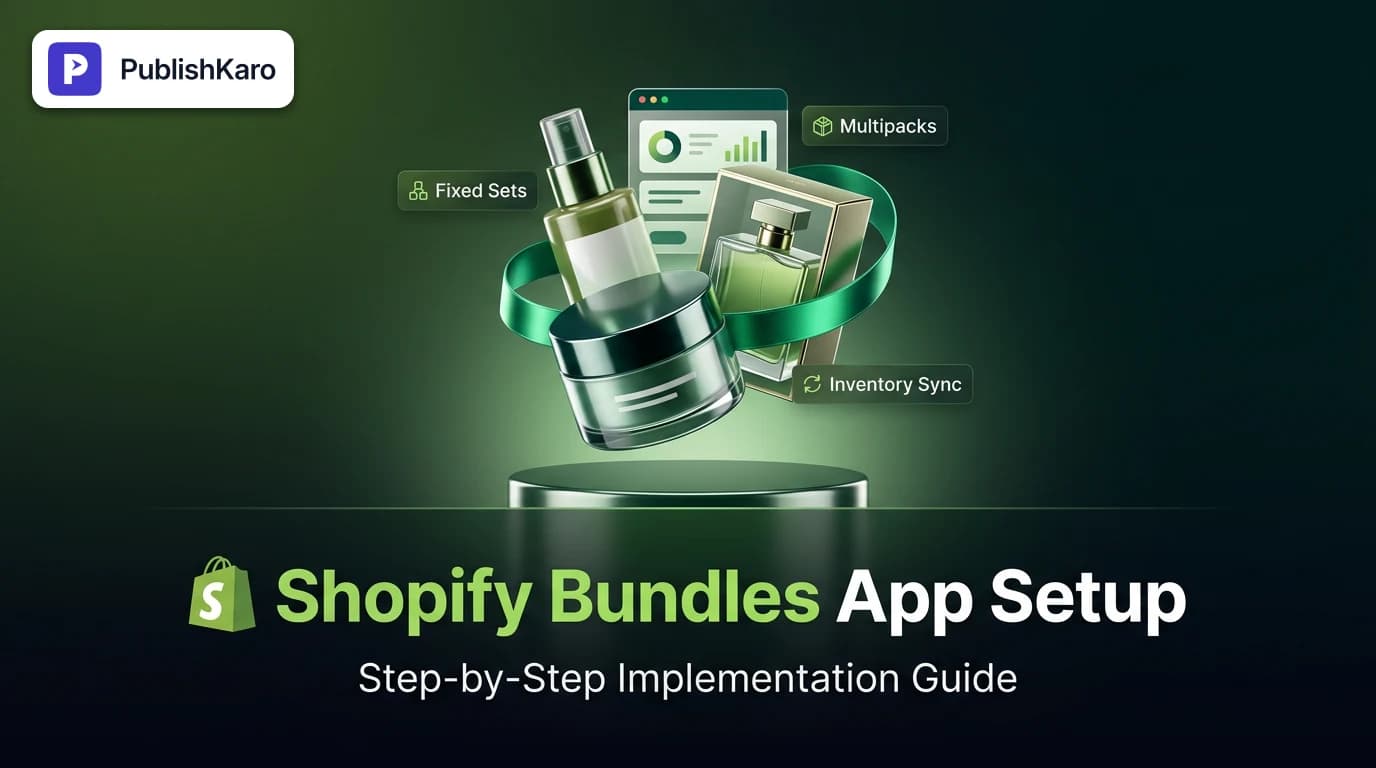
- Fixed Bundles: Multiple distinct products bundled together (e.g., 1 shampoo bottle, 1 conditioner bottle, and 1 scalp massager).
- Multipacks: Multiple units of the exact same product combined into a single purchase item (e.g., 3 pairs of running socks).
When adding products that possess multiple variants (such as sizes or colors), you can decide whether to lock the bundle to specific variants or allow the customer to choose their own variant combinations directly on the product detail page. For example, if you sell a matching top-and-bottom loungewear set, you can let the shopper pick a Medium top and a Large bottom.
Step 4: Configure Bundle Pricing, Descriptions, and Media
After setting your component rules, click Save and continue to open the standard product editor interface for the newly generated bundle parent:
- Set Pricing: Enter the retail price for the bundle. You do not need to create coupon codes. If the three components sum to $90 individually, you can price the parent bundle directly at $75. The app handles this price difference natively.
- Upload Visual Assets: High-performing bundle listings feature photography showing all components grouped together. Avoid simply reusing single-item hero shots, as grouped product imagery reduces buyer confusion.
- Craft SEO Copy: Write clear product copy explaining what is inside the set. Ensure your meta title, meta description, and page title follow search engine best practices detailed in Google Search documentation.
Step 5: Embed the Bundle App Block in Your Theme
Creating the bundle in the backend does not automatically display component selectors on your storefront template. You must activate the theme block:
- Navigate to Online Store > Themes and select Customize on your live theme.
- In the top dropdown menu, select Products > Default product (or choose a dedicated custom product template if you use one for bundles).
- In the left-hand sidebar, under the Product information section, click Add block.
- Scroll to the Apps category and click Bundle components.
- Drag and position the block directly beneath your price or above the "Add to Cart" button.
- Click Save in the top right corner.
Now, when customers visit the bundle page, the block dynamically displays the included components, variant pickers, and live availability.
Step 6: Verify Cart Behavior and Inventory Sync
Before driving promotional traffic, execute a live end-to-end audit:
- Open an incognito browser window and navigate to the bundle URL.
- Select different variant options and verify that the price and button states respond instantly.
- Add the bundle to your cart and proceed to checkout. Verify that the parent bundle appears with clear component itemization.
- Place a test transaction using a test gateway or a 100% discount staff code, then examine the generated order in your Shopify admin.
Comparison Table
To understand whether the native tool or an alternative fits your business model, review how standard approaches compare across core operational metrics.
| Operational Capability | Native Shopify Bundles App | Third-Party Draft-Order Apps | Custom Headless Storefront API |
|---|---|---|---|
| Software Cost | Free (Built into platform) | $15–$199/month recurrent | Custom engineering investment |
| Theme Compatibility | Online Store 2.0 (App blocks) | Often supports legacy themes | Decoupled frontend frameworks |
| shopify bundle inventory management | Native real-time deduction | Periodic webhook sync / Draft orders | Direct programmatic GraphQL sync |
| Warehouse Line-Item Detail | Automatic component breakdown | Varies (often requires SKU mapping) | Fully customizable payload |
| Checkout Performance | Zero script bloat, instant checkout | Additional script delays possible | Dependent on custom API design |
| Variant Permutation Limit | Up to Shopify variant limits | Workarounds via virtual products | Uncapped via multi-cart queries |
| Complex Box Building | Simple fixed/multipack dropdowns | Multi-step tier builders available | Bespoke configuration workflows |
For growing merchants looking to balance operational speed with custom storefront designs, connecting native Shopify backends with high-performing frontend stacks built on custom websites provides flexibility without sacrificing native checkout reliability.
Visual guide
Setting Up Shopify Bundles App
Follow these six essential steps to install the native app, configure components, and launch bundles on your storefront.
Choosing Your Bundle Structure
Select the right bundle setup based on whether you sell distinct products or identical items in volume.
Real Time Inventory Deduction Flow
See how purchasing a bundle automatically updates component stock levels and manages storefront availability.
Practical Examples
Example 1: The Curated Grooming Kit (Fixed Set)
A men's grooming brand sells a beard wash ($18), beard oil ($22), and an ox-horn comb ($15). Purchased separately, a customer would spend $55.
The brand sets up a fixed bundle titled "The Complete Beard Care Kit" priced at $45. In the app settings, they assign a quantity of 1 for each of the three products. When a customer adds the kit to their cart, Shopify instantly checks stock across all three warehouse locations. If the beard oil SKU drops to zero due to a separate individual order, the kit instantly switches its status to "Sold Out" on the storefront, protecting the fulfillment team from backorder headaches.
Example 2: Volume-Discounted Apparel Multipacks
An activewear merchant stocks standard compression tees in black, white, and navy across four sizes. To encourage bulk purchases, they want to offer a simple "Buy 3 Compression Tees for $70" deal instead of the standard $28 single-unit price.
Using the bundle app, the merchant configures a multipack referencing the core compression tee product with a required quantity of 3. In the theme layout, the app block displays three separate dropdown selectors. A customer can easily select one Small Black tee, one Medium White tee, and one Small Navy tee. When the order is placed, 1 unit is deducted from the Small Black inventory, 1 from Medium White, and 1 from Small Navy.
Example 3: Running Paid Promotions to Dedicated Bundles
Bundles provide an effective landing destination for paid customer acquisition. When marketing teams run targeted campaigns through structured ads management channels—such as Meta Ads Advantage+ campaigns or Google Performance Max—sending traffic directly to a high-perceived-value bundle frequently outperforms single-item landing pages.
By coordinating these launches across organic and paid touchpoints, brands can maintain consistent product imagery and stock visibility across the buyer journey. For teams juggling multi-channel campaigns, reviewing marketing strategies in our comprehensive blog helps keep distribution workflows aligned.
Checklist
Use this operational checklist before announcing your newly configured bundles to your customer base:
- Component Products Published: All underlying products exist in your catalog with positive inventory and active status.
- Accurate SKUs Assigned: Each variant has a distinct, scannable SKU that matches your warehouse management or 3PL software system.
- App Block Activated: The "Bundle components" app block is visibly positioned on the active product template.
- Inventory Sync Tested: Adjusting inventory on any component SKU immediately reflects on the bundle product availability.
- Weight and Dimensions Verified: Component shipping weights are entered accurately so carrier-calculated shipping rates compute correctly at checkout.
- Structured Data Implemented: Product schema markup renders correctly according to Google Search Central structured data guidance.
- Cross-Device Layout Checked: Dropdowns, variant swatches, and add-to-cart buttons are tested on both desktop and mobile screens.
- Order Breakdown Audited: A test order placed on the store shows component line items inside the admin order details screen.
Common Pitfalls and How to Avoid Them
While the native Shopify Bundles tool simplifies catalog setup, merchants frequently run into a few common pitfalls.
1. Components Set to Untracked Inventory
If an individual product inside a bundle has its inventory policy set to "Don't track inventory" or "Continue selling when out of stock," the platform cannot accurately determine physical availability. This can cause the parent bundle to remain purchasable even when warehouse shelves are completely empty. Ensure all components use strict inventory tracking with specific locations assigned.
2. Storefront Performance Regressions
Adding media-heavy bundle blocks with dynamic JavaScript selectors can impact site performance if assets are not optimized. Pay attention to Core Web Vitals such as Largest Contentful Paint (LCP) and Interaction to Next Paint (INP), following performance benchmarks outlined on web.dev Core Web Vitals. Compress all bundle photography and ensure your theme scripts execute cleanly.
3. Variant Limit Exceedance
Shopify enforces technical limits on the number of options and variant permutations a single product can handle natively. If you try to combine five distinct products that each contain 10 size and color options, the mathematical combinations can exceed standard limits. If you have an exceptionally complex catalog, breaking bundles into curated, smaller sets is the best operational practice.
4. Broken Layouts in Automated Retention Emails
Some email marketing templates assume every purchased line item is a standalone product with a direct product image URL. Bundled orders pass parent-child relationships in their order payload. Always preview your fulfillment and recovery emails using live test data so that customers see clear, neat receipt receipts rather than raw JSON strings or empty image placeholders.
Key Takeaways
- The Shopify Bundles app is a free, platform-native tool that lets merchants build fixed bundles and multipacks without messy code customizations.
- Inventory synchronization operates dynamically in real time: parent bundle availability is always determined by the component with the lowest stock level.
- Your theme must be an Online Store 2.0 theme to render the Bundle components block natively on your product detail pages.
- Orders placed by shoppers automatically break down into individual component SKUs, ensuring pick-and-pack fulfillment remains accurate.
- Native bundles work seamlessly with modern accelerated checkout flows like Shop Pay and Apple Pay, avoiding checkout abandonment issues.
Frequently asked questions
Does the Shopify Bundles app cost extra money to use?
No. The Shopify Bundles app is developed, maintained, and supported directly by Shopify. It is completely free to install and carries no recurring monthly fees or per-transaction commissions.
What happens to the bundle when one component sells out?
The parent bundle automatically displays an "Out of Stock" status on your storefront as soon as any single component within the bundle drops to zero inventory.
Can customers choose different variant sizes within a bundle?
Yes. When setting up components that have multiple variants (such as clothing sizes or colors), you can enable customer variant selection directly inside the app settings.
Do bundle orders break down for third-party logistics (3PL) fulfillment?
Yes. The checkout engine converts the parent bundle into its underlying component line items with their respective SKUs, allowing 3PL warehouses and inventory software to fulfill each physical item accurately.
Can I offer bundle discounts without creating coupon codes?
Yes. You can assign any static retail price to the bundle product within the app. The discounted package price applies automatically at checkout without customer coupon codes.
Does the native app support complex "Build-a-Box" workflows?
The native Shopify Bundles app is built specifically for fixed bundles and multipacks with variant pickers. If you require multi-step dynamic box builders with custom step-by-step logic, you may need custom API development or specialized headless setups.