Why Modern WordPress Is Moving to Block Themes
WordPress transitioned into modern site architecture with the rollout of Full Site Editing (FSE). For years, classic themes separated layout configuration across disparate areas: the Customizer, header.php, footer.php, widget screens, and third-party page builders.
Block themes unify everything into blocks. Every component—from post titles and query loops to global headers and footers—is an editable block governed by an underlying theme.json configuration file. When you understand how to switch to block theme wordpress environments, your business unlocks performance advantages, eliminates reliance on bloated visual builder plugins, and streamlines ongoing maintenance. For detailed documentation on block APIs and theme structure, consult the WordPress Documentation.
Maintaining clean, native code is also critical for your search presence. Heavy external page builders often inject excessive DOM nodes, hurting performance benchmarks outlined in Google Core Web Vitals. Transitioning to a lean block foundation helps ensure fast, reliable rendering across all devices.
Completing a systematic wordpress block theme migration allows small and medium business owners to manage website layouts without depending on custom PHP template overrides for minor layout tweaks.
Step 1: Pre-Migration Audit and Backup
Never modify your live production environment directly. Migrating theme architectures requires structural alterations to how templates render content.
Complete Site Backup
Create a complete file and database backup. Ensure you have independent access to database dumps (.sql) and your wp-content directory via SFTP or your hosting control panel. If an unforeseen conflict occurs, having an off-site archive ensures instant recovery.
Inventory Menus, Widgets, and Tracking Scripts
Classic themes store menus in theme locations and sidebar elements in legacy widgets. Before switching:
- Export or take screenshots of your active navigation structures (
Appearance > Menus). - Note all custom tracking scripts (Google Tag Manager, Meta Pixel) placed in
header.phpor Customizer fields. - List all active shortcodes and custom widget areas (
Appearance > Widgets).
If your marketing team relies heavily on omnichannel campaigns, such as running targeted acquisition via our ads management solutions, coordinating campaigns through our social media team, or synchronizing updates using the PublishKaro publishing app, you must preserve your analytics tags and tracking parameters during this theme switch.
Step 2: Set Up a Staging Environment
Clone your production website to an isolated staging subdomain (e.g., staging.yourdomain.com). Most quality managed WordPress hosts provide one-click staging environments. Perform all the following steps exclusively within staging.
Verify that staging has debugging enabled if possible, allowing you to catch deprecation warnings or PHP notices early when legacy plugins interact with modern block architecture. Ensure caching layers on staging are bypassed during your testing phases so changes reflect immediately.
Step 3: Select and Install Your Block Theme
Navigate to Appearance > Themes > Add New and filter by Block Themes (or Full Site Editing).
Popular, lightweight default options include Twenty Twenty-Four or modular block themes like Frost and Ollie. Once installed, click Activate inside your staging dashboard.
Immediately upon activation, you will notice the traditional Appearance > Customizer and Appearance > Menus panels disappear. They are replaced by Appearance > Editor (the Site Editor), which controls all global templates, patterns, and styling.
If you prefer dedicated technical implementation rather than in-house troubleshooting, our team builds high-performance WordPress sites tailored to modern block standards.
Step 4: Configure Global Styles (`theme.json`)
Instead of writing custom CSS rules in a child theme stylesheet, block themes manage typography, color palettes, spacing, and layout dimensions through Global Styles.
- Go to Appearance > Editor and select Styles (the circular icon).
- Configure your brand colors under Colors > Palette.
- Establish baseline fonts, weights, line heights, and heading hierarchies under Typography.
- Set default site layout widths (e.g., Content Width at 800px, Wide Width at 1200px) under Layout.
Setting these foundations globally prevents styling discrepancies across individual landing pages and blog posts, maintaining brand presentation across every URL.
Step 5: Rebuild Headers, Footers, and Navigation
Classic WordPress menus must be converted into Navigation Blocks.
The Navigation Block
Open the Site Editor, select Template Parts, and click Header:
- Insert the Site Logo and Site Title blocks.
- Insert the Navigation block. WordPress will attempt to import your existing classic menu. If it does not, click the Navigation block settings and select your previous menu from the dropdown.
- Configure responsive mobile overlay settings directly in the block inspector sidebar.
The Footer Template Part
Select the Footer template part in the Site Editor. Add layout rows using Columns or Group blocks, inserting your copyright information, secondary navigation, social links, and privacy policy pages. Check that mobile devices wrap multiple footer columns into clean vertical stacks.
Step 6: Map Classic Content and Widget Areas
In classic setups, sidebars held categories, recent posts, and newsletter signups. In block themes, sidebars are regular blocks placed inside the Single Post or Blog Archive templates.
- Open Templates > Single Posts.
- If your editorial design includes a sidebar, wrap your main content in a Columns block (e.g., 70/30 split).
- Place the Post Content block in the wider column.
- In the narrower column, build your sidebar using blocks: Search, Latest Posts, Categories, or a custom newsletter sign-up block.
For companies coordinating organic search initiatives alongside comprehensive SEO & Google Business strategies, maintaining structured data and clean heading structures (H2, H3) inside these templates is essential. Review guidelines from the Google SEO Starter Guide to keep your template markup compliant.
Step 7: Quality Assurance and Live Deployment
Before launching the updated site, test every template against standard user flows:
- Check Template Hierarchies: Confirm that 404 pages, category archives, search results, single blog posts, and standard pages render properly.
- Verify Mobile Responsiveness: Review spacing and navigation toggles on mobile viewports.
- Audit Redirects and Canonical URLs: Ensure URLs have not changed.
- Review Tracking Scripts: Confirm tracking tags remain active in your block theme via site-wide code injection plugins or modern hooks.
Once thoroughly validated, push staging to your live production server during a low-traffic window. Purge all server-side caches and CDN edge caches immediately.
Comparison Table
Understanding the architectural differences between traditional WordPress themes and modern Full Site Editing block themes clarifies why workflows change during migration.
| Feature / Dimension | Classic WordPress Theme | Modern Block Theme (FSE) |
|---|---|---|
| Primary Interface | Customizer (customize.php) & Menus | Site Editor (Appearance > Editor) |
| Global Styling Engine | Customizer settings + style.css | theme.json + Global Styles UI |
| Template Customization | PHP files (header.php, single.php) | HTML block templates & Template Parts |
| Menu Management | Dedicated Menus screen (nav-menus.php) | Native Navigation Block |
| Widget & Sidebar Areas | Legacy Widget screen (widgets.php) | Block patterns inside layout templates |
| Page Speed Impact | Often requires heavy helper scripts | Lightweight, minimal CSS/JS footprint |
| Page Builder Dependency | High (frequently paired with visual builders) | Low (native core blocks fulfill layout needs) |
Visual guide
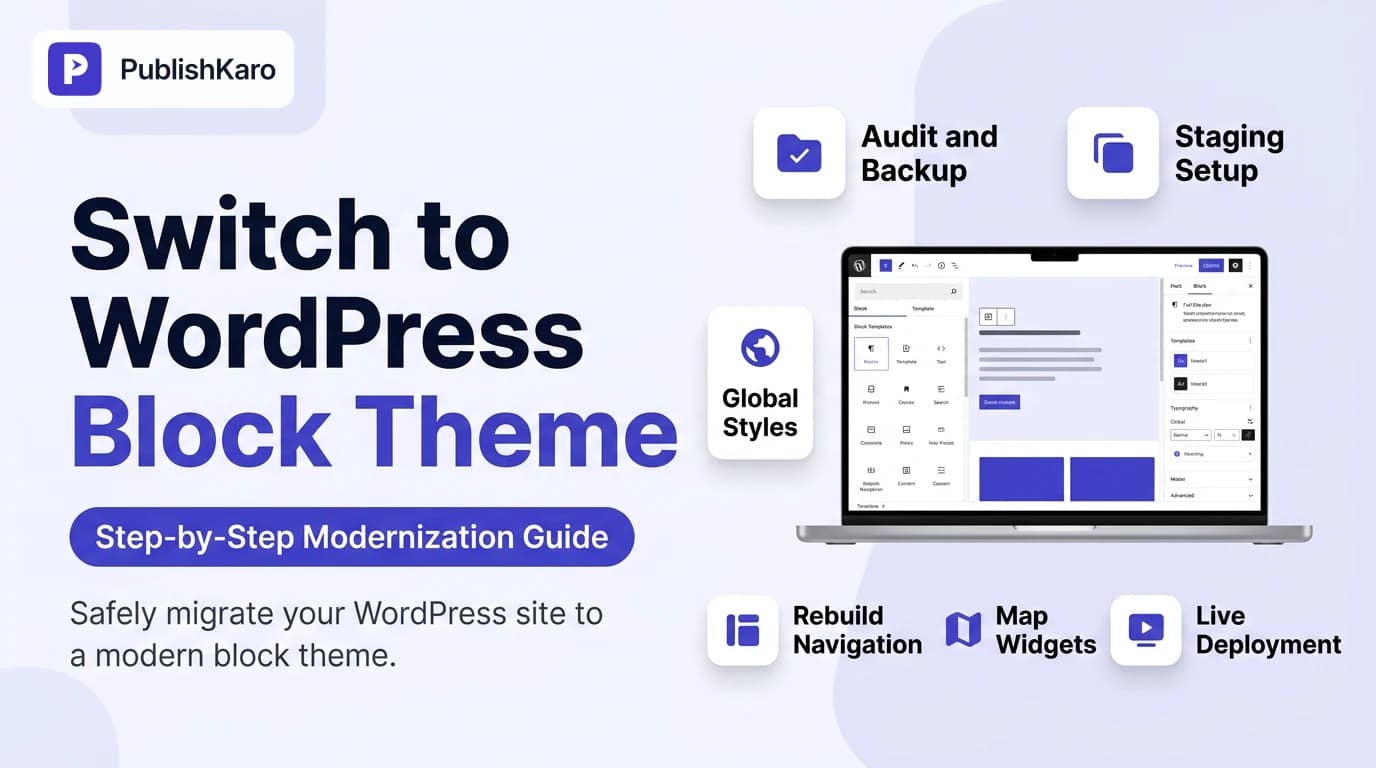
Block Theme Migration Process
Follow these seven essential phases to safely transition your WordPress website to modern Full Site Editing without risking live traffic.
Migrating Legacy Menus to Blocks
Determine whether your classic navigation imports automatically into the Site Editor or requires manual recreation.
Replacing Page Builders With Blocks
Combine native core blocks inside the Site Editor to reconstruct modern landing page layouts without heavy plugins.
Practical Examples
Example 1: Transitioning a Classic Sidebar to a Block Query Loop
A regional consultancy operated a classic blog with a widget sidebar containing hardcoded links and a basic recent posts widget. When migrating to a block theme, their developer opened the Single Post template inside the Site Editor.
They inserted a two-column layout: the left column held the Post Title, Post Meta, and Post Content blocks. The right column was configured as an editorial sidebar using a Query Loop block filtered by category ("Insights"), set to display 3 posts with featured images and publication dates. This eliminated the legacy widget plugin entirely and loaded native CSS without third-party bloat.
Example 2: Rebuilding an Agency Landing Page Without Visual Builders
A B2B SaaS firm previously relied on a bulky drag-and-drop builder for their homepage, causing noticeable script delays. During their transition to a block theme, they replaced the builder elements with native core blocks:
- Cover Block: Configured with a background gradient, brand headline, and two button blocks for primary and secondary calls to action.
- Columns Block: A three-column grid highlighting key software features, utilizing native SVG icons inside paragraph blocks.
- Group Block (Full Width): A contrasting background section housing a testimonial pattern with an image avatar and citation.
By relying exclusively on native block containers and defining spacing within Global Styles, their page payload dropped substantially, stabilizing layout metrics.
Businesses looking to pair optimized web infrastructure with integrated marketing often align their presence with multi-channel publishing. For instance, teams managing outbound campaigns can review our guide on auto publishing from Google Sheets to social media to maintain steady content distribution while refining their site design.
Checklist
Follow this verification checklist before, during, and after learning how to switch to block theme wordpress setups:
- Create Complete Backups: Generate off-site database and file backups.
- Deploy Staging Server: Set up an exact duplicate of production to perform migration tasks.
- Document Legacy Menus & Widgets: Take reference screenshots of all menu trees, links, and widget areas.
- Select a Supported Block Theme: Choose a maintained block theme from the official directory or a verified repository.
- Configure Global Styles: Establish color palettes, typography rules, and content layout widths in
theme.json/ Site Editor. - Rebuild Header & Navigation: Set up the native Navigation block and ensure mobile responsive toggles work cleanly.
- Reconstruct Footer: Recreate multi-column footers, legal disclaimers, and social links using Template Parts.
- Verify Core Templates: Inspect Single Post, Page, Archive, Search, and 404 templates in the Site Editor.
- Audit SEO & Tracking Scripts: Check that analytics pixels, search console verifications, and schema markup remain intact.
- Test Performance & Core Web Vitals: Audit staging speed using browser developer tools.
- Push to Live & Flush Caches: Deploy to production during low traffic and purge CDN and hosting caches.
Key Takeaways
- Block Themes Unify Site Control: Full Site Editing replaces fragmented screens (Customizer, Menus, Widgets) with a unified visual Site Editor.
- Staging Is Non-Negotiable: Due to structural differences between PHP template files and HTML block templates, migrations must occur in a staging environment first.
- Performance Improves Naturally: Moving away from legacy page builder plugins to native block themes reduces page asset weight and simplifies code structures.
- Navigation Requires Manual Review: Menus do not always convert automatically; allocate time to check your Navigation block configuration.
- Design Foundations Live in Global Styles: Setting typography, colors, and layout widths at the system level ensures consistency across your entire web property.
If your organization requires comprehensive web modernization, explore our wider range of custom websites and full-suite digital agency services. For further technical insights on search visibility, automation, and speed optimization, visit the PublishKaro blog and explore our dedicated WordPress category articles.
Frequently asked questions
Will switching to a block theme delete my existing blog posts or pages?
No, switching to a block theme does not delete your post or page content. Your written copy and images remain safely stored in the WordPress database. However, because block themes handle headers, footers, and page layouts differently, you must configure your layout templates so your content displays properly within the new theme structure.
Can I still use the WordPress Customizer with a block theme?
When you activate a pure block theme, the classic Customizer (Appearance > Customize) is hidden automatically because styling and layout options move to the Site Editor. If you use a plugin that strictly requires the Customizer, you can still access it manually by visiting /wp-admin/customize.php, though modern configuration should be handled inside Global Styles.
Do I need to know how to code to switch to a block theme?
No coding knowledge is required to complete a basic switch to a block theme. Full Site Editing allows you to adjust colors, typography, headers, footers, and layout templates visually inside the WordPress admin. For complex custom post types or custom template patterns, working with JSON or basic HTML can provide deeper structural control.
How does switching to a block theme affect my SEO?
Switching themes does not inherently hurt your search rankings if your page URLs, content, headings, and metadata remain unchanged. However, if your previous theme handled SEO meta tags or schema markup directly instead of through an SEO plugin, you must ensure those elements are preserved to prevent traffic dips.
Can I use classic plugins with a block theme?
Most standard WordPress plugins function normally alongside block themes. However, older plugins designed specifically to inject widgets into classic widget areas or hook into legacy PHP theme templates may require modern block alternatives or shortcode blocks to display correctly inside the Site Editor.
How do I edit my header and footer in a block theme?
In a block theme, headers and footers are managed as Template Parts inside the Site Editor. Navigate to Appearance > Editor > Patterns > Template Parts. From there, select your Header or Footer template part to edit layout, logos, navigation links, and copyright text using native WordPress blocks.
What happens to my child theme when moving to a block theme?
Classic child themes built with PHP files (functions.php, header.php, style.css) are not directly compatible with block theme architecture. In Full Site Editing, custom styling and default presets are handled through theme.json. If you require a block child theme, you can generate a lightweight block child theme containing its own theme.json to safely override the parent block theme.