Understanding the Prerequisites
Before initiating any connection between HubSpot and WhatsApp, you need specific platform permissions and technical assets ready. Setting these up beforehand prevents common verification delays.
1. WhatsApp Business Platform vs. Standard Business App
A standard WhatsApp Business app installed on a smartphone cannot integrate directly with HubSpot's CRM engine via API. HubSpot requires access through the official WhatsApp Business Platform (Cloud API or on-premise API architecture). For complete developer documentation regarding account structures and Cloud API requirements, explore the Meta WhatsApp developer documentation.
2. A Dedicated, Clean Phone Number
The phone number you connect cannot be actively registered on an active WhatsApp consumer or WhatsApp Business mobile app. If your team is currently using that number on a smartphone, you must delete that WhatsApp account from within the app settings before connecting it to HubSpot. The physical SIM card or virtual number must still be capable of receiving a 6-digit verification code via SMS or voice call during setup.
3. Meta Business Manager Admin Access
You must possess full administrative access to your company's Meta Business Manager. Meta requires business verification to expand messaging limits and ensure compliance. Reviewing standard business verification guidelines on the Facebook Business Help Center will help you gather registration certificates or utility bills in advance.
4. HubSpot Subscription Requirements
HubSpot offers a native WhatsApp integration within Marketing Hub or Service Hub (Professional and Enterprise tiers). If your business operates on HubSpot Free or Starter editions, you can still integrate WhatsApp using third-party certified marketplace connectors or custom middleware webhooks.
Methods for Connecting WhatsApp to HubSpot
There are three distinct paths to establish this connection, depending on your CRM tier, technical resources, and functional needs.
Method 1: The Native HubSpot WhatsApp Integration
HubSpot provides a native integration built on Meta's Cloud API for Marketing Hub and Service Hub Professional and Enterprise users.
- Open Settings: In your HubSpot account, click the Settings gear icon in the main navigation bar.
- Navigate to Inboxes: On the left sidebar menu, go to Tools > Inbox > Inboxes.
- Connect a Channel: Click Connect a channel, then select WhatsApp.
- Log into Meta: Click Connect with WhatsApp. A pop-up window will request access to your Facebook account. Log in with an account holding full administrative permissions for your Meta Business Manager.
- Select Meta Business Account: Choose the Meta Business Account associated with your organization, or create a new one.
- Create or Select WhatsApp Business Profile: Input your business display name, business category, and description.
- Verify Phone Number: Enter your dedicated phone number. Select whether to receive your verification code via SMS or voice call, enter the 6-digit code, and confirm.
- Assign to Inbox: Direct incoming messages to a specific Conversations inbox and assign default routing rules for your team.
Method 2: Third-Party Business Solution Providers (BSPs)
For companies running HubSpot Starter, or those operating in regions where specialized telecom gateways offer lower delivery costs, integrating via an established Meta Business Solution Provider (such as Twilio, MessageBird, or Wati) is common.
These integrations typically connect via the HubSpot App Marketplace:
- Search for your provider's app in the HubSpot App Marketplace.
- Authorize the connection between HubSpot and the provider's dashboard using API credentials.
- Map CRM properties such as Contact Name, Phone Number, and Lifecycle Stage.
- Configure incoming webhooks so messages create new CRM records or append to existing timelines.
If you prefer customized operational flows, explore how PublishKaro designs AI and WhatsApp automation systems tailored to bespoke CRM configurations. Every agency project begins with a free discovery call and is delivered at a fixed price agreed in writing, giving your business complete ownership of every account, integration script, and asset.
Method 3: Custom Webhooks and API Endpoints
For engineering teams requiring custom middleware, you can receive incoming WhatsApp events through Meta's Webhooks API and push them directly to the HubSpot Engagements and Contacts API. This method allows maximum flexibility, letting you parse message intent, trigger custom machine learning endpoints, and update complex data schemas without external platform fees.
Configuring the Shared Conversations Inbox
Once the connection is established, incoming WhatsApp chats must be structured so customer-facing teams can reply efficiently without stepping on each other's toes.
Setting Up Access and Permissions
In your HubSpot Conversations Inbox settings, configure which agents can view and respond to incoming WhatsApp messages. You can restrict visibility to assigned contact owners or open the inbox to an entire department queue.
Establishing Chat Availability and Auto-Replies
Customer expectations on WhatsApp lean heavily toward real-time responses. Configure your business hours inside HubSpot:
- During Business Hours: Route conversations evenly among available reps using round-robin distribution.
- Outside Business Hours: Trigger an automated message setting expectations on when a live team member will return.
Businesses looking to unify their operational channels across web and mobile often combine WhatsApp communication with clear publishing calendars. With the PublishKaro publishing app, teams plan content directly in Google Sheets, generate platform-ready captions, run automated text and image spell-checks, and schedule updates to social profiles through official APIs.
WhatsApp HubSpot Workflow Automation
Connecting WhatsApp to HubSpot yields the greatest return when you leverage HubSpot Workflows (available in Professional and Enterprise tiers). Automation eliminates repetitive manual communication while keeping customer records pristine.
[Incoming Lead Form / Ad Click]
             │
             ▼
[Enroll in HubSpot Workflow]
             │
             ▼
[Condition: Is Phone Number Valid?]
     ├── Yes ──► [Send Pre-Approved WhatsApp Template]
     └── No  ──► [Create Internal Task for Manual Review]
             │
             ▼
[Wait for Reply: 24-Hour Messaging Window Opens]
             │
     ├── Reply Received  ──► [Route to Sales Rep Inbox & Update Deal Stage]
     └── No Reply in 24h ──► [Enroll in Nurture Email Sequence]
1. Instant Lead Qualification
When a prospect submits an inquiry form on your custom website or WordPress site, a workflow can immediately trigger an outbound WhatsApp message. This acknowledges receipt, asks qualifying questions, and logs the response directly on the contact timeline.
2. Deal Stage Notifications
When a sales representative advances a deal from "Demo Completed" to "Proposal Sent", a workflow can dispatch an automated WhatsApp notification containing the document link or a calendar link to reserve follow-up time.
3. Re-engaging Inactive Contacts
Combine your messaging with outbound email flows. For example, if a contact fails to open an abandoned cart sequence—similar to strategies discussed in our guide on how to set up an abandoned cart flow in Klaviyo—your CRM workflow can test a secondary touchpoint via WhatsApp to recover the interaction.
Adhering to WhatsApp Business Messaging Rules
Meta enforces strict policies to protect user experience on WhatsApp. Understanding these mechanics is essential for preventing number bans or tier downgrades.
The 24-Hour Customer Service Window
When a customer sends your business a message on WhatsApp, a 24-hour service window opens. Within this window, your team or chatbot can reply with free-form text, media, documents, and interactive buttons without requiring pre-approved templates.
Once 24 hours have elapsed without a customer response, the service window closes. To initiate communication after this point, your business must use a pre-approved WhatsApp Message Template.
Message Templates and Opt-In Consent
Message templates must be submitted to Meta through HubSpot or your Business Manager for review. They fall into three primary categories:
- Marketing: Promotional offers, product updates, and invitations.
- Utility: Transaction confirmations, shipping alerts, and order updates.
- Authentication: One-time passcodes and security verifications.
Crucially, you must collect explicit opt-in consent before sending proactive messages to contacts. Document consent on website lead forms or during checkout. Never import cold contact lists into HubSpot for unsolicited WhatsApp broadcasts, as low quality ratings will quickly lead to account suspension.
Comparison Table
Selecting the right integration route depends on your current software budget, CRM tier, and technical capabilities.
| Feature / Dimension | Native HubSpot WhatsApp Integration | Third-Party BSP Connectors | Custom Webhook & API Setup |
|---|---|---|---|
| Required HubSpot Tier | Marketing/Service Hub Pro or Enterprise | Any HubSpot Tier (Free, Starter, Pro) | Any tier supporting custom integrations |
| Setup Complexity | Low (Point-and-click Meta authentication) | Moderate (Third-party account + HubSpot App) | High (Requires custom developer backend) |
| Shared Inbox Support | Native HubSpot Conversations Inbox | Provider's Inbox or HubSpot Timeline cards | Custom-built interface or Timeline API |
| Workflow Triggers | Fully native within HubSpot Workflows | Supported via app-specific trigger actions | Supported via Custom Code Actions / Webhooks |
| Message Template Management | Managed directly inside HubSpot UI | Managed within third-party provider console | Managed within Meta Business Manager |
| Ongoing Platform Cost | Included in HubSpot subscription + Meta API fees | Provider subscription fee + Meta API fees | Server hosting costs + Meta API fees |
Visual guide
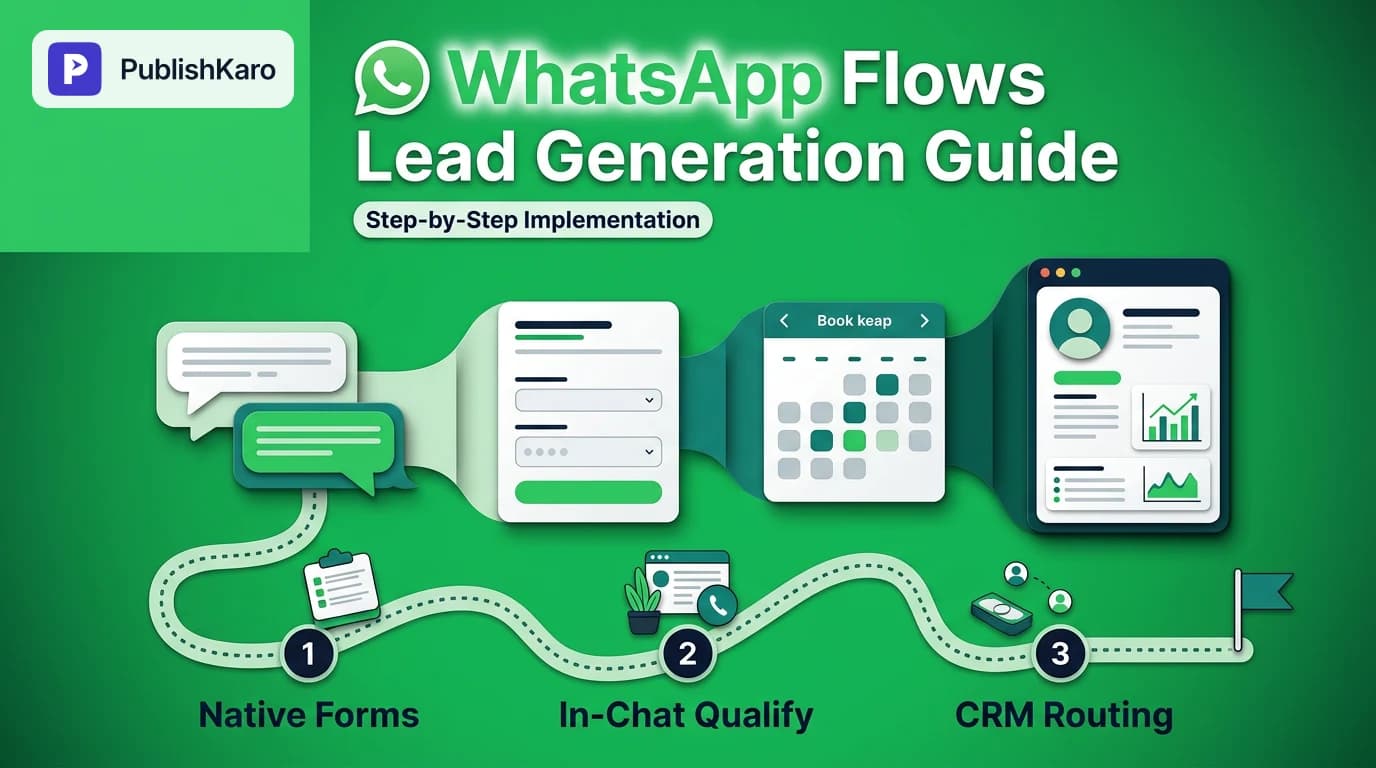
Native WhatsApp Connection Setup Steps
Follow these sequential steps in HubSpot to connect your dedicated phone number through Meta Business Manager.
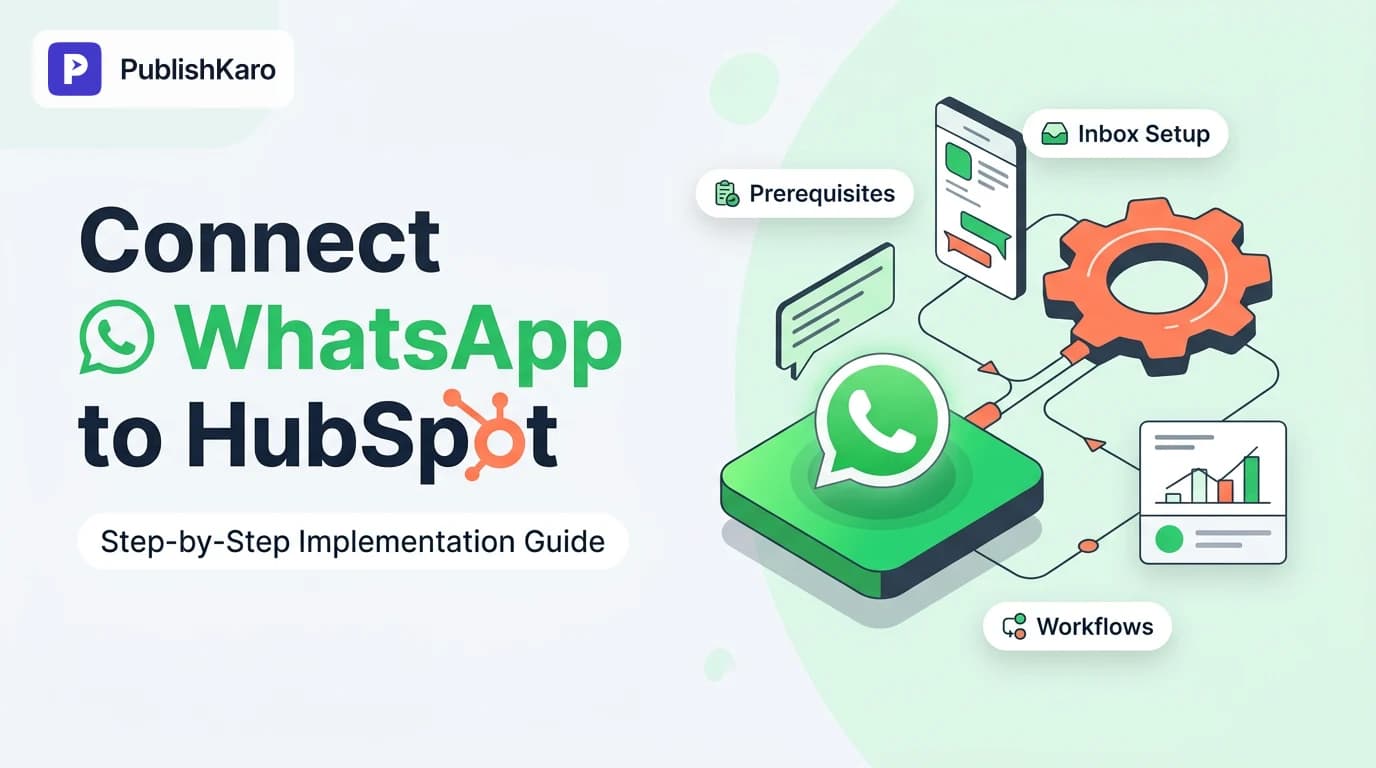
Picking Your WhatsApp Integration Method
Choose the right integration path based on your current HubSpot subscription tier and developer resources.
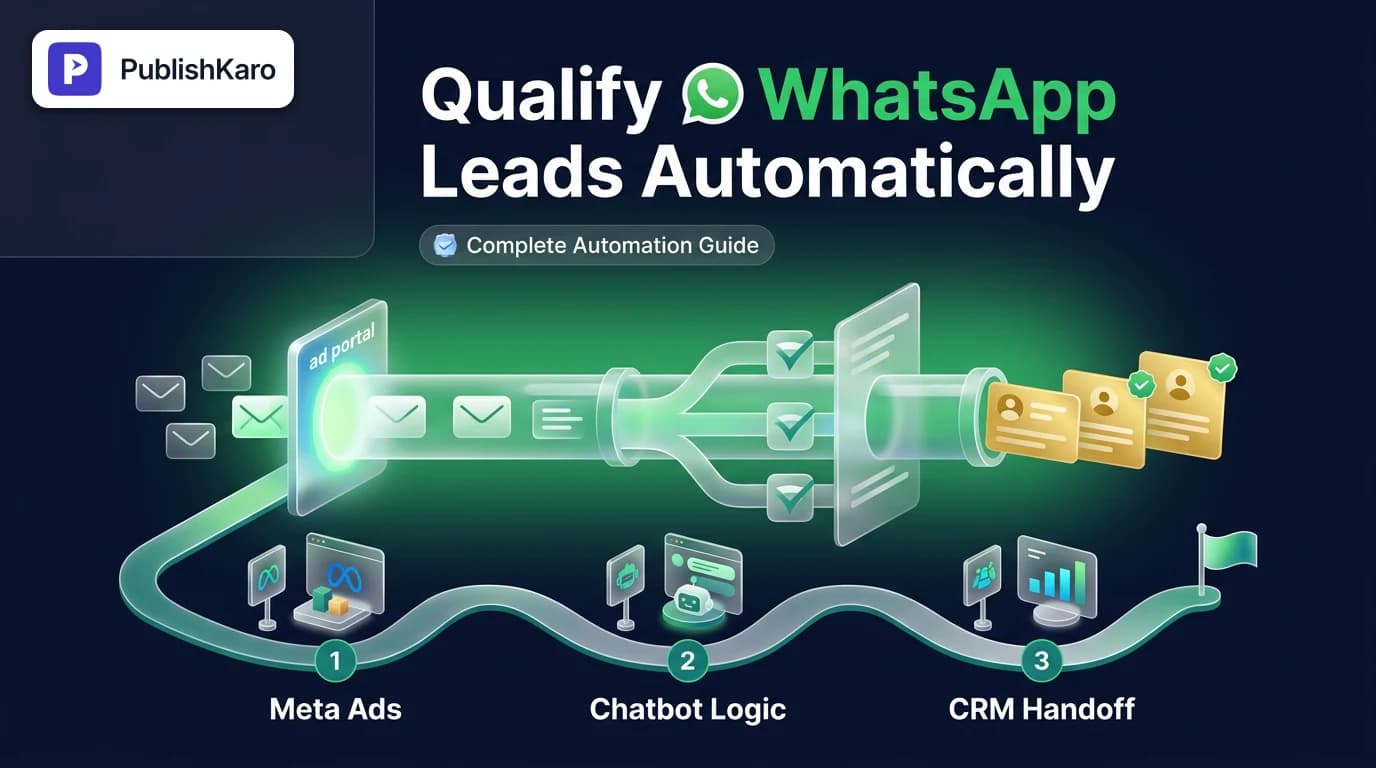
Automating Lead Follow-Up via WhatsApp
Trigger instant template messages when leads submit forms and route conversations based on their responses.
Practical Examples
Scenario 1: Automated Demo Booking for B2B Leads
A software consultancy receives inquiries via paid campaigns. Using HubSpot Workflows, every new form submission triggers a WhatsApp template message: "Hi {{contact.firstname}}, thanks for your inquiry. Would you like to view our calendar link right here?" When the lead replies, HubSpot tags the contact, sets the lifecycle stage to "Sales Qualified Lead", and notifies the account executive in the shared inbox.
Scenario 2: Post-Purchase Updates for Ecommerce
An online brand built on Shopify captures customer phone numbers during checkout. Using a synchronized HubSpot workflow, the store triggers transactional utility messages whenever shipping statuses update, reducing inbound customer support tickets by keeping tracking information easily accessible on mobile devices.
Scenario 3: Local Service Emergency Routing
A home repair business routes high-priority emergency keywords (e.g., "leak", "outage") to an urgent WhatsApp queue. HubSpot's inbox triggers an automated text acknowledging the issue while creating a high-priority service ticket assigned to the technician currently on call.
Checklist
Review this implementation checklist before deploying your WhatsApp integration to live customers:
- Clean phone number acquired and confirmed not registered on any active mobile WhatsApp app.
- Ability to receive SMS or voice verification codes on the chosen number confirmed.
- Full admin permissions secured for the company's Meta Business Manager account.
- Meta Business verification documents prepared (business license, utility bill).
- Appropriate HubSpot subscription confirmed (Marketing/Service Hub Pro for native integration, or alternative connector selected).
- Conversations Inbox created and default agent routing permissions assigned.
- Business hours and automated out-of-office responses configured.
- Standard message templates submitted to Meta and approved for utility and marketing notifications.
- Opt-in consent language added to relevant website forms and checkout pages.
- End-to-end test conducted: inbound message received, contact created, workflow triggered, and reply logged.
Monitoring, Quality Ratings, and Best Practices
Connecting the tools is only the first step. Maintaining ongoing message delivery requires close attention to Meta's quality metrics.
Tracking Phone Number Quality Rating
Meta assigns a quality rating (Green/High, Yellow/Medium, Red/Low) to your WhatsApp business phone number inside the WhatsApp Manager. If users frequently block or report your messages as spam, your rating falls. If it remains low, Meta restricts your messaging limits—reducing the number of unique recipients you can initiate conversations with in a rolling 24-hour period.
Structuring Data Across Your Tech Stack
Ensure phone numbers are stored in standard international E.164 format (e.g., +[country code][subscriber number]). Inconsistent phone formatting is the primary reason CRM workflows fail to dispatch outbound WhatsApp templates.
Teams running omni-channel acquisition—from Meta ads to content marketing documented on our agency blog—benefit immensely from keeping lead records unified. For businesses wanting end-to-end assistance connecting complex digital architectures, PublishKaro handles custom projects across web design, advertising, and workflow automation. Every scope is established after a free call, quoted at a fixed price agreed in writing, and delivers full ownership of all assets to the client.
For more insights into modern automation and search best practices, review Google's technical documentation on structured data fundamentals or explore our AI automation archive for complementary guides.
Key Takeaways
- Dedicated Number Required: You cannot use a phone number actively tied to a personal or standard business smartphone app; release the number before setup.
- Select the Right Path: Native integration is accessible for Marketing Hub and Service Hub Professional/Enterprise users, while third-party BSPs support Starter tiers.
- Respect the 24-Hour Rule: Free-form replies are permitted within 24 hours of customer contact; beyond that window, pre-approved Meta message templates are mandatory.
- Automate with Workflows: Connect WhatsApp activity to HubSpot workflows to qualify leads instantly, advance deal stages, and assign tasks to sales reps.
- Prioritize Consent: Collect verifiable opt-ins on all forms to maintain high Meta quality ratings and safeguard your sending limits.
Frequently asked questions
Can I use my existing WhatsApp Business mobile app number with HubSpot?
You cannot run the same phone number concurrently on the WhatsApp Business mobile app and HubSpot's API integration. To use an existing number, you must delete your WhatsApp account from the mobile app settings first, which releases it for registration on the WhatsApp Business Platform.
Do I need HubSpot Professional or Enterprise to connect WhatsApp?
HubSpot's native WhatsApp integration requires Marketing Hub or Service Hub at the Professional or Enterprise level. However, accounts on Free or Starter plans can still connect WhatsApp by utilizing third-party apps available in the HubSpot App Marketplace or through custom API webhooks.
What happens when someone replies to our WhatsApp message after 24 hours?
If a customer messages your business after 24 hours of inactivity, a new 24-hour customer service window opens, allowing your team to respond with standard, free-form text. If your team needs to reach out first after the window has closed, you must use an approved WhatsApp message template.
Can multiple team members respond to WhatsApp chats from HubSpot?
Yes, incoming WhatsApp chats route directly to HubSpot's shared Conversations Inbox. Team members with appropriate permissions can view, claim, assign, and respond to incoming chats collaboratively without needing physical access to a shared mobile device.
Are there additional costs to send WhatsApp messages from HubSpot?
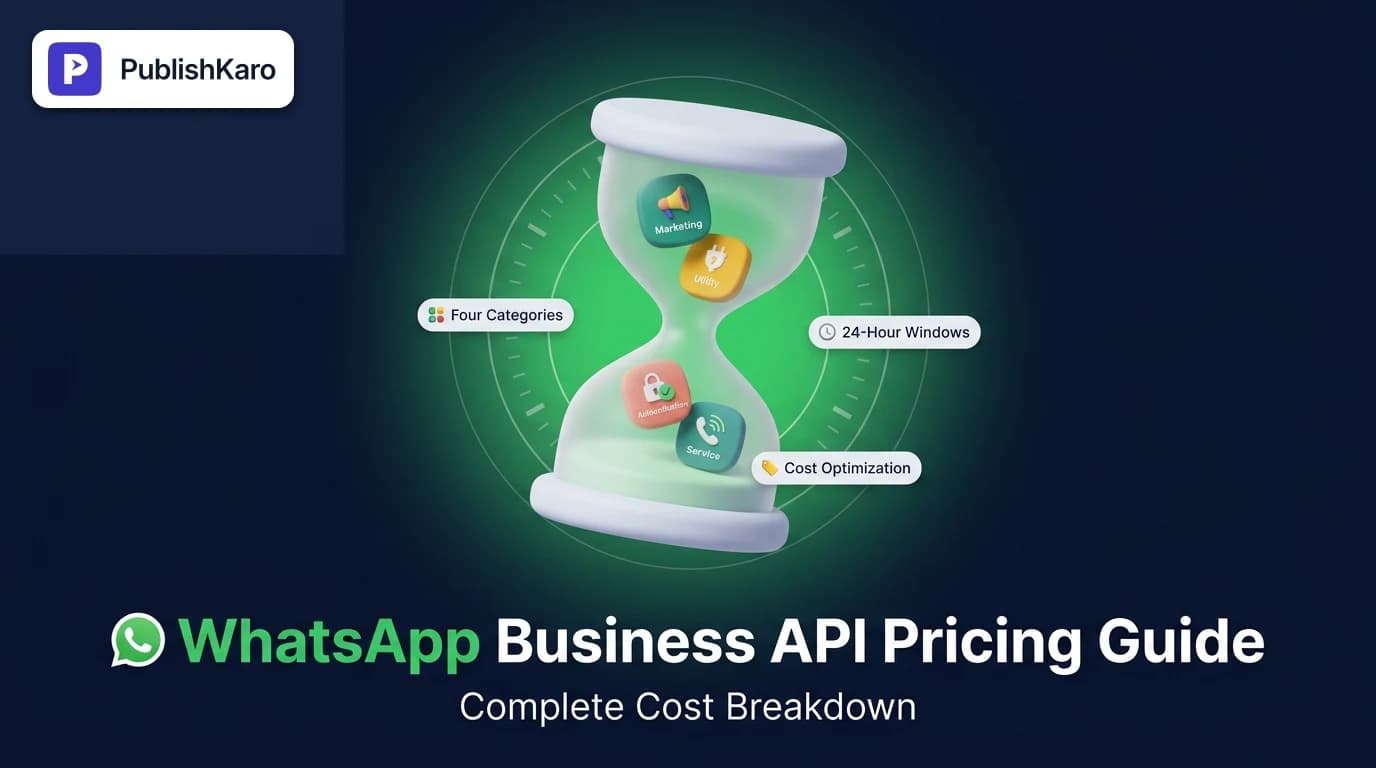
While the native integration tool is included in supported HubSpot subscription tiers, Meta charges per-conversation fees based on message categories (marketing, utility, service, and authentication) and recipient country codes. These usage fees are billed directly through your Meta Business Manager account.
Can WhatsApp messages trigger automated workflows in HubSpot?
Yes, WhatsApp events such as incoming messages, template delivery, or specific button clicks can serve as enrollment triggers in HubSpot Workflows. You can automatically update contact properties, adjust lifecycle stages, create deals, or send internal notifications.